TABLE OF CONTENTS
Overview
Trigger Name
Trigger Description
How to Configure
Example
Overview #
The LinkedIn Lead Form Submitted trigger is designed to capture leads from LinkedIn Lead Gen forms submitted by users and then route them into a workflow for further actions. This allows you to automate tasks such as follow-ups or lead management processes based on the submission of LinkedIn forms.
Trigger Name #
LinkedIn Lead Form Submitted
Trigger Description #
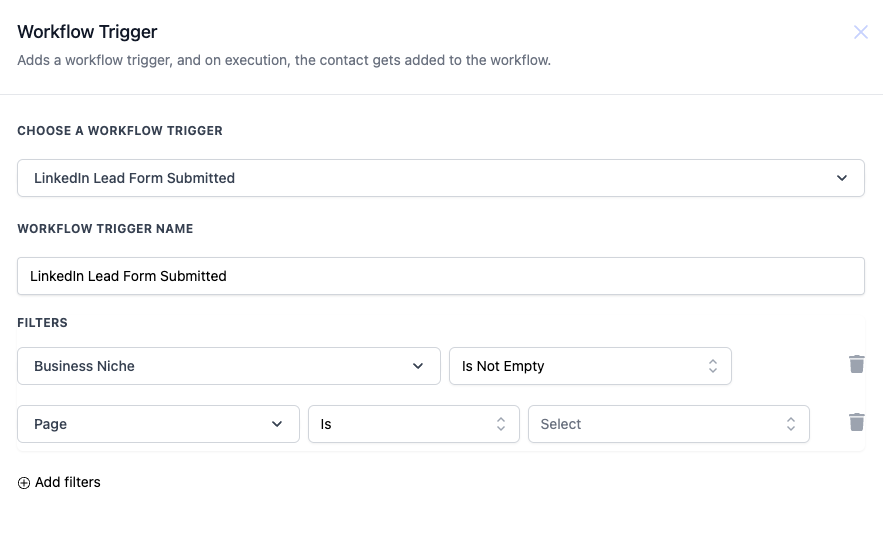
This trigger initiates the workflow when a contact submits a LinkedIn Lead Form. You can also apply filters, such as Business Niche or Page, to refine the contacts that should enter the workflow based on additional criteria.
Trigger Details #
| Field Name | Description | Mandatory |
| Business Niche | The business niche associated with the contact submitting the LinkedIn lead form. | No |
| Page | The LinkedIn Page from which the lead form submission is coming. You can select specific pages. | Yes |
| Operator | Description |
| Equals to | Triggers if the field value equals the input value. |
| Is Not Empty | Triggers if the field value is not empty. |
| Is Empty | Triggers if the field value is empty. |
| Is | Triggers if the field matches exactly the selected value. |
| Contains Phrase | Triggers if the field contains the entered phrase. |
| Does Not Contain Phrase | Triggers if the field does not contain the entered phrase. |
#
How to Configure #
- Step 1: Select LinkedIn Lead Form Submitted from the list of workflow triggers.
- Step 2: Name the trigger, such as “New LinkedIn Leads.”
- Step 3:Add relevant filters:
- For example, choose Business Niche and set the operator to Is Not Empty if you want to ensure the lead has a defined business niche.
- Choose Page to specify the LinkedIn page where the lead form was submitted from.
- Step 4: Save the configuration and proceed to define the actions or steps to follow after the trigger fires.
Please Note: This trigger would only work once you have integrated with LinkedIn on the platform. For this you can go to the Integrations tab and integrate LinkedIn
Example #
You want to capture all leads submitted through a specific LinkedIn page in the Education niche. Configure the trigger with:
- Business Niche = Is Not Empty
- Page = Specific LinkedIn Page
This ensures that any form submission meeting these conditions enters the workflow for follow-up actions like lead nurturing emails or a sales team alert.


