TABLE OF CONTENTS
Overview
Action Name
Action Description
Action Details
Example
Overview #
The WhatsApp action allows you to send WhatsApp messages directly from a workflow. This feature is useful for creating dynamic, real-time communication with your customers through whatsapp. You can send manual messages or use pre-approved templates.
Action Name #
Action Description #
The WhatsApp Send Message action enables the automatic sending of messages to customers via WhatsApp based on workflow triggers. This action can be configured to send free-form text messages within the 24-hour messaging window or pre-approved templates to initiate conversations outside the window. Particularly useful for reaching your audience, whether you’re following up on inquiries, sending appointment confirmations, or delivering promotional content.
Key Features:
- Send real-time WhatsApp messages directly from a workflow.
- Use pre-approved templates for messages outside the 24-hour window.
- Customize messages with dynamic variables (e.g., contact name, email).
- Support for both business-initiated and customer-initiated conversations.
Action Details #
Step-by-Step Guide
- Prerequisites:
- Ensure that WhatsApp is enabled and set up on your aixios account. For business-initiated conversations, ensure that you have approved WhatsApp message templates. You can refer to the WhatsApp Subaccount Setup and How to Create a WhatsApp Template for more information.
- Choose the Action Type:
- In your workflow builder, select “WhatsApp” from the list of available actions.
- Name Your Action:
- Give the action a descriptive name, such as “Customer replied.”
- Select Message Type:
- WhatsApp Template: Choose a pre-approved template to send messages outside the 24-hour window.
- Save and Activate:
- Save your action and activate the workflow to send WhatsApp messages to your contacts based on the defined triggers.
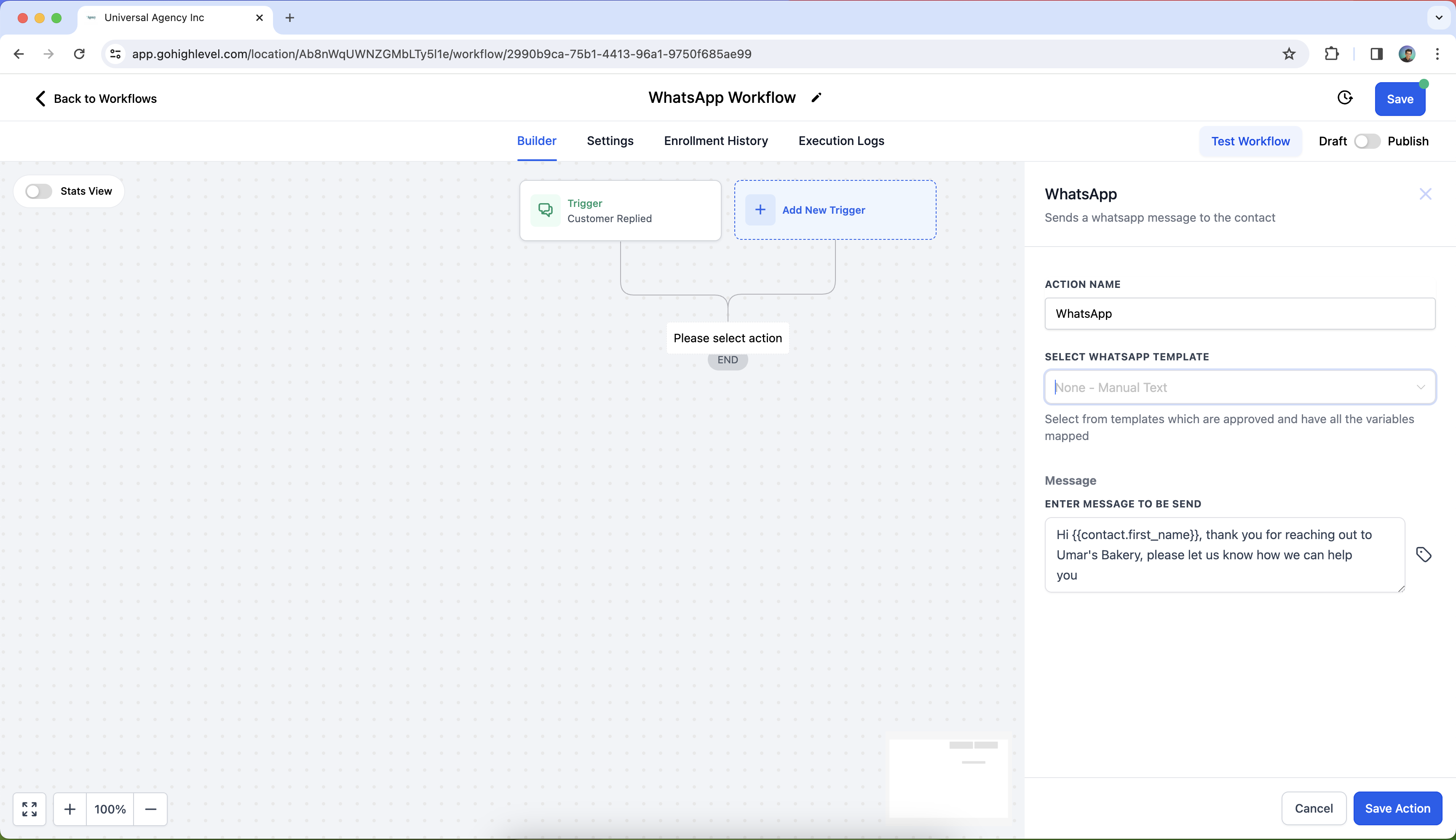
Key Notes: #
- Free Entry Point Conversations: Customers responding to a WhatsApp message open a Free Entry Point conversation, which allows you to send free-form or template messages for up to 72 hours at no additional cost.
- Do Not Disturb (DND): You can set up DND for WhatsApp to manage customer communication preferences and respect those who opt out.
Example #
Scenario: A business wants to send appointment reminders via WhatsApp 24 hours before a scheduled meeting.
Workflow Setup:
- Trigger: Appointment Reminder
- Action:WhatsApp Send Message
- Name: “Send WhatsApp Appointment Reminder”
- Message Type: Template – Appointment Reminder
- Template Content: “Hi {{contact.first_name}}, this is a reminder for your appointment scheduled on {{appointment.date}}.”
Outcome: The contact will automatically receive a personalized WhatsApp message reminding them about their upcoming appointment.


