TABLE OF CONTENTS
- Step 1: Navigate to WordPress Dashboard
- Step 2: Initiate the Site Cloning Process
- Step 3: Select Source Site and Configure Clone
- Step 4: Review & Finalize
- Helpful Tips
- Topic 1: User Permissions & Access Control
- Topic 2: Troubleshooting Common Issues
Step 1: Navigate to WordPress Dashboard #
Access the WordPress Dashboard.
- Go to your aiXios account and navigate to the WordPress section.
- Click on Create New or Select Blank WordPress.
[Note: Ensure you have the appropriate role-based permissions (Agency Owner, Agency User, or Account User) to view the cloning option.]
Step 2: Initiate the Site Cloning Process #
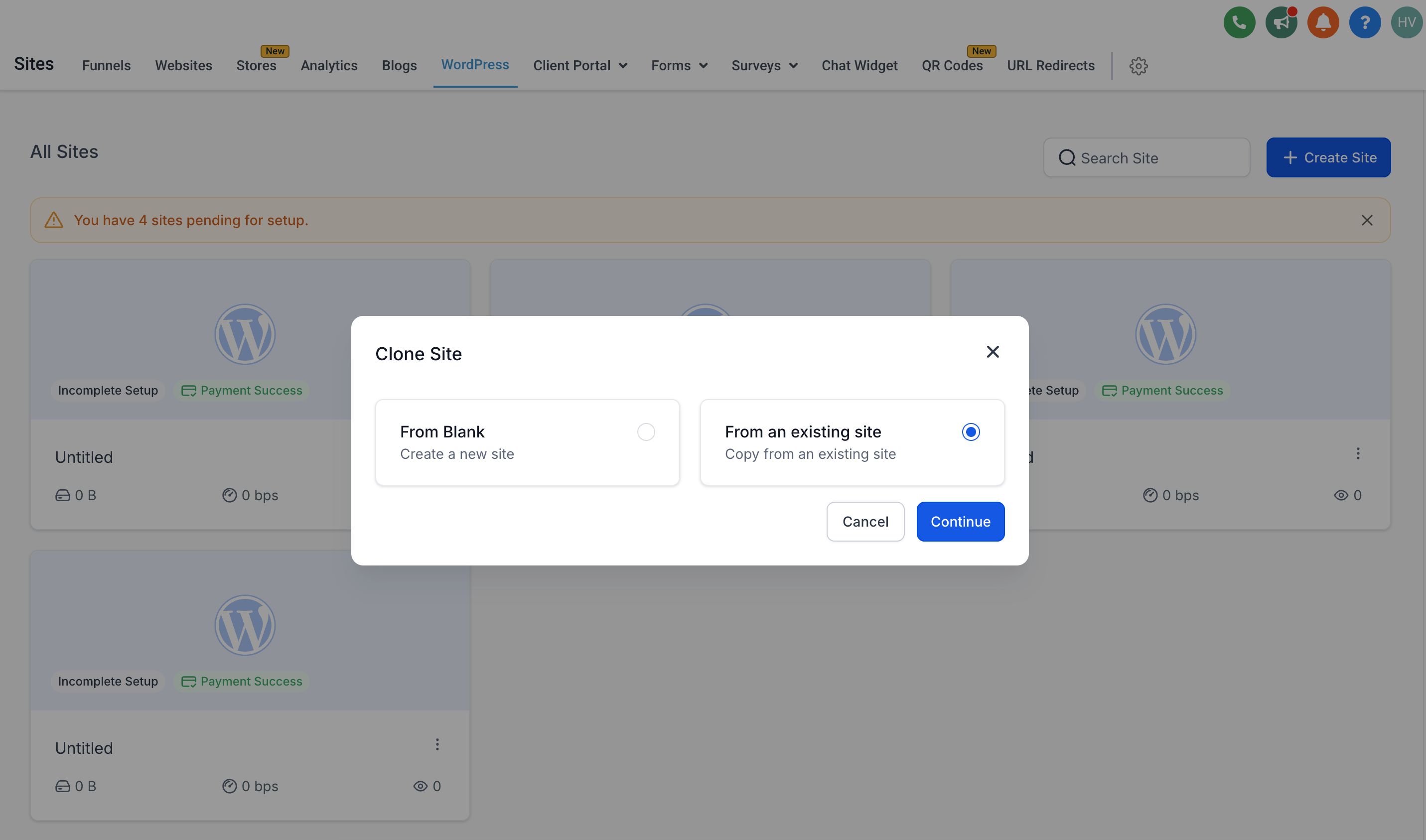
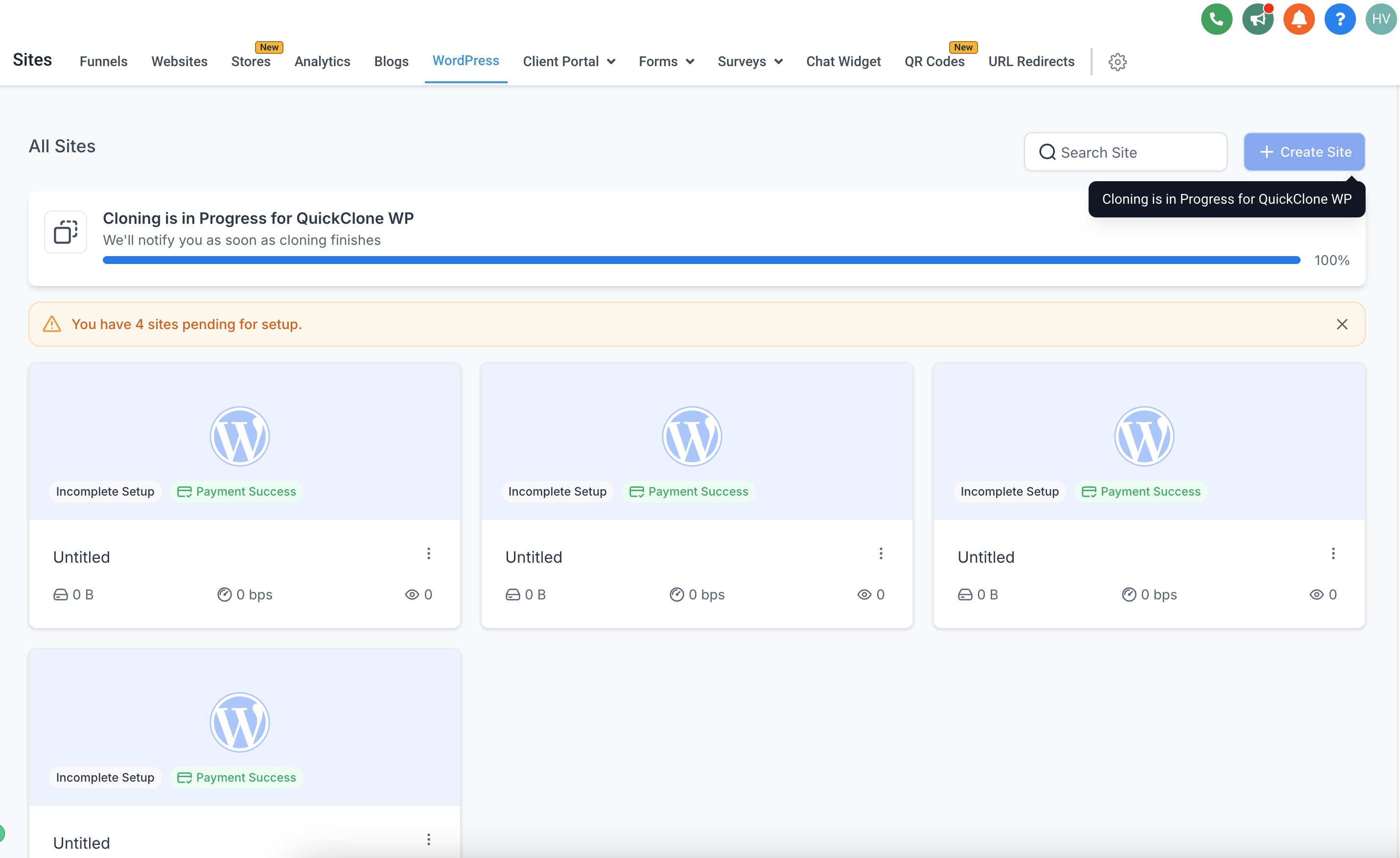
Locate the Clone using Existing Site option or Incomplete Setup Card.
- Click on the Incomplete Setup Card.
- Choose the option “Choose From Existing Site”.
[Tip: If the cloning option is not visible, it may be due to insufficient user permissions.]
Step 3: Select Source Site and Configure Clone #
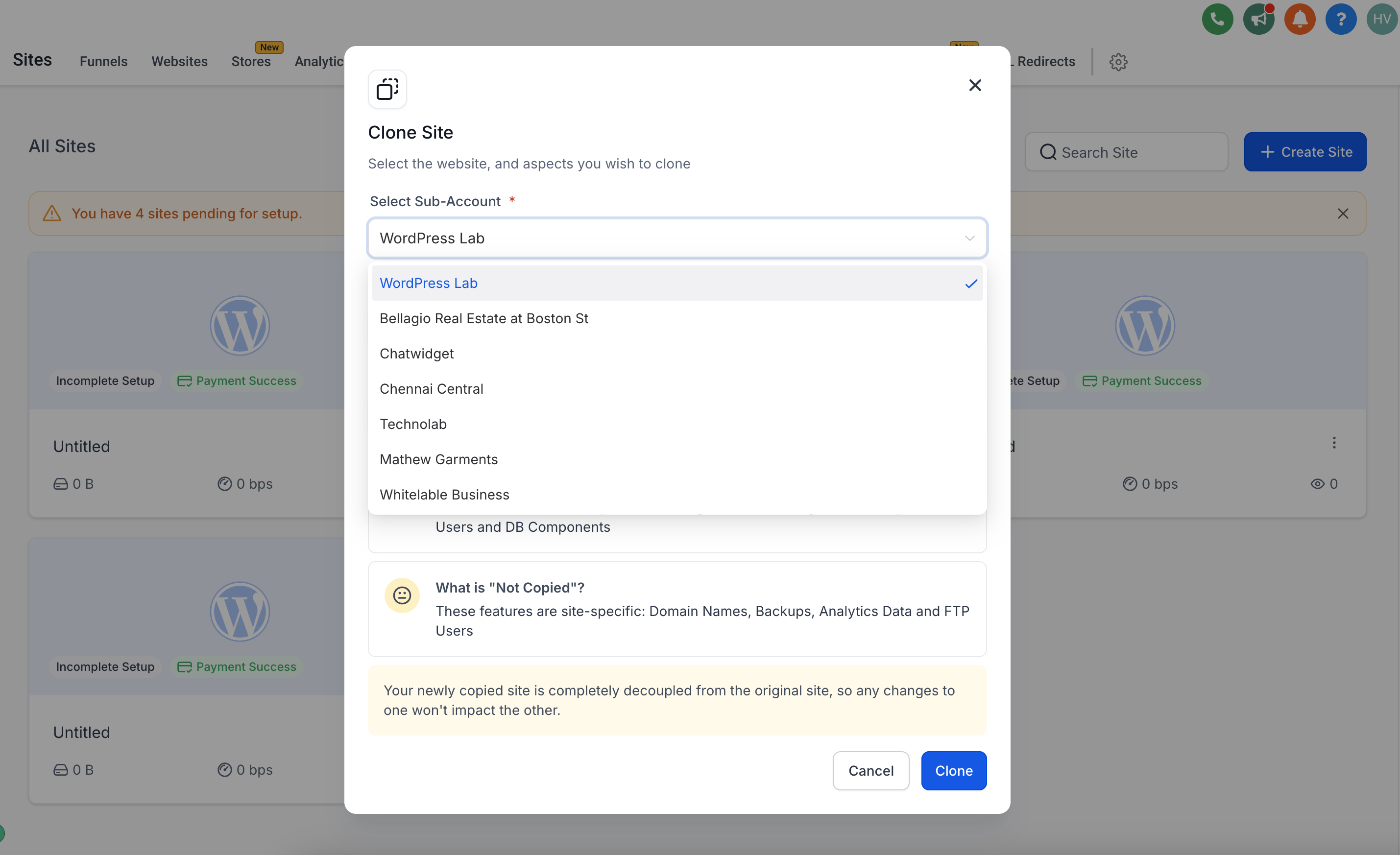
Select Sub-Account & Source Site.
- From the dropdown menu, select the Sub-Account.
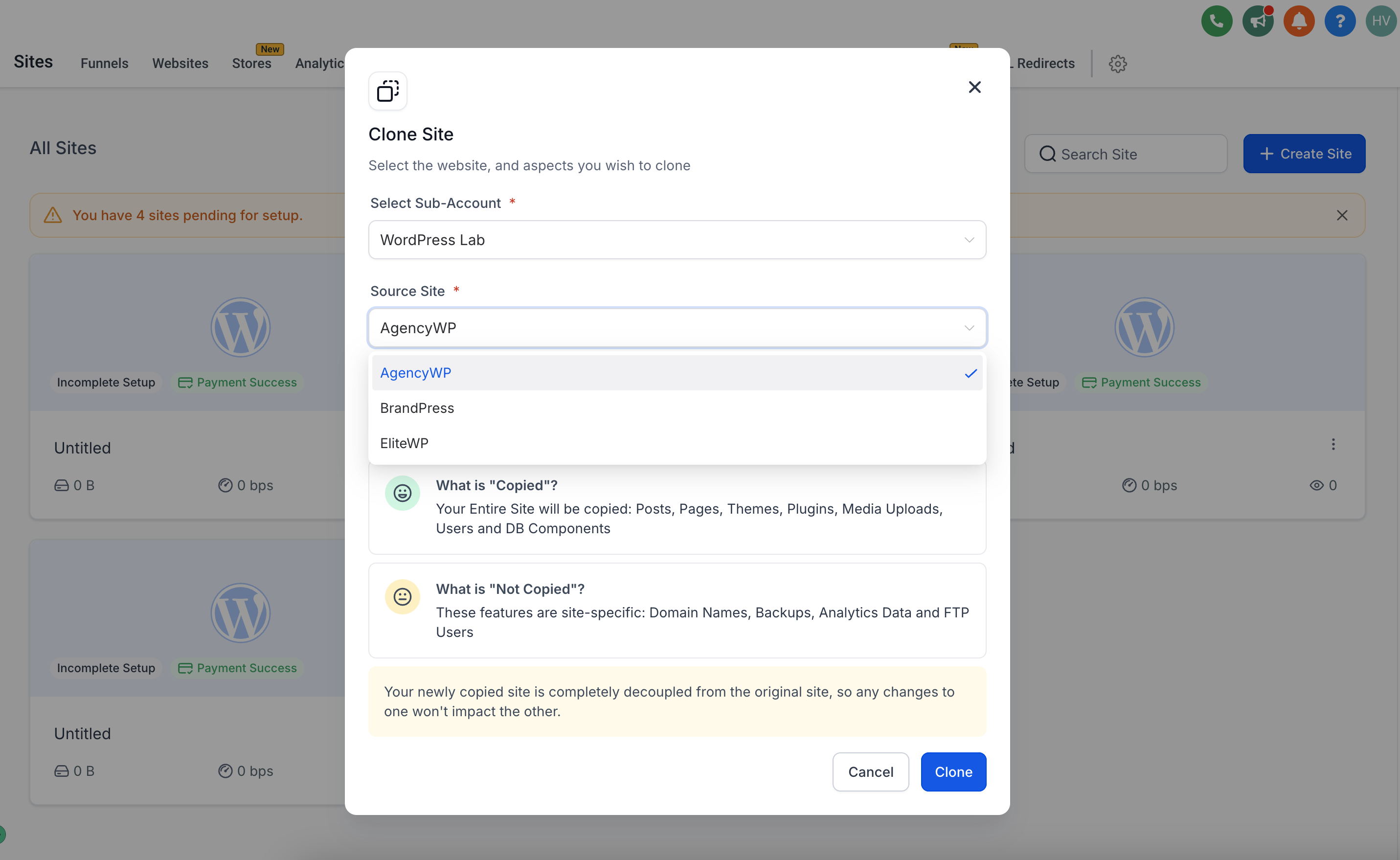
- Choose the Source Site you want to clone.
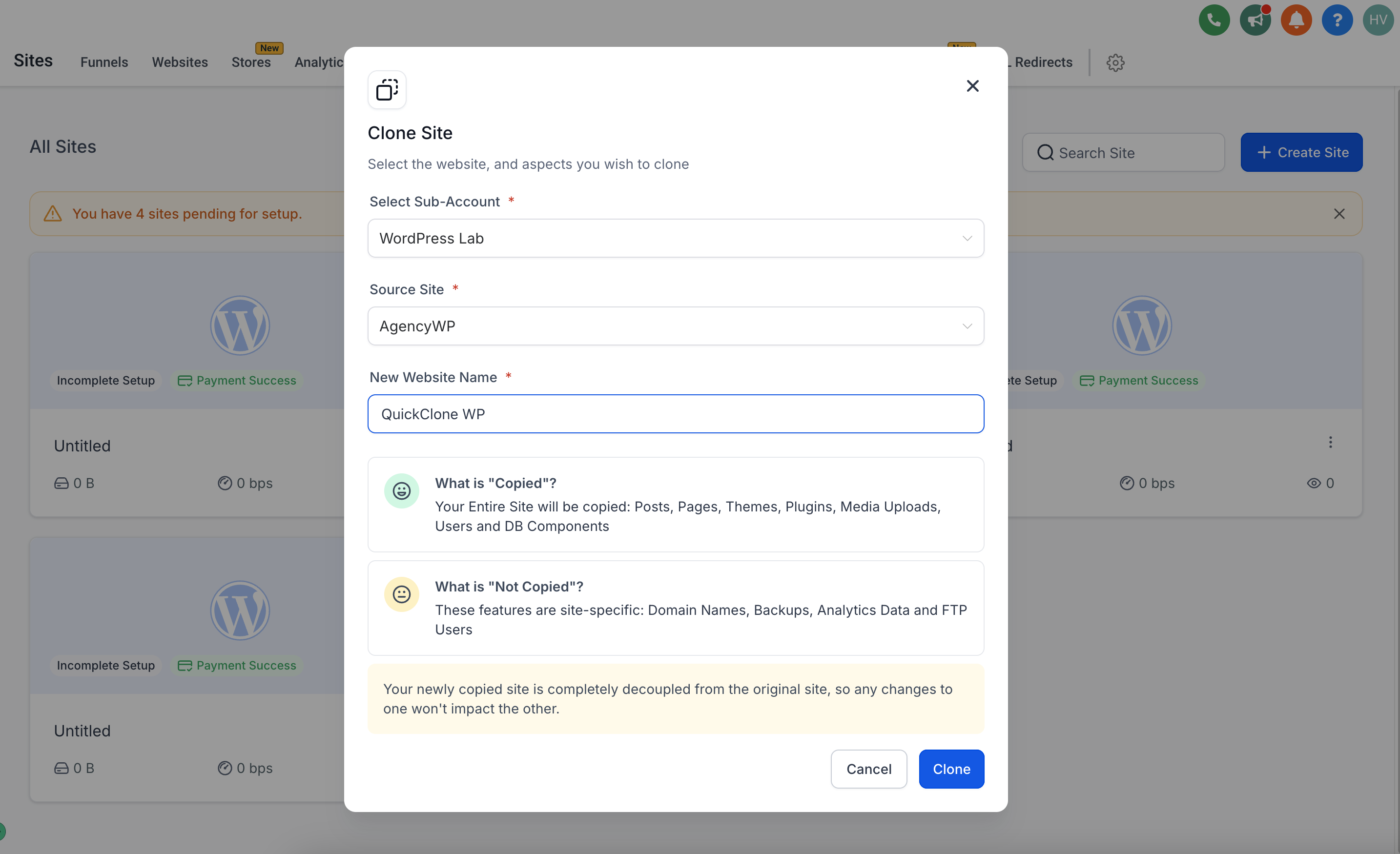
Enter New Site Details.
- Provide a name for your new cloned site in the New Website Name field.
- Click on the Clone button to start the process.
[Note:
- Users can monitor the progress with real-time indicators that show cloning status.
- If permissions do not align with cloning requirements, the system will default to the standard new site creation flow.]
Step 4: Review & Finalize #
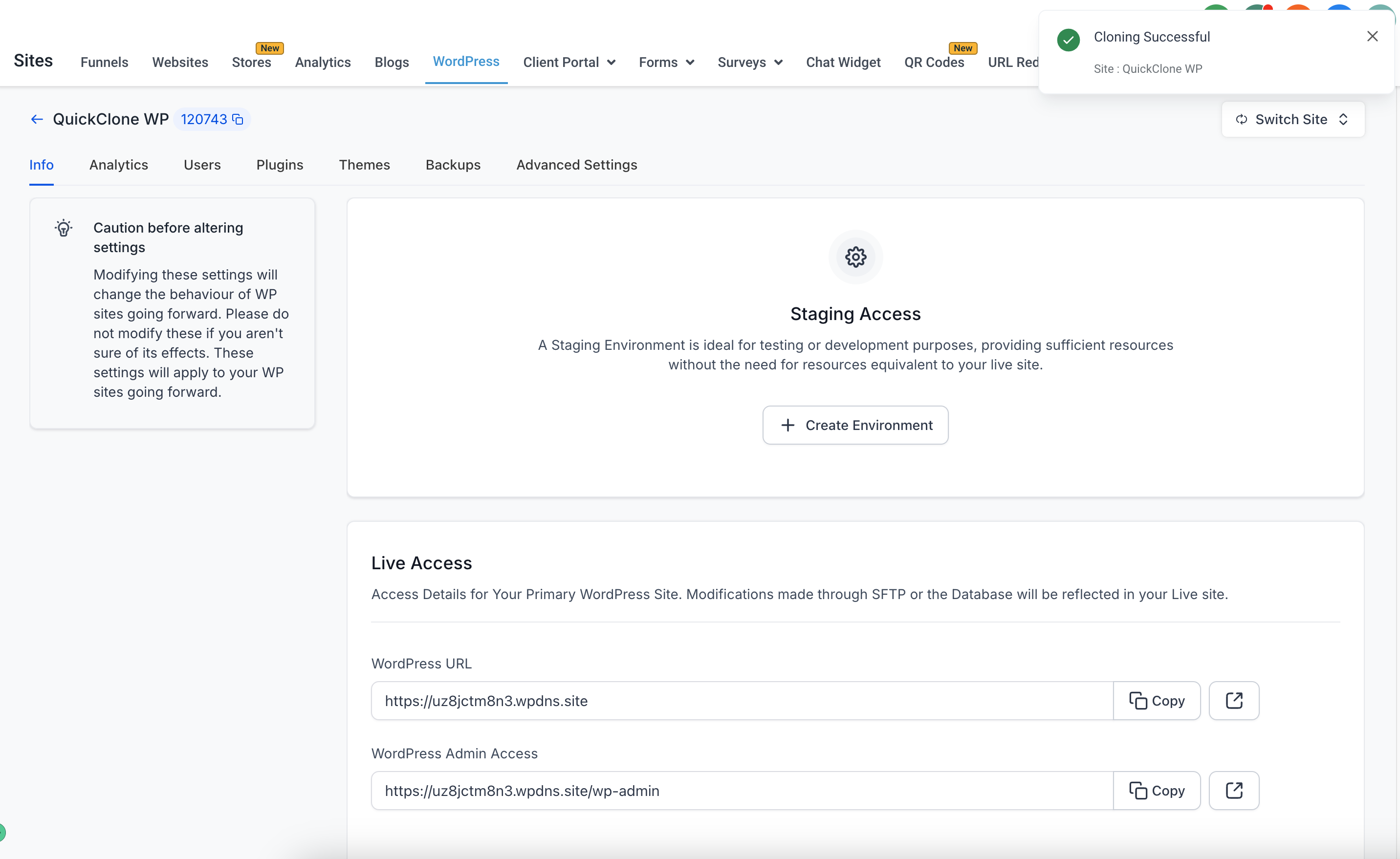
Access Your Newly Cloned Site.
- The cloned site will be fully independent from the original.
- Any changes made to either site will not impact the other.
[Note:
- You can manage your cloned sites just like any other WordPress site in your aiXios dashboard.]
Helpful Tips #
Topic 1: User Permissions & Access Control #
- Only users with specific roles (Agency Owners, Agency Users, Account Users within the same sub-account) have access to the cloning feature.
- Ensure your user role has the necessary permissions before attempting to clone a site.
Topic 2: Troubleshooting Common Issues #
- Issue: Cloning option not visible?
- Solution: Verify your user role permissions. Ensure you’re logged in with an Agency or Account-level access.
- Issue: Cloning process stuck?
- Solution: Refresh the dashboard and check the progress indicator. Contact support if the issue persists.
Learn More – For detailed documentation on managing user roles and permissions.
By following this guide, you can efficiently clone WordPress sites, ensuring consistent setups across multiple environments.


