This article will show you how to quickly set up live or on-demand webinars using Webinar Templates in aixios! Webinar Templates automatically insert your chosen video and form into a pre-designed webinar layout, so you can maintain brand consistency and reduce setup time.
TABLE OF CONTENTS
What are Webinar Templates?
Key Benefits of Using Webinar Templates
How to Create a Webinar with a Template
Managing Webinar Templates (for Agency Admins)
Additional Benefits of Using Webinar Templates
Frequently Asked Questions
What are Webinar Templates? #
Webinar Templates allow you to pre-design reusable layouts for webinars. When creating a webinar, your selected video and form will automatically replace the placeholders in the chosen template. This ensures fast setup and consistent branding across your webinars, whether they are live or on-demand.
Key Benefits of Using Webinar Templates #
Webinar Templates speed up webinar setup and ensure a cohesive look and feel across multiple webinars. This helps you deliver a professional experience to your audience while saving valuable time.
- Faster Webinar Setup: Launch webinars in minutes by auto-filling templates with your selected video and form.
- Consistent Branding: Maintain a unified brand experience with reusable, customizable templates.
- Flexible Template Management: Agency admins can upload, manage, and control template visibility for different subaccounts.
- Easy Customization: Start from a template or a blank slate, and personalize content as needed.
- Reduced Manual Work: Placeholders are automatically replaced, minimizing repetitive tasks.
How to Create a Webinar with a Template #
Creating a webinar using a template is simple. You can quickly apply a consistent design without manual formatting, so you can focus on your content and audience engagement.
- Navigate to Webinars and click Create Webinar (choose Live or On-Demand).
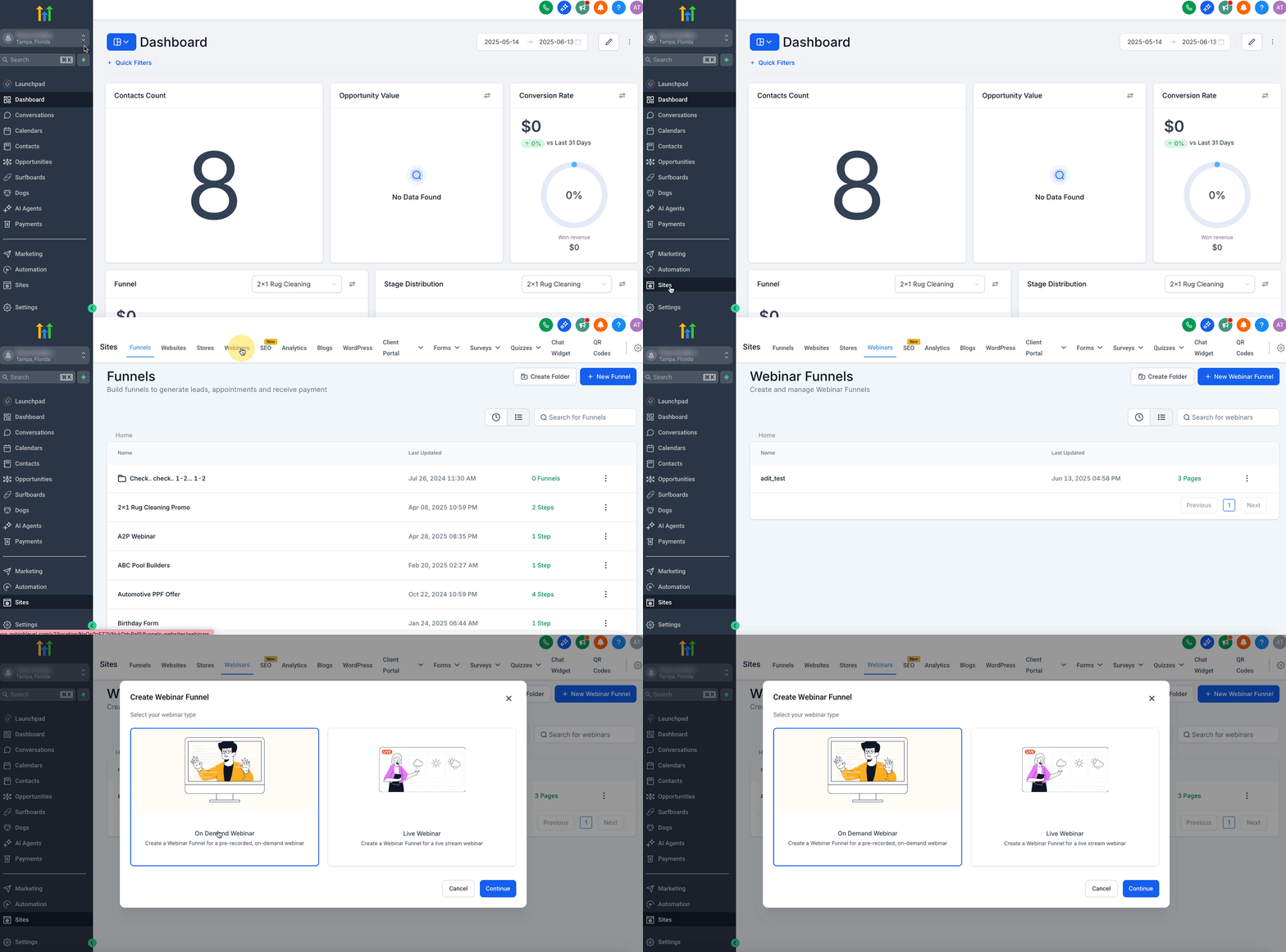
- Enter Webinar Details: Give your Webinar a name.
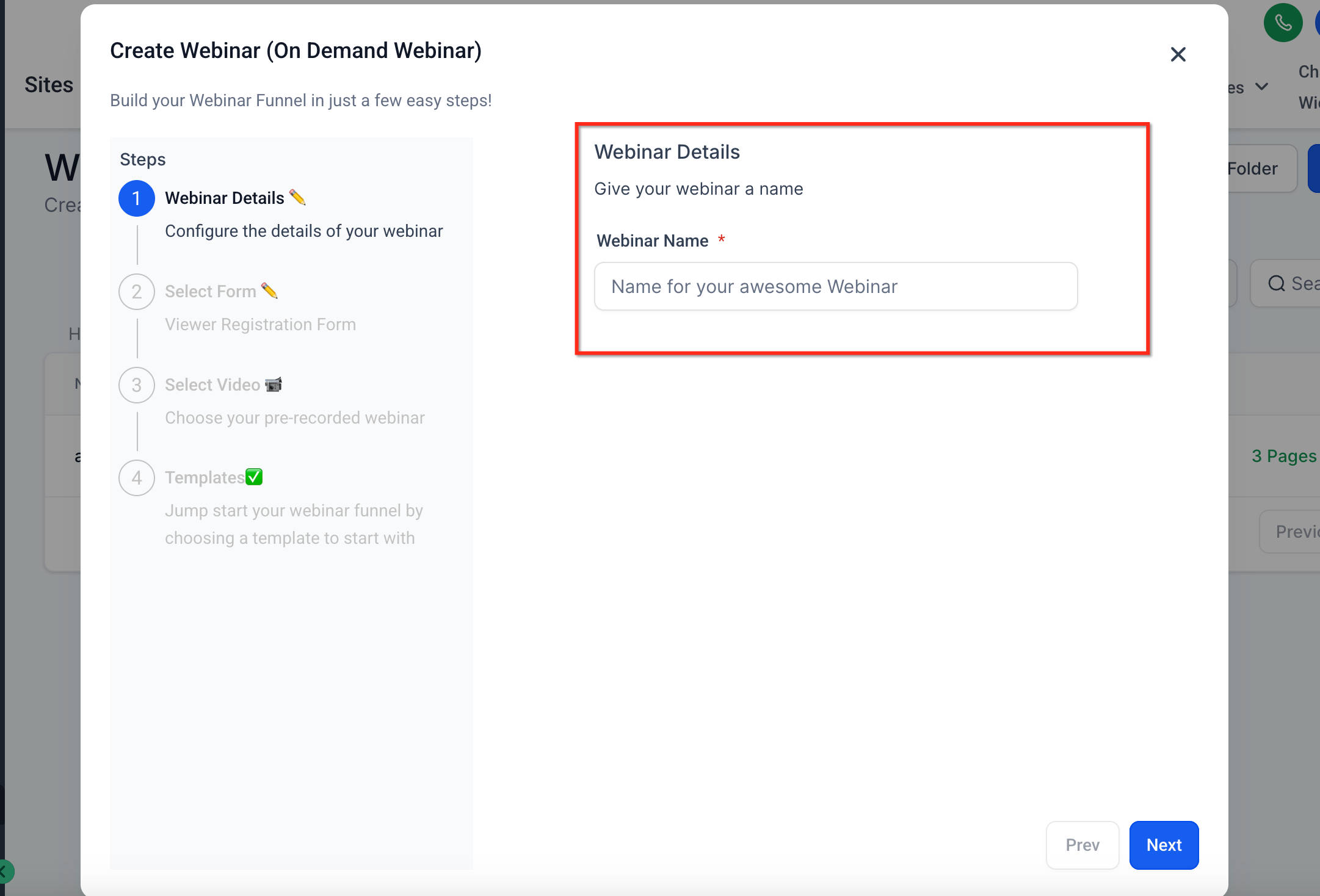
- Select your Form: Select a form for webinar registration.
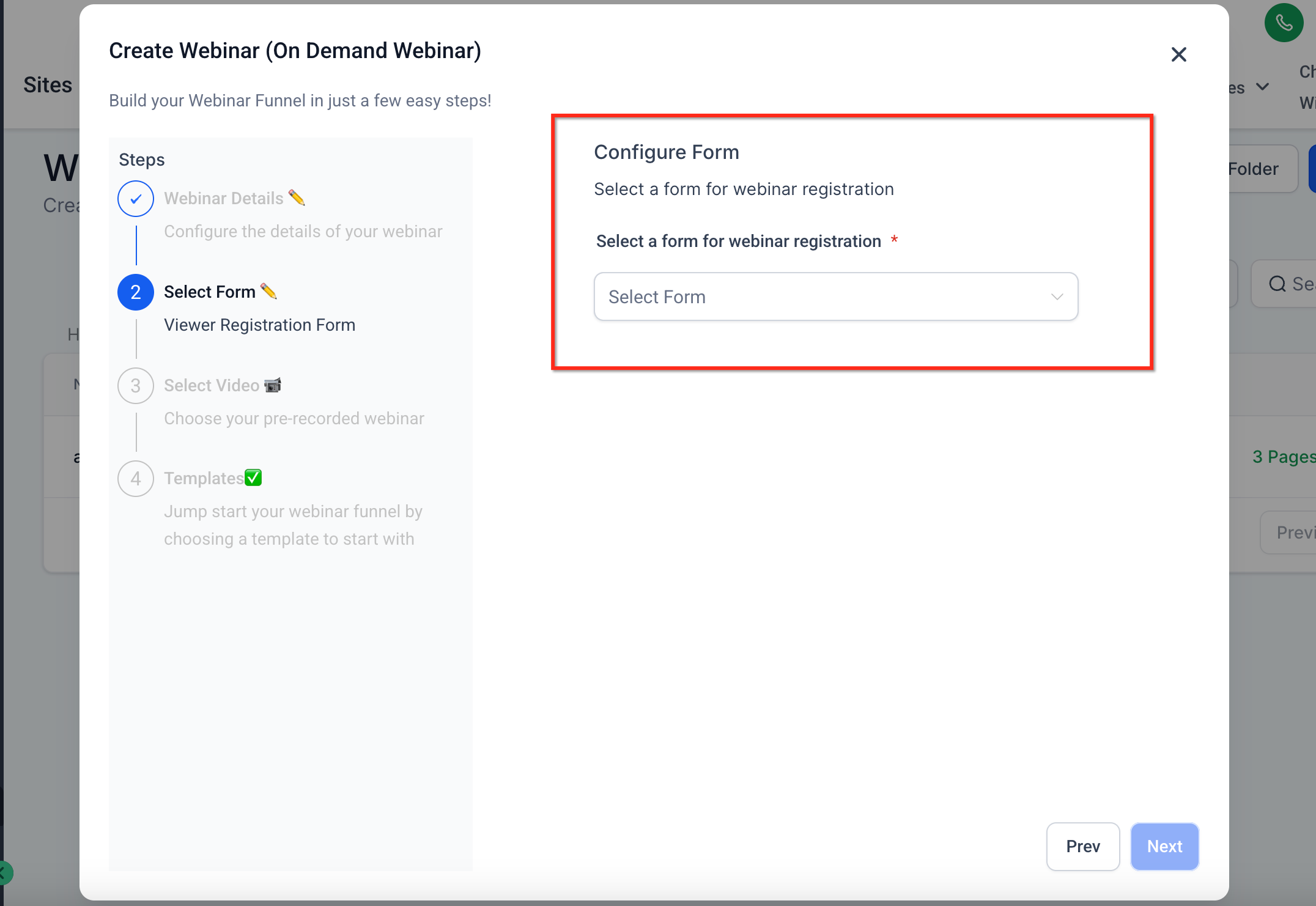
- Select Video: Choose your pre-recorded webinar
- Choose a Webinar Template from the list, or start from a blank template. Click Proceed. Your selected video and form will automatically replace placeholders in the template.

Managing Webinar Templates (for Agency Admins) #
Agency admins have additional controls for managing Webinar Templates. This helps ensure that subaccounts only see templates that match their branding and requirements.
- Navigate to Template Library → Select the Webinar category.

- To hide/show templates for subaccounts, click the visibility toggle next to each template.
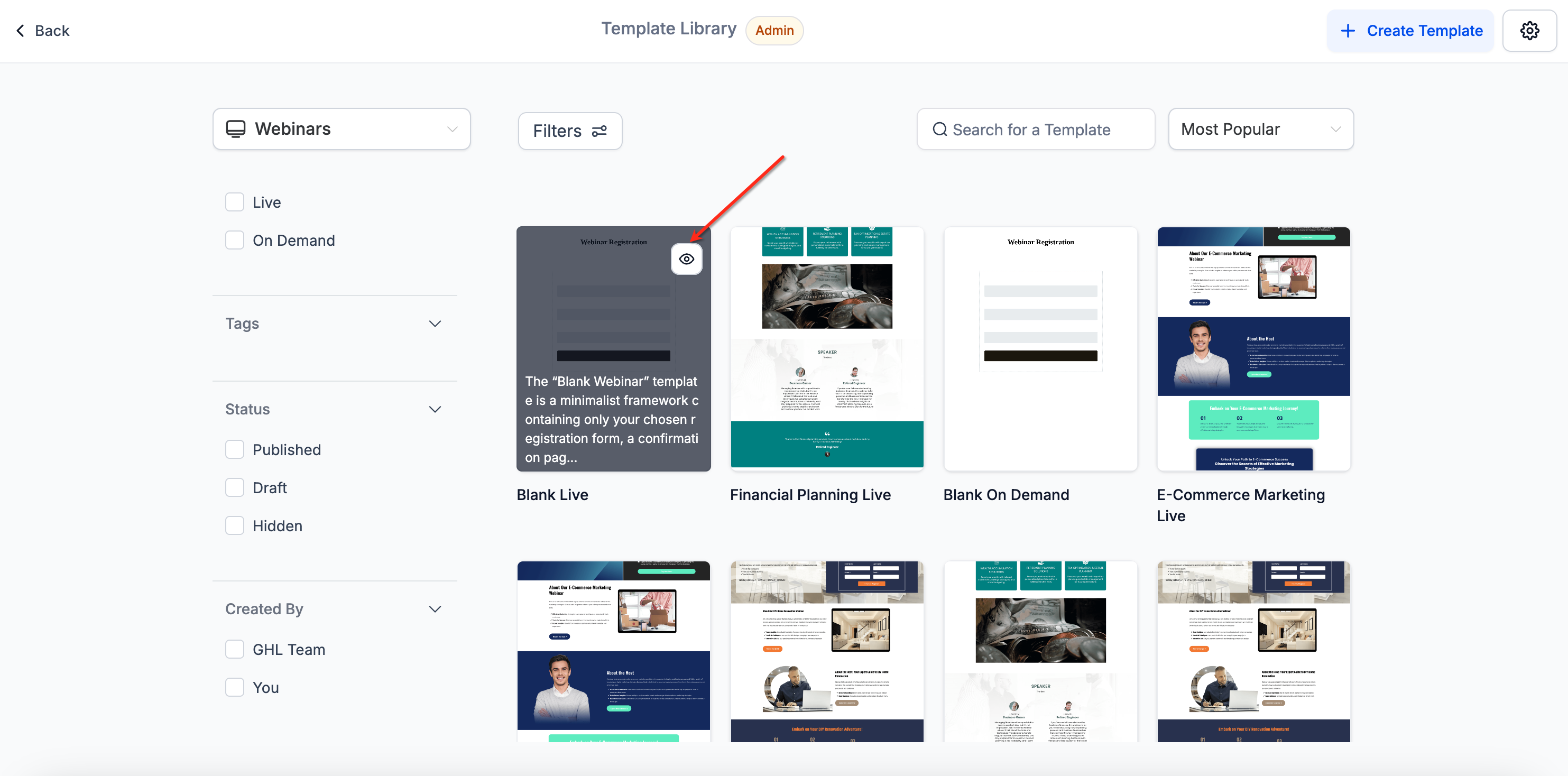
- To upload new templates, click Create → Upload a new Webinar Template. To customize the experience, manage which templates each subaccount can access and use.
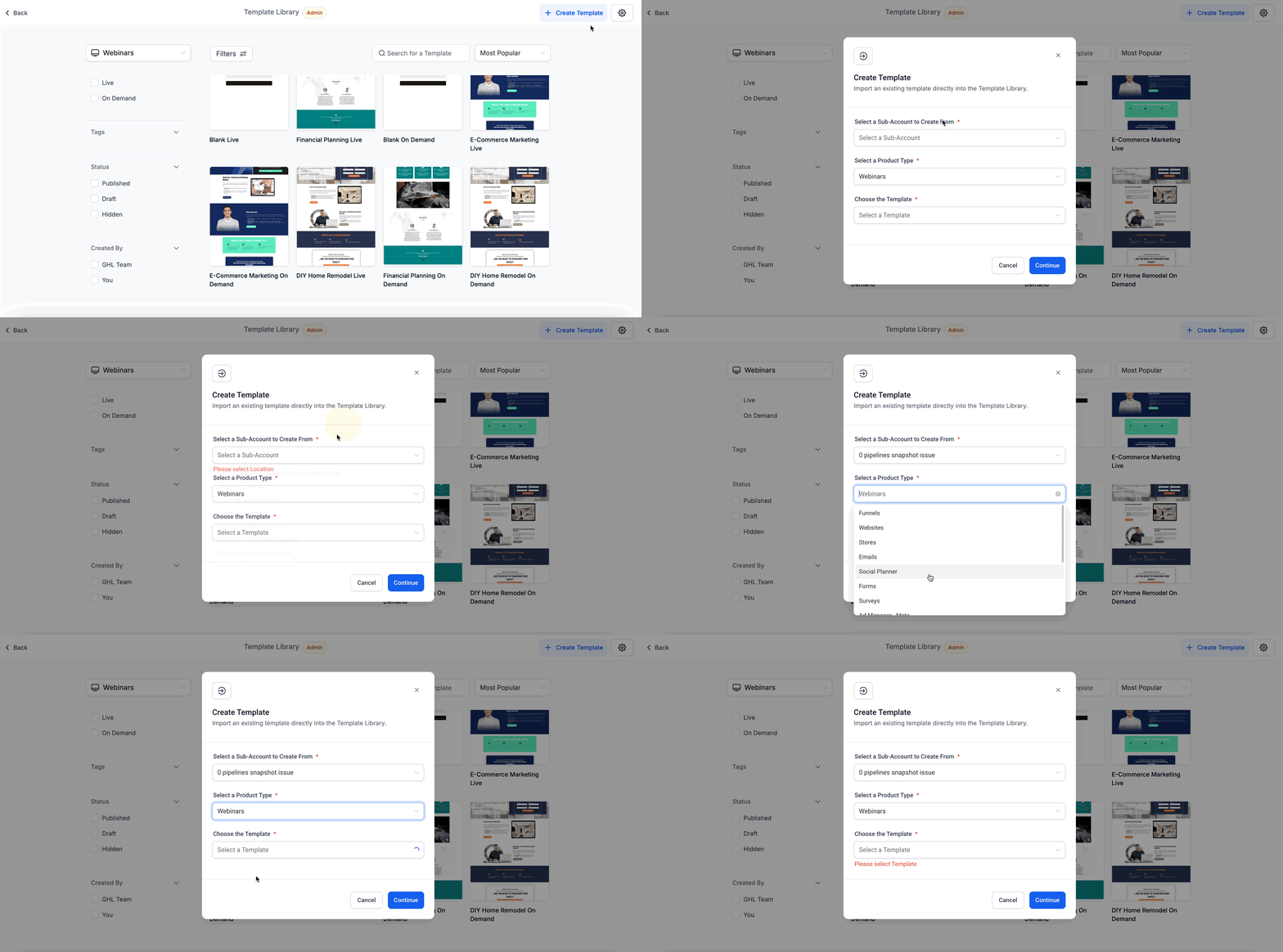
Please Note: The Default/blank templates cannot be hidden.
Additional Benefits of Using Webinar Templates #
Understanding how Webinar Templates work helps you take full advantage of their capabilities. These features are designed to save time and ensure high-quality webinars across your business.
- Automatic placeholder replacement: Your selected video and form will replace the placeholders in the chosen template.
- Reusable design: Templates can be used across multiple webinars to maintain consistent branding and layout.
- Visibility control: Agency admins can manage which templates subaccounts can access and use.
- Template Library integration: Webinar Templates live in your centralized Template Library, making them easy to find and manage.
Frequently Asked Questions #
Q: Can I create my own Webinar Templates?
Yes! Agency admins can upload new Webinar Templates via the Template Library.
Q: Can I change the video or form after applying a template?
Yes, you can edit the video or form in the webinar settings after applying a template.
Q: Can I hide default/blank templates?
No. Default/blank templates are always visible.
Q: Do templates support custom styling?
Yes, your custom template design will be preserved. Only the video and form placeholders are auto-replaced.
Q: Are Webinar Templates available to subaccounts by default?
Yes, unless an agency admin hides specific templates from subaccounts.
Q: Can I preview a template before using it?
Yes, templates can be previewed in the Template Library before selecting one.What are Webinar Templates?
Webinar Templates allow you to pre-design reusable layouts for webinars. When creating a webinar, your selected video and form will automatically replace the placeholders in the chosen template. This ensures fast setup and consistent branding across your webinars, whether they are live or on-demand.
Key Benefits of Using Webinar Templates #
Webinar Templates speed up webinar setup and ensure a cohesive look and feel across multiple webinars. This helps you deliver a professional experience to your audience while saving valuable time.
- Faster Webinar Setup: Launch webinars in minutes by auto-filling templates with your selected video and form.
- Consistent Branding: Maintain a unified brand experience with reusable, customizable templates.
- Flexible Template Management: Agency admins can upload, manage, and control template visibility for different subaccounts.
- Easy Customization: Start from a template or a blank slate, and personalize content as needed.
- Reduced Manual Work: Placeholders are automatically replaced, minimizing repetitive tasks.
How to Create a Webinar with a Template #
Creating a webinar using a template is simple. You can quickly apply a consistent design without manual formatting, so you can focus on your content and audience engagement.
- Navigate to Webinars and click Create Webinar (choose Live or On-Demand).
- Enter Webinar Details: Give your Webinar a name.
- Select your Form: Select a form for webinar registration.
- Select Video: Choose your pre-recorded webinar
- Choose a Webinar Template from the list, or start from a blank template. Click Proceed. Your selected video and form will automatically replace placeholders in the template.
Managing Webinar Templates (for Agency Admins) #
Agency admins have additional controls for managing Webinar Templates. This helps ensure that subaccounts only see templates that match their branding and requirements.
- Navigate to Template Library → Select the Webinar category.
- To hide/show templates for subaccounts, click the visibility toggle next to each template.
- To upload new templates, click Create → Upload a new Webinar Template. To customize the experience, manage which templates each subaccount can access and use.
Please Note: The Default/blank templates cannot be hidden.
Additional Benefits of Using Webinar Templates #
Understanding how Webinar Templates work helps you take full advantage of their capabilities. These features are designed to save time and ensure high-quality webinars across your business.
- Automatic placeholder replacement: Your selected video and form will replace the placeholders in the chosen template.
- Reusable design: Templates can be used across multiple webinars to maintain consistent branding and layout.
- Visibility control: Agency admins can manage which templates subaccounts can access and use.
- Template Library integration: Webinar Templates live in your centralized Template Library, making them easy to find and manage.
Frequently Asked Questions #
Q: Can I create my own Webinar Templates?
Yes! Agency admins can upload new Webinar Templates via the Template Library.
Q: Can I change the video or form after applying a template?
Yes, you can edit the video or form in the webinar settings after applying a template.
Q: Can I hide default/blank templates?
No. Default/blank templates are always visible.
Q: Do templates support custom styling?
Yes, your custom template design will be preserved. Only the video and form placeholders are auto-replaced.
Q: Are Webinar Templates available to subaccounts by default?
Yes, unless an agency admin hides specific templates from subaccounts.
Q: Can I preview a template before using it?
Yes, templates can be previewed in the Template Library before selecting one.What are Webinar Templates?
Webinar Templates allow you to pre-design reusable layouts for webinars. When creating a webinar, your selected video and form will automatically replace the placeholders in the chosen template. This ensures fast setup and consistent branding across your webinars, whether they are live or on-demand.
Key Benefits of Using Webinar Templates #
Webinar Templates speed up webinar setup and ensure a cohesive look and feel across multiple webinars. This helps you deliver a professional experience to your audience while saving valuable time.
- Faster Webinar Setup: Launch webinars in minutes by auto-filling templates with your selected video and form.
- Consistent Branding: Maintain a unified brand experience with reusable, customizable templates.
- Flexible Template Management: Agency admins can upload, manage, and control template visibility for different subaccounts.
- Easy Customization: Start from a template or a blank slate, and personalize content as needed.
- Reduced Manual Work: Placeholders are automatically replaced, minimizing repetitive tasks.
How to Create a Webinar with a Template #
Creating a webinar using a template is simple. You can quickly apply a consistent design without manual formatting, so you can focus on your content and audience engagement.
- Navigate to Webinars and click Create Webinar (choose Live or On-Demand).
- Enter Webinar Details: Give your Webinar a name.
- Select your Form: Select a form for webinar registration.
- Select Video: Choose your pre-recorded webinar
- Choose a Webinar Template from the list, or start from a blank template. Click Proceed. Your selected video and form will automatically replace placeholders in the template.
Managing Webinar Templates (for Agency Admins) #
Agency admins have additional controls for managing Webinar Templates. This helps ensure that subaccounts only see templates that match their branding and requirements.
- Navigate to Template Library → Select the Webinar category.
- To hide/show templates for subaccounts, click the visibility toggle next to each template.
- To upload new templates, click Create → Upload a new Webinar Template. To customize the experience, manage which templates each subaccount can access and use.
Please Note: The Default/blank templates cannot be hidden.
Additional Benefits of Using Webinar Templates #
Understanding how Webinar Templates work helps you take full advantage of their capabilities. These features are designed to save time and ensure high-quality webinars across your business.
- Automatic placeholder replacement: Your selected video and form will replace the placeholders in the chosen template.
- Reusable design: Templates can be used across multiple webinars to maintain consistent branding and layout.
- Visibility control: Agency admins can manage which templates subaccounts can access and use.
- Template Library integration: Webinar Templates live in your centralized Template Library, making them easy to find and manage.
Frequently Asked Questions #
Q: Can I create my own Webinar Templates?
Yes! Agency admins can upload new Webinar Templates via the Template Library.
Q: Can I change the video or form after applying a template?
Yes, you can edit the video or form in the webinar settings after applying a template.
Q: Can I hide default/blank templates?
No. Default/blank templates are always visible.
Q: Do templates support custom styling?
Yes, your custom template design will be preserved. Only the video and form placeholders are auto-replaced.
Q: Are Webinar Templates available to subaccounts by default?
Yes, unless an agency admin hides specific templates from subaccounts.
Q: Can I preview a template before using it?
Yes, templates can be previewed in the Template Library before selecting one.What are Webinar Templates?
Webinar Templates allow you to pre-design reusable layouts for webinars. When creating a webinar, your selected video and form will automatically replace the placeholders in the chosen template. This ensures fast setup and consistent branding across your webinars, whether they are live or on-demand.
Key Benefits of Using Webinar Templates #
Webinar Templates speed up webinar setup and ensure a cohesive look and feel across multiple webinars. This helps you deliver a professional experience to your audience while saving valuable time.
- Faster Webinar Setup: Launch webinars in minutes by auto-filling templates with your selected video and form.
- Consistent Branding: Maintain a unified brand experience with reusable, customizable templates.
- Flexible Template Management: Agency admins can upload, manage, and control template visibility for different subaccounts.
- Easy Customization: Start from a template or a blank slate, and personalize content as needed.
- Reduced Manual Work: Placeholders are automatically replaced, minimizing repetitive tasks.
How to Create a Webinar with a Template #
Creating a webinar using a template is simple. You can quickly apply a consistent design without manual formatting, so you can focus on your content and audience engagement.
- Navigate to Webinars and click Create Webinar (choose Live or On-Demand).
- Enter Webinar Details: Give your Webinar a name.
- Select your Form: Select a form for webinar registration.
- Select Video: Choose your pre-recorded webinar
- Choose a Webinar Template from the list, or start from a blank template. Click Proceed. Your selected video and form will automatically replace placeholders in the template.
Managing Webinar Templates (for Agency Admins) #
Agency admins have additional controls for managing Webinar Templates. This helps ensure that subaccounts only see templates that match their branding and requirements.
- Navigate to Template Library → Select the Webinar category.
- To hide/show templates for subaccounts, click the visibility toggle next to each template.
- To upload new templates, click Create → Upload a new Webinar Template. To customize the experience, manage which templates each subaccount can access and use.
Please Note: The Default/blank templates cannot be hidden.
Additional Benefits of Using Webinar Templates #
Understanding how Webinar Templates work helps you take full advantage of their capabilities. These features are designed to save time and ensure high-quality webinars across your business.
- Automatic placeholder replacement: Your selected video and form will replace the placeholders in the chosen template.
- Reusable design: Templates can be used across multiple webinars to maintain consistent branding and layout.
- Visibility control: Agency admins can manage which templates subaccounts can access and use.
- Template Library integration: Webinar Templates live in your centralized Template Library, making them easy to find and manage.
Frequently Asked Questions #
Q: Can I create my own Webinar Templates?
Yes! Agency admins can upload new Webinar Templates via the Template Library.
Q: Can I change the video or form after applying a template?
Yes, you can edit the video or form in the webinar settings after applying a template.
Q: Can I hide default/blank templates?
No. Default/blank templates are always visible.
Q: Do templates support custom styling?
Yes, your custom template design will be preserved. Only the video and form placeholders are auto-replaced.
Q: Are Webinar Templates available to subaccounts by default?
Yes, unless an agency admin hides specific templates from subaccounts.
Q: Can I preview a template before using it?
Yes, templates can be previewed in the Template Library before selecting one.


