Introducing better template management feature in our Template Library for Agency admins.
Problem Statement: Previously, admins navigated through multiple subaccounts to import required templates, which was time-consuming.
?
What we did:
- Direct Create: Templates can now be imported/ created directly from the Admin screen.
- Streamlined Process: Choose sub-accounts, preview templates, and rename them seamlessly.
⭐
Benefits:
- Efficiency: Saves time by consolidating template management into one screen.
- Simplified Workflow: Eliminates complexity across screens and sub-accounts.
?
How It Works:
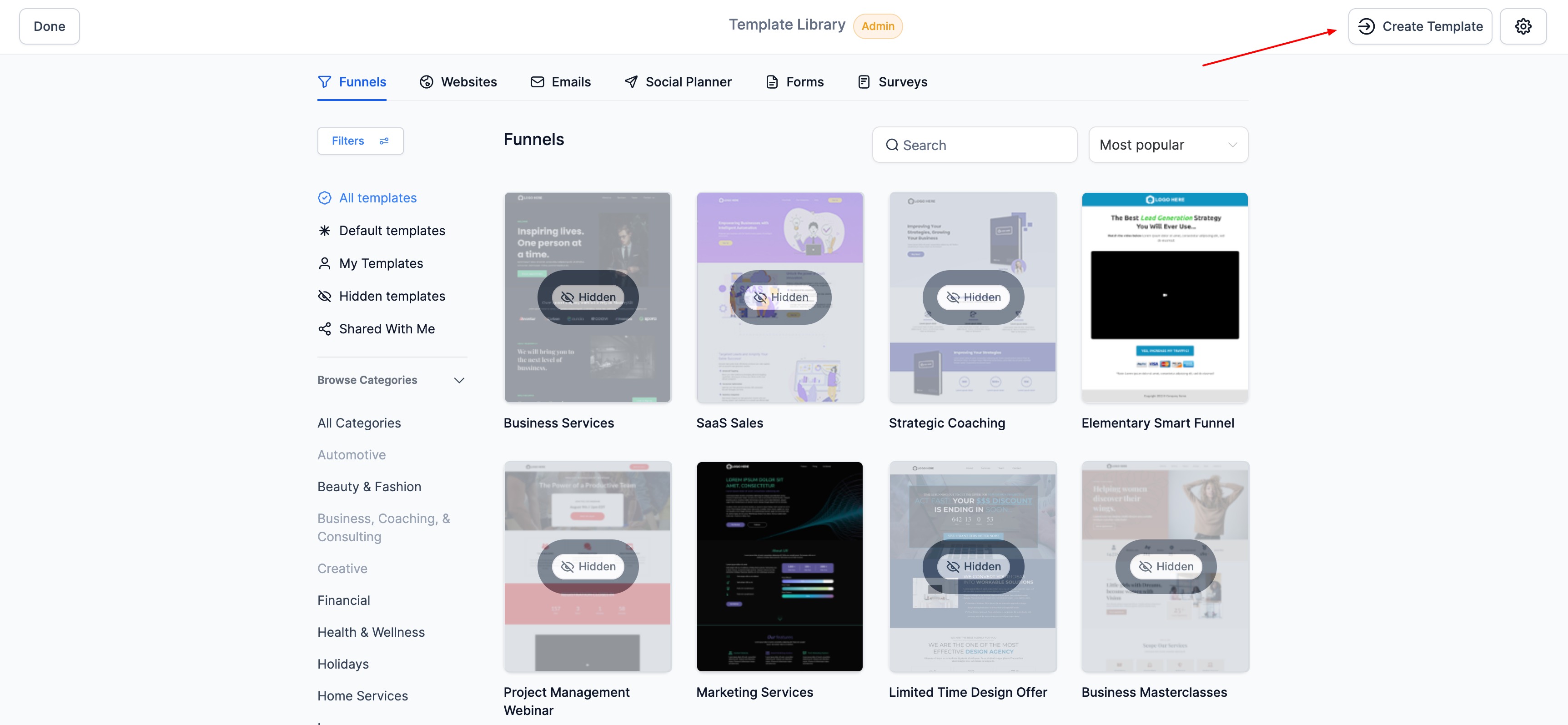
- – Navigate to Template Library – Admin.
- – Click “Create” at the top right.
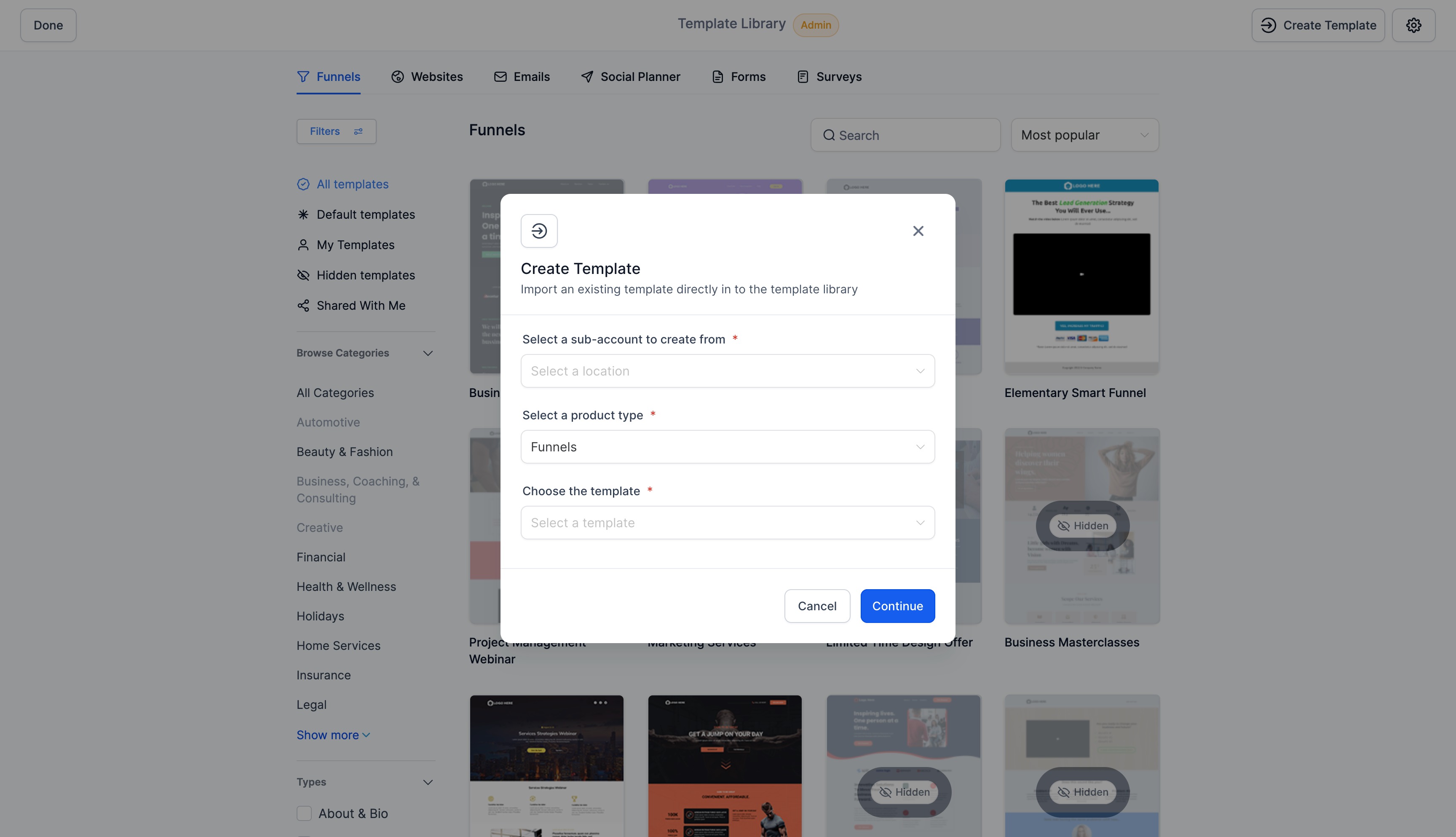
- – Choose the sub-account, product, and template name.

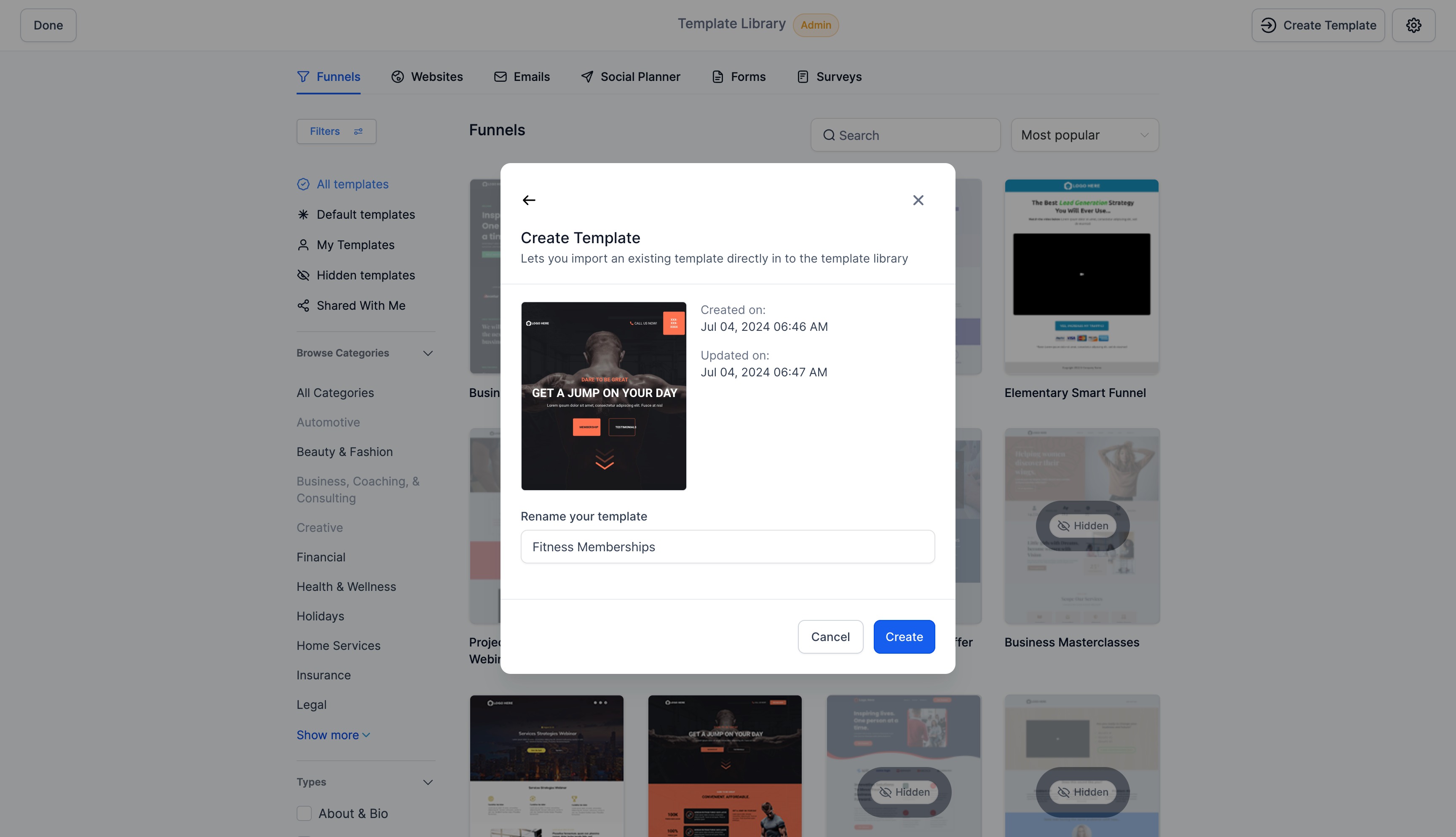
- – Click “Continue” to preview the template thumbnail. Click on the thumbnail to see the entire preview in a different screen
- – Rename the template if needed.
- – Click “Create” to finalize.
- – Update details like description and categories.
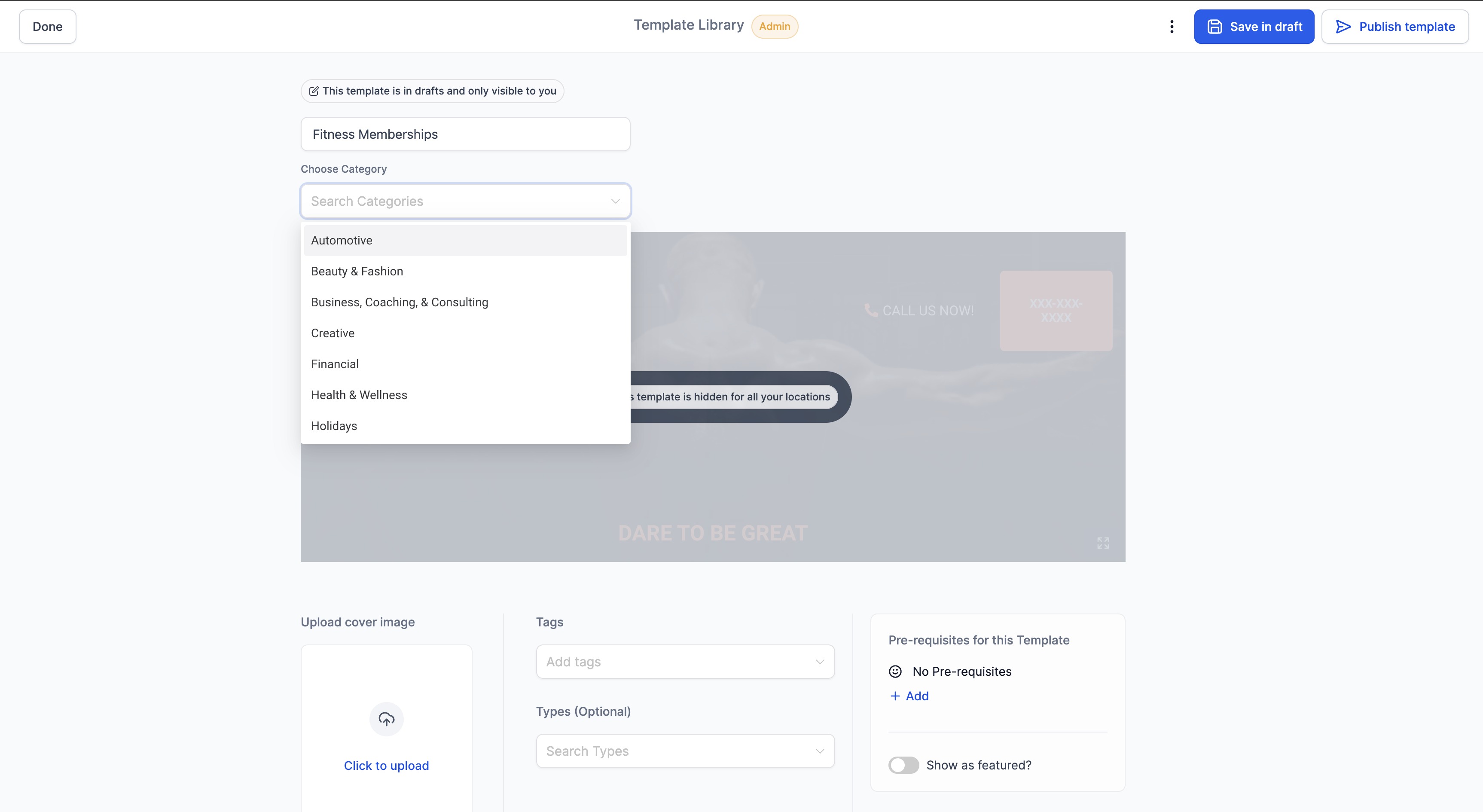
- – Choose to Publish or Save as draft.


