TABLE OF CONTENTS
- What is Scroll to Element?
- Key Benefits of Scroll to Element
- Setting Up Scroll to Element
- Step 1: Copy the CSS Selector
- Step 2: Choose a Scroll Method
- Frequently Asked Questions
What is Scroll to Element? #
The scroll-to-element feature allows you to link any clickable item to a specific section on a page. This makes your pages more dynamic and user-friendly, especially for landing pages or long-format content.
Key Benefits of Scroll to Element #
Understanding how to use scroll-to actions helps streamline user journeys and create seamless interactions.
- Navigation Control: Send users to specific sections of the page without reloading.
- Cleaner UX: Helps reduce bounce by guiding users through content fluidly.
- Custom Interaction: Works for buttons, links, and navigation menus.
- Optimized for CTAs: Great for “Jump to Pricing” or “Learn More” buttons.
- Mobile Friendly: Scroll-to also functions smoothly across devices.
Setting Up Scroll to Element #
Learn how to scroll to a specific section using a simple selector-based linking method. Once you copy the selector, you can use it with text, buttons, or menu items.
Step 1: Copy the CSS Selector
#
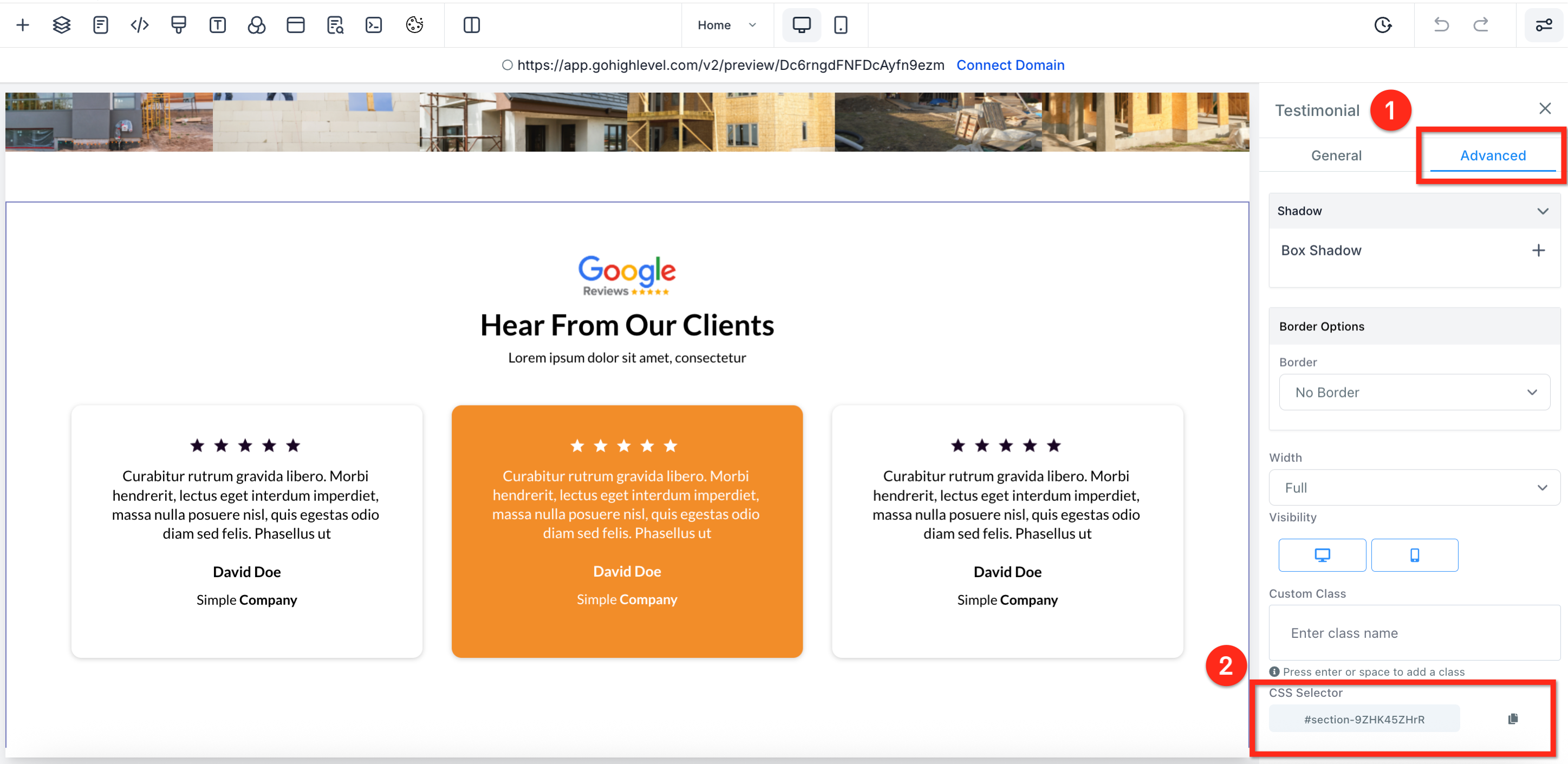
Every scroll-to setup starts with getting the selector of the section you want to scroll to. You’ll paste this selector at the end of your link in Step 2.
- Open your funnel or website in the builder.
- Click on the section you want to scroll to.
- In the right-hand panel, go to the Advanced tab.
- Copy the value shown in the CSS Selector field.
Step 2: Choose a Scroll Method
#
Now that you have the CSS selector, choose one of the following methods to activate the scroll behavior when users click.
Method 1: Hyperlink Text to a Section
#
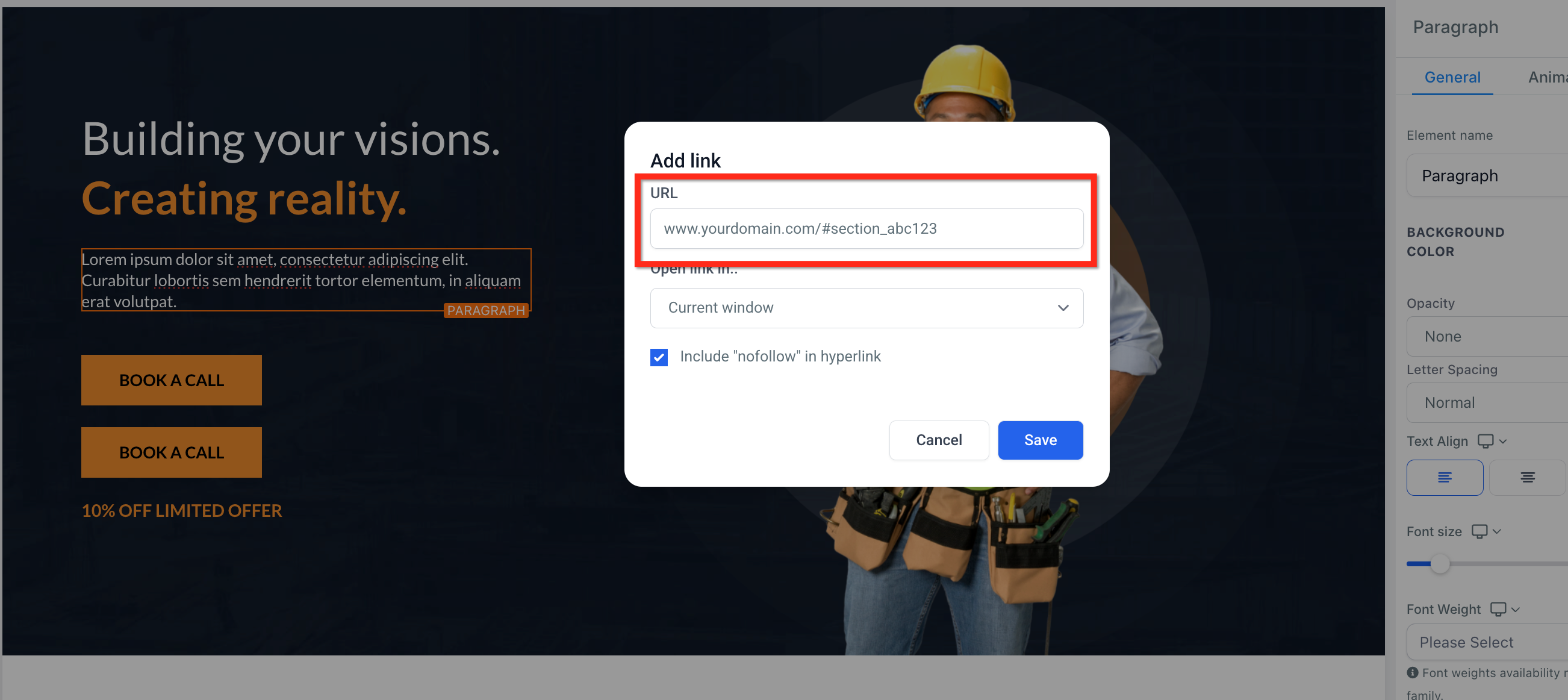
Turn text into a clickable scroll link using the copied selector.
- Highlight the desired text.
- Click the Link icon in the formatting toolbar.
- Enter your full page URL + the CSS selector you copied. (Example: www.yourdomain.com/#section_abc12)
Method 2: Use a Button with a URL Link #
#
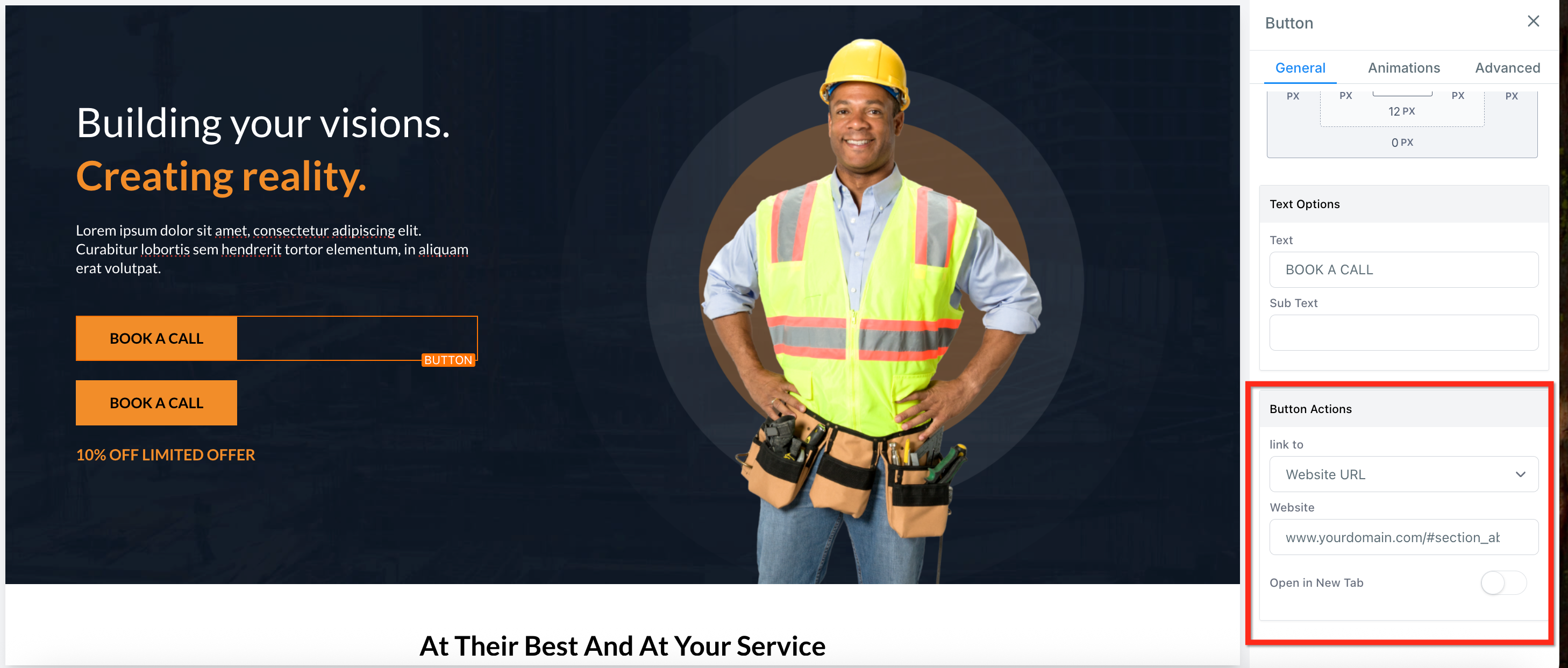
Scroll to a section by assigning a direct URL to a button.
- Select the button in the builder.
- Under Button Actions, click the Link To dropdown and choose Website URL.
- Enter your full page URL + the CSS selector you copied. (Example: www.yourdomain.com/#section_abc12)
Method 3: Use a Button with Scroll to Element Action
#
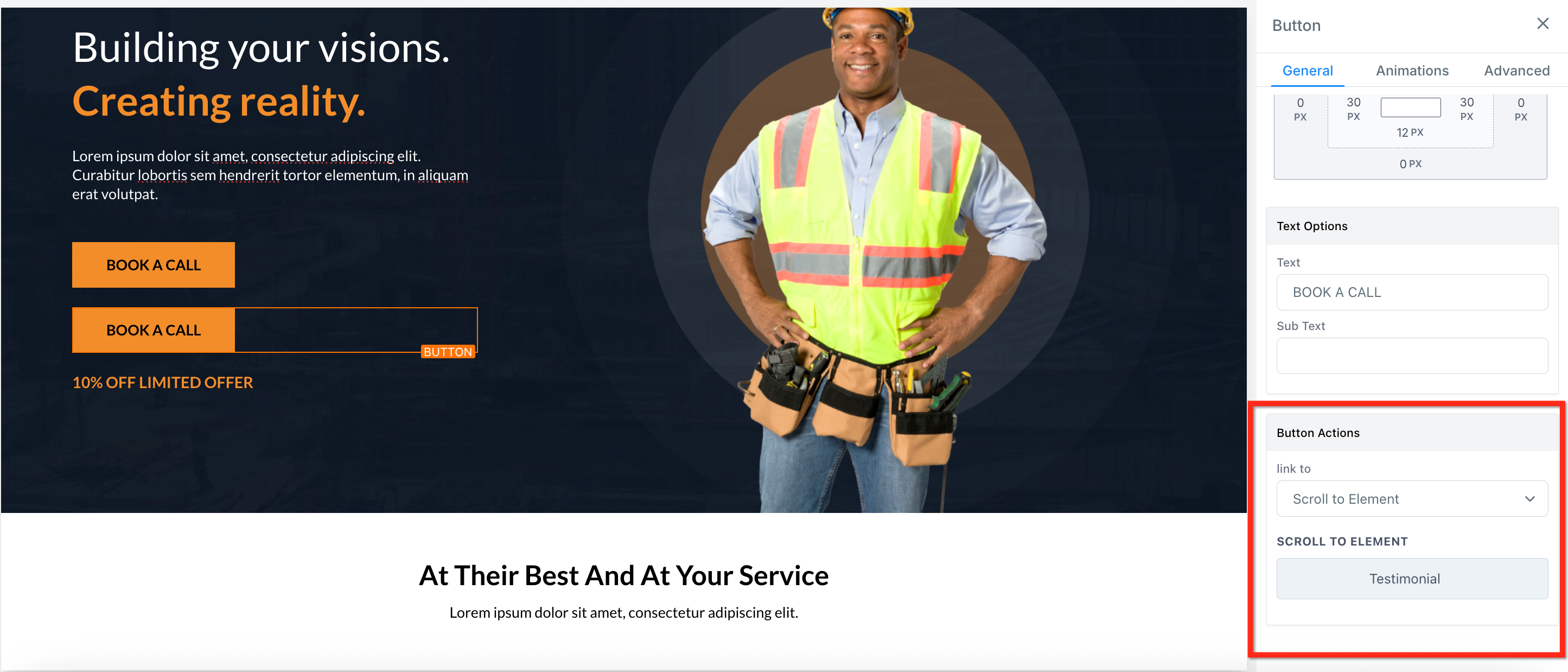
Scroll to a section using aixios”s built-in scroll behavior.
- Select the button in the builder.
- Under Button Actions, click the Link To dropdown and choose Scroll to Element.
- Use the dropdown to select the section you want the button to scroll to.
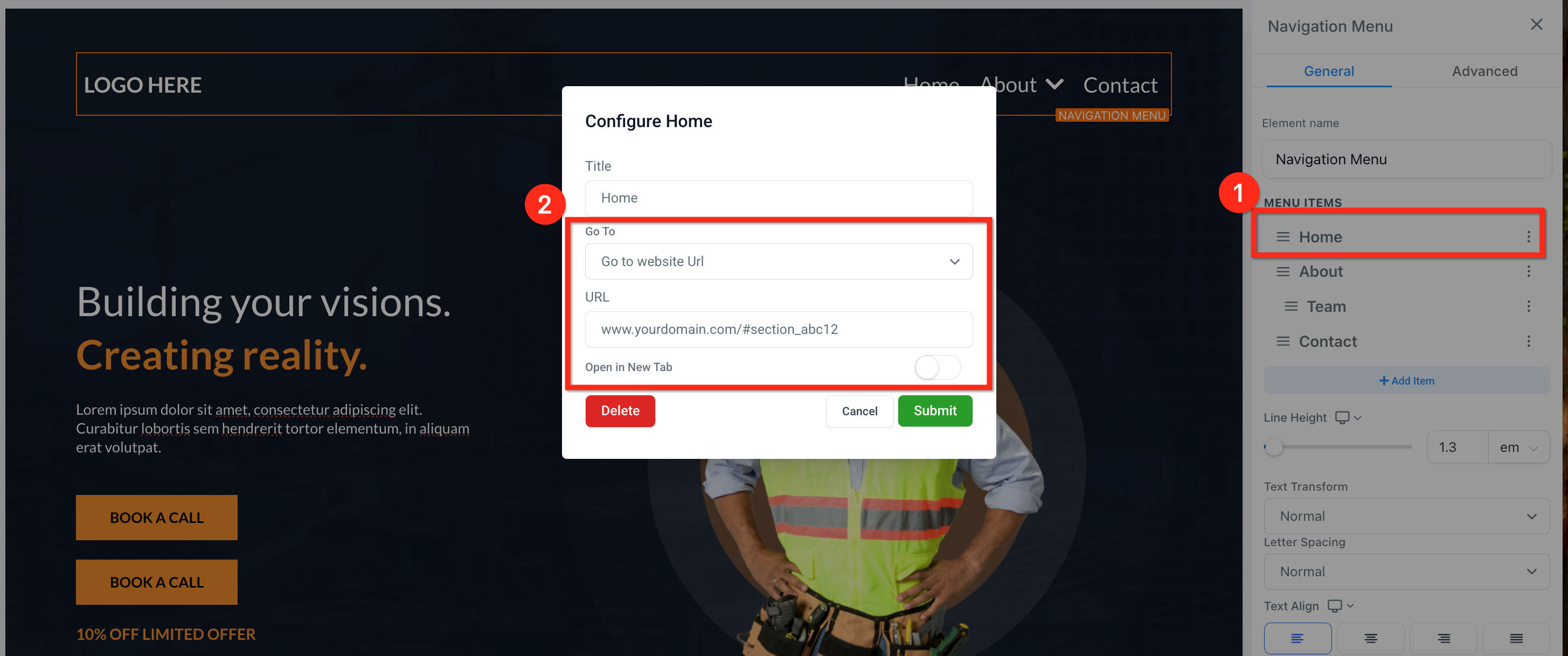
Method 4: Make a Navigation Menu Item Scroll #
Navigation menus can also be configured to scroll to a section of the page.
- Select the Navigation Menu.
- Click the three dots next to a menu item.
- Change the Go to field to Go to website URL.
- Enter your full page URL + the CSS selector you copied. (Example: www.yourdomain.com/#section_abc12)
- Click Submit.
Frequently Asked Questions #
Q: Can I scroll between different funnel steps?
No. Scroll-to only works on the same page.
Q: Will this work on mobile?
Yes, the scroll functionality works across devices.
Q: My scroll isn’t working. What should I do?
Check that your selector is correct and that it starts with #. Refresh the page and test again.
Q: What happens if multiple sections have the same CSS selector?
Only the first match will be used. Ensure each scroll target has a unique selector.


