TABLE OF CONTENTS
- What is the Logo Showcase Element?
- Key Benefits of the Logo Showcase Element
- How To Use the Logo Showcase Element
- Ticker Mode
- Carousel Mode
- Customization Options
- Frequently Asked Questions
What is the Logo Showcase Element? #
The Logo Showcase is a dynamic design element that allows you to display multiple logos in either a continuously scrolling ticker or a sleek carousel. It’s perfect for building trust through visual branding by showcasing affiliations, awards, and client logos.
Key Benefits of the Logo Showcase Element #
Showcasing logos builds trust and enhances visual credibility. This section outlines the core advantages of using this feature in your page designs.
- Two distinct viewing styles: Ticker and Carousel
- Auto-animation and infinite loop options for engagement
- Custom logo spacing and layout control
- Touch-optimized swipe support for mobile
- Simple drag-and-drop logo management
- Custom alt text for SEO and accessibility
How To Use the Logo Showcase Element #
Learn how to place, configure, and switch between display modes to create the ideal logo layout for your page.
- Open your Funnel or Website Builder
- Drag the Logo Showcase element onto your page
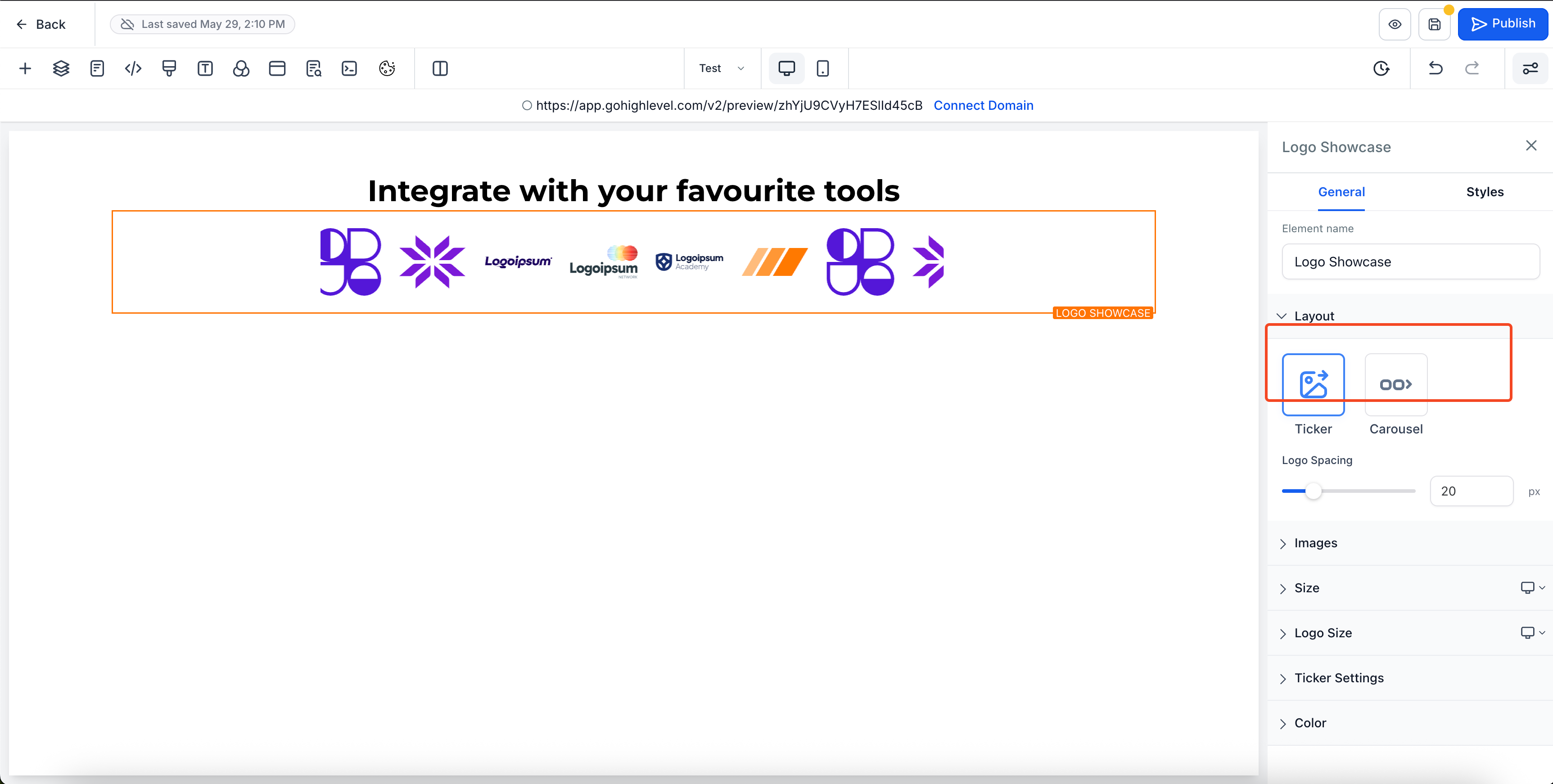
- Choose your preferred mode: Ticker or Carousel
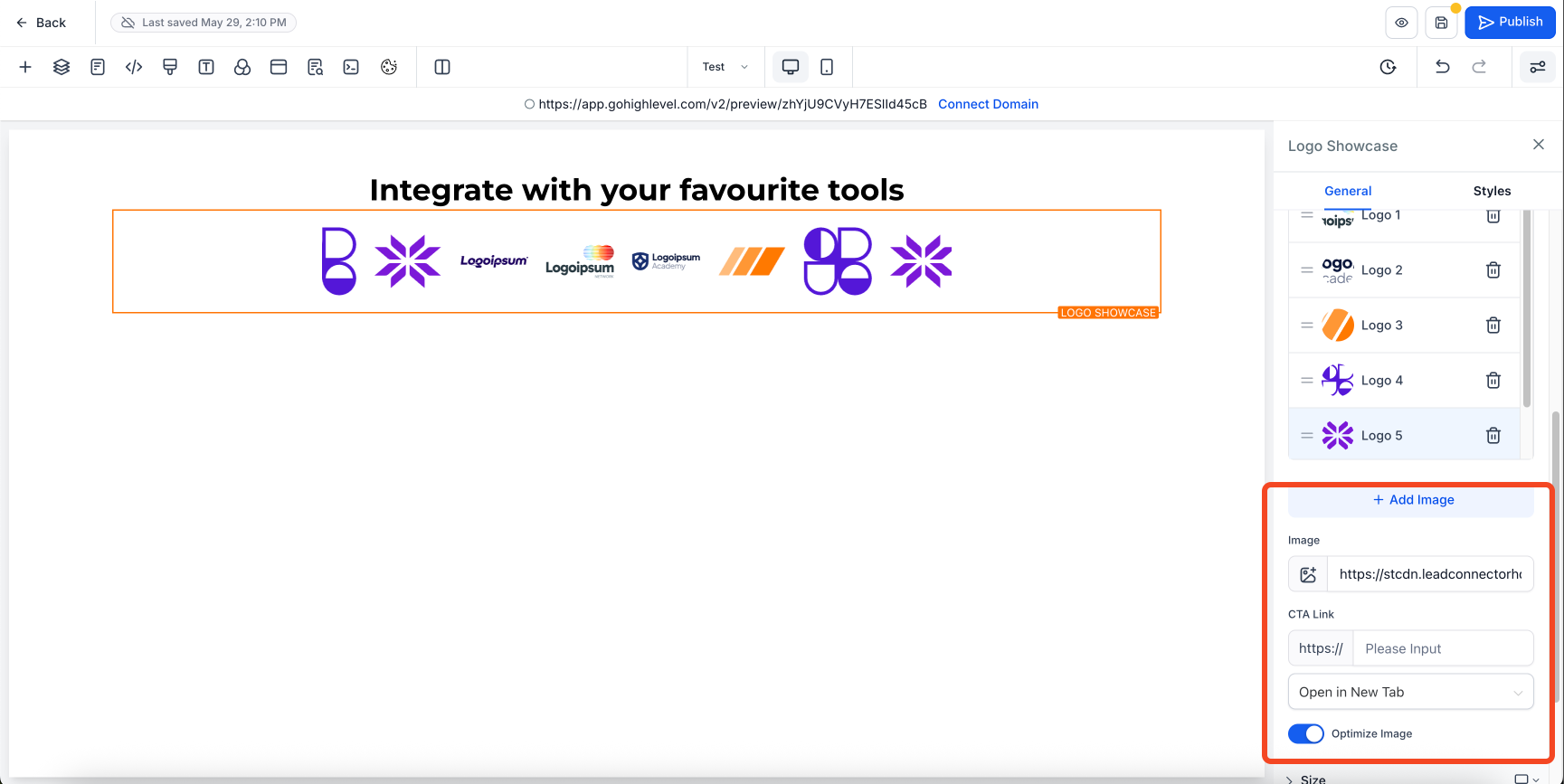
- Upload logos via the image interface
- Customize logo layout and animation settings
- Preview and adjust until satisfied
Ticker Mode #
Ideal for high-volume logo visibility in a compact format, this mode scrolls logos horizontally in a continuous loop.
- Smooth, endless scrolling for dynamic movement
- Great for displaying many logos in limited space
- Settings include:
- Scroll Speed (1–10)
- Smooth Scroll toggle
- Pause on Hover option
Carousel Mode #
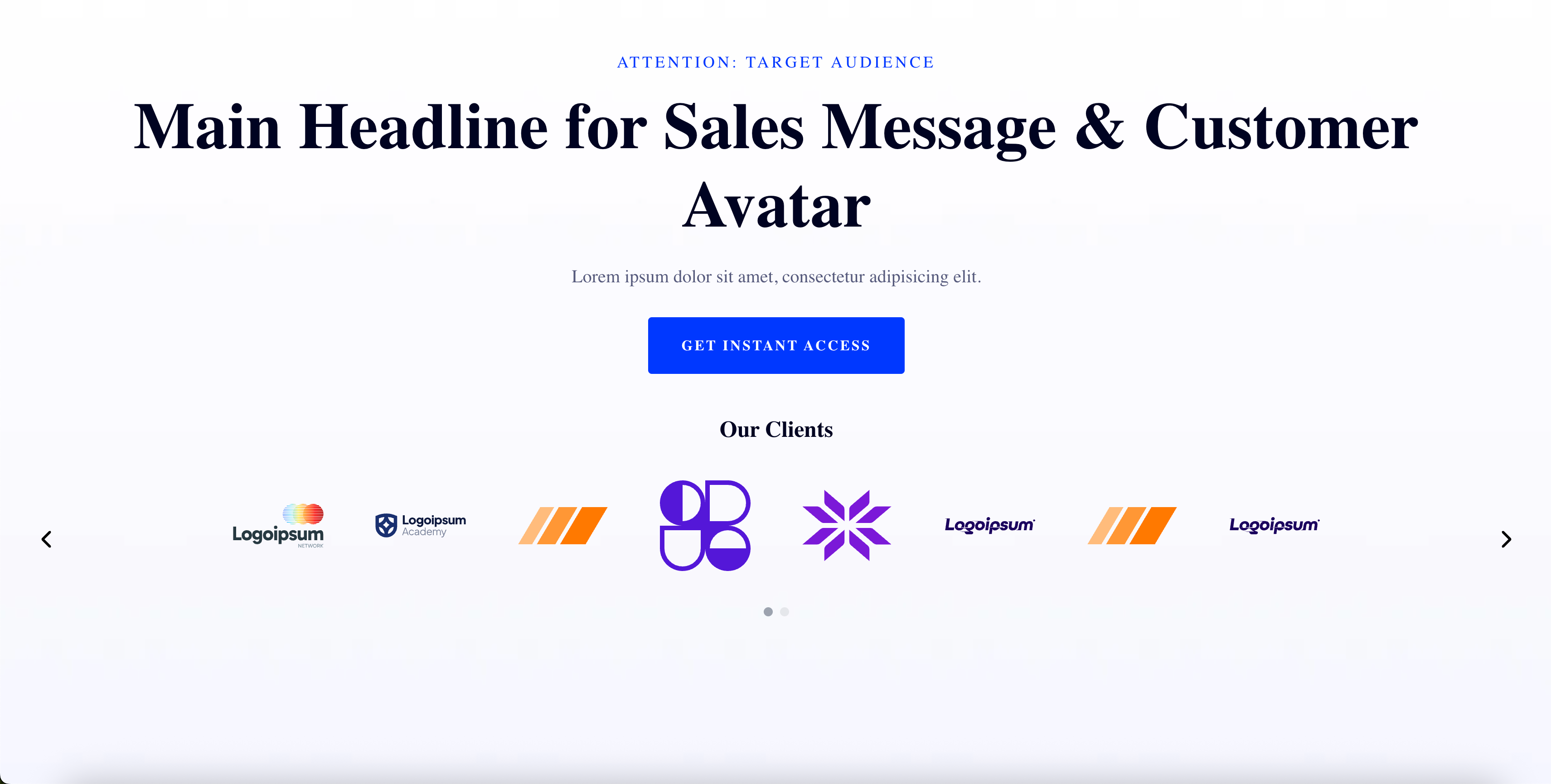
Best for spotlighting premium partners or a curated selection of logos, this mode offers slide-by-slide presentation with full interactivity.
- Supports up to 8 logos per slide
- Navigation: arrow buttons, pagination dots, swipe gestures
- Settings include:
- Logos per Slide
- Auto-Animation & Interval Timing
- Infinite Loop
- Pause on Hover
- Animation Style (Slide or Fade)

Customization Options #
Customize everything from layout to transitions with intuitive settings designed for ease and flexibility.
- Adjust spacing between logos (0–100px)
- Rearrange logos via drag-and-drop
- Enable smooth transitions and control timing
- Add custom alt text to each logo for accessibility
Frequently Asked Questions #
Q: Can I switch between Ticker and Carousel without losing logos?
Yes! All uploaded logos and settings are retained when switching modes.
Q: Is this available in all builder versions?
No, it’s currently only available in the new sidebar experience.
Q: What is the max number of logos supported?
There’s no hard limit, but performance may vary with very high numbers.
Q: Can I use external links for logos?
Currently, logos must be uploaded directly.
Next Steps #
- Switch to the new sidebar if you haven’t already.
- Add logos to your homepage, client page, or trust section.
- Pair with testimonial elements for even greater impact.
- Explore other animation features to enhance user engagement.


