The “Duplicate Widget” feature allows you to easily copy existing widgets on your dashboard. This helps save time, especially when creating widgets with similar configurations. Instead of building a new widget from scratch, you can duplicate an existing one, make minor adjustments, and save it as a new widget.
This feature is perfect for users who frequently work with complex or repetitive widgets, streamlining their workflow and increasing efficiency.
TABLE OF CONTENTS
Step 1: Enter Dashboard Edit Mode
Step 2: Duplicate the Widget
Step 3: Customize the Duplicated Widget and Save your changes
Step 1: Enter Dashboard Edit Mode #
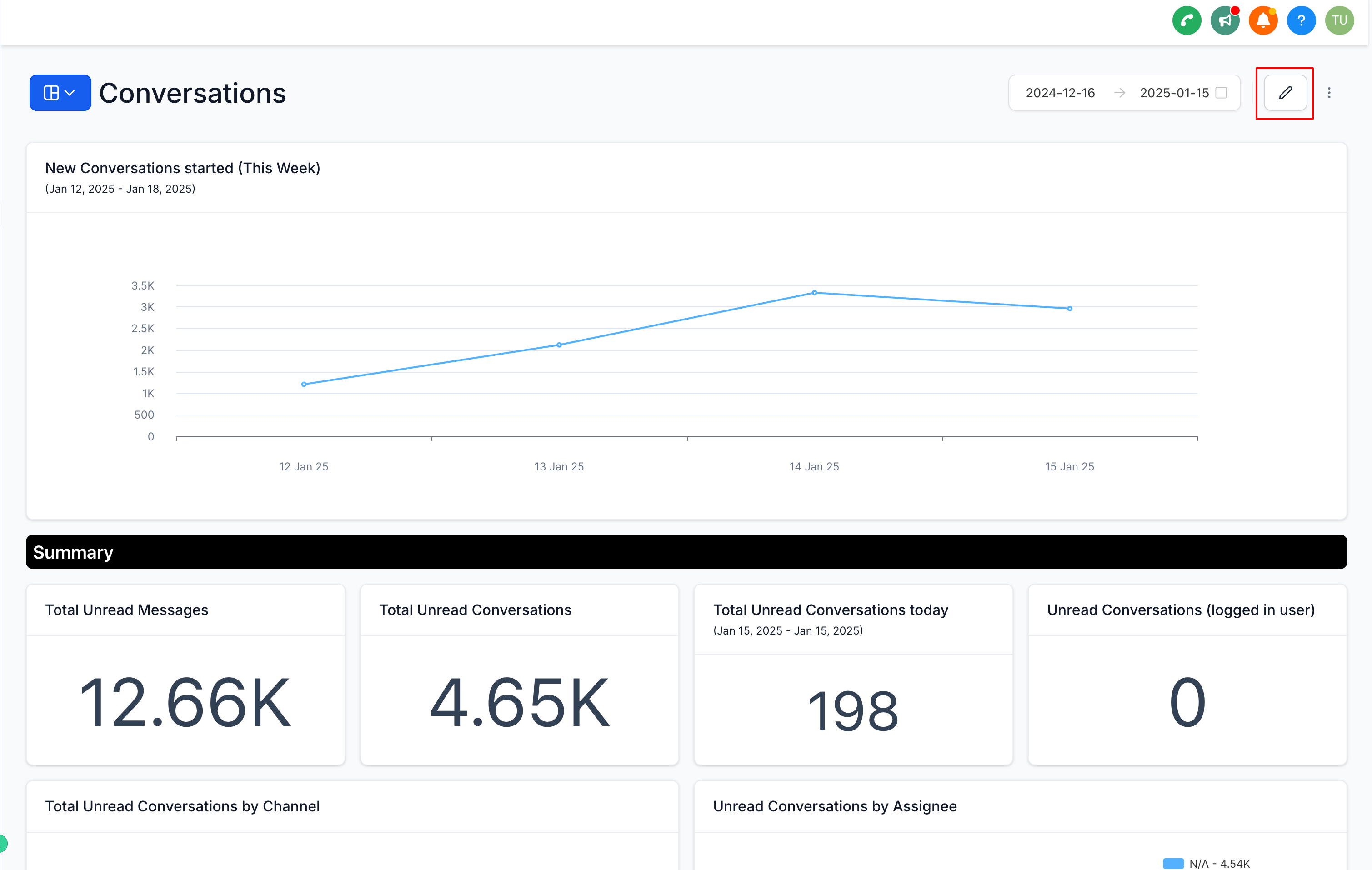
- Navigate to the dashboard where you want to duplicate a widget.
- Click on the Edit button to enable edit mode for the dashboard.
Step 2: Duplicate the Widget #
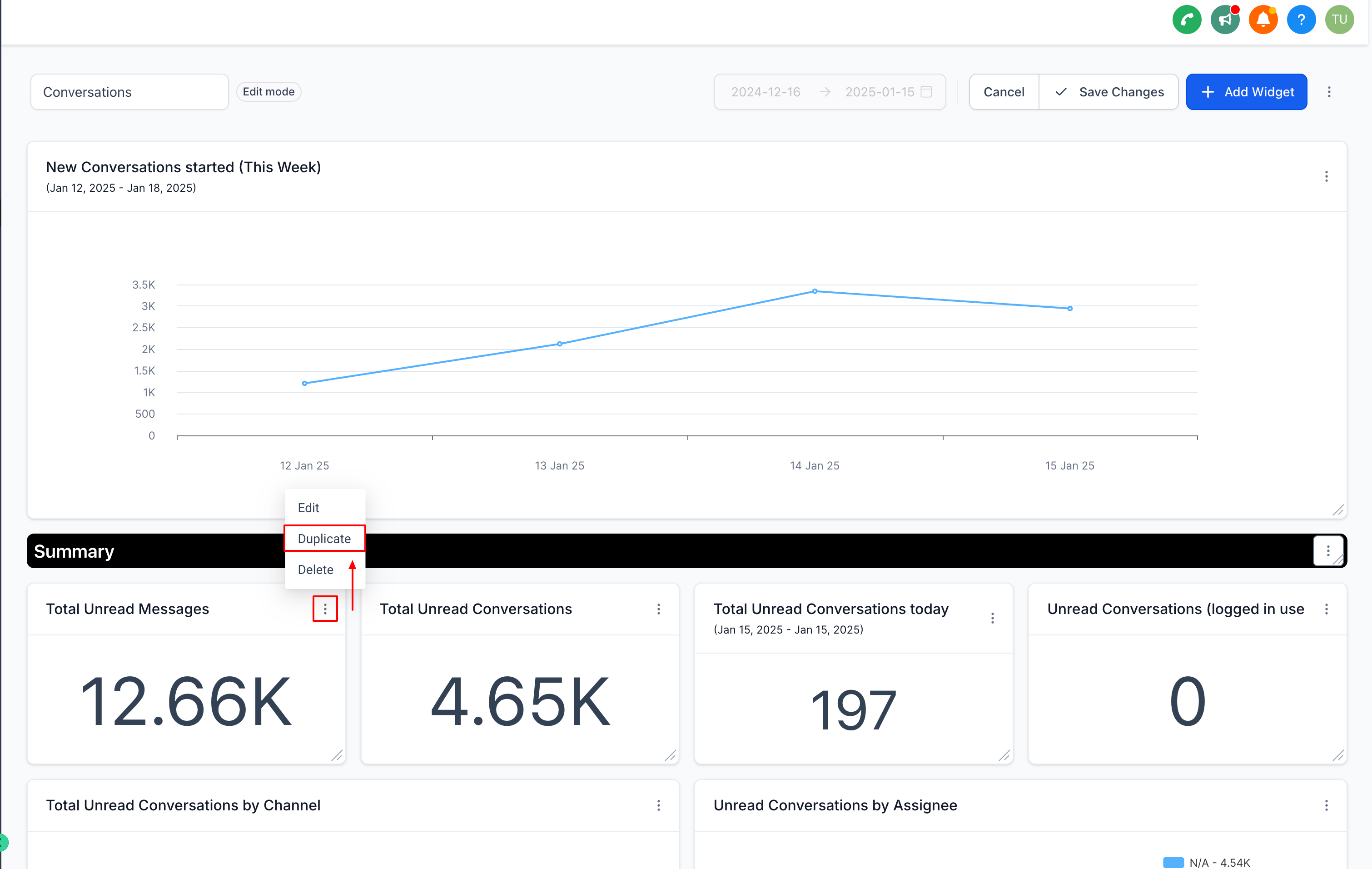
- Locate the widget you want to duplicate.
- Click on the three-dot menu (⋮) in the top-right corner of the widget card.
- From the dropdown menu, select the Duplicate option.
- A duplicate of the widget will appear on your dashboard.
Step 3: Customize the Duplicated Widget and Save your changes #
- Once you’ve made your edits, click Save to finalize the widget.


