TABLE OF CONTENTS
Setup Email
Setup Phone
Forward Phone Calls
Contact a Contact
Contact Bulk Contacts
Setup Email #
Ensure your messages land in inboxes, not spam folders. Here’s a simple way to set up your email service:
- Navigate to Settings > Email Services.
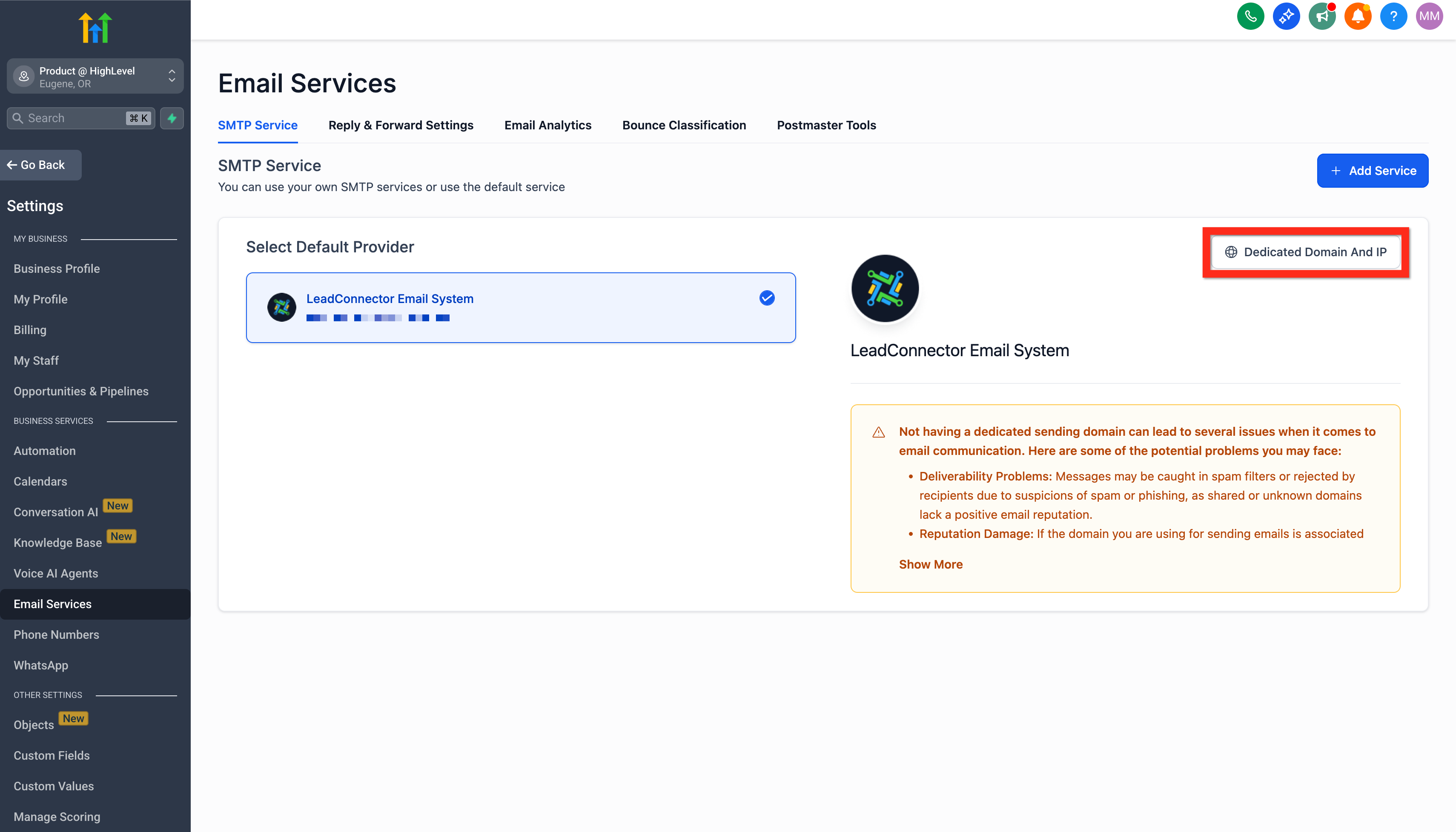
- Click Dedicated Domain and IP.
- Click Create Dedicated Domain.
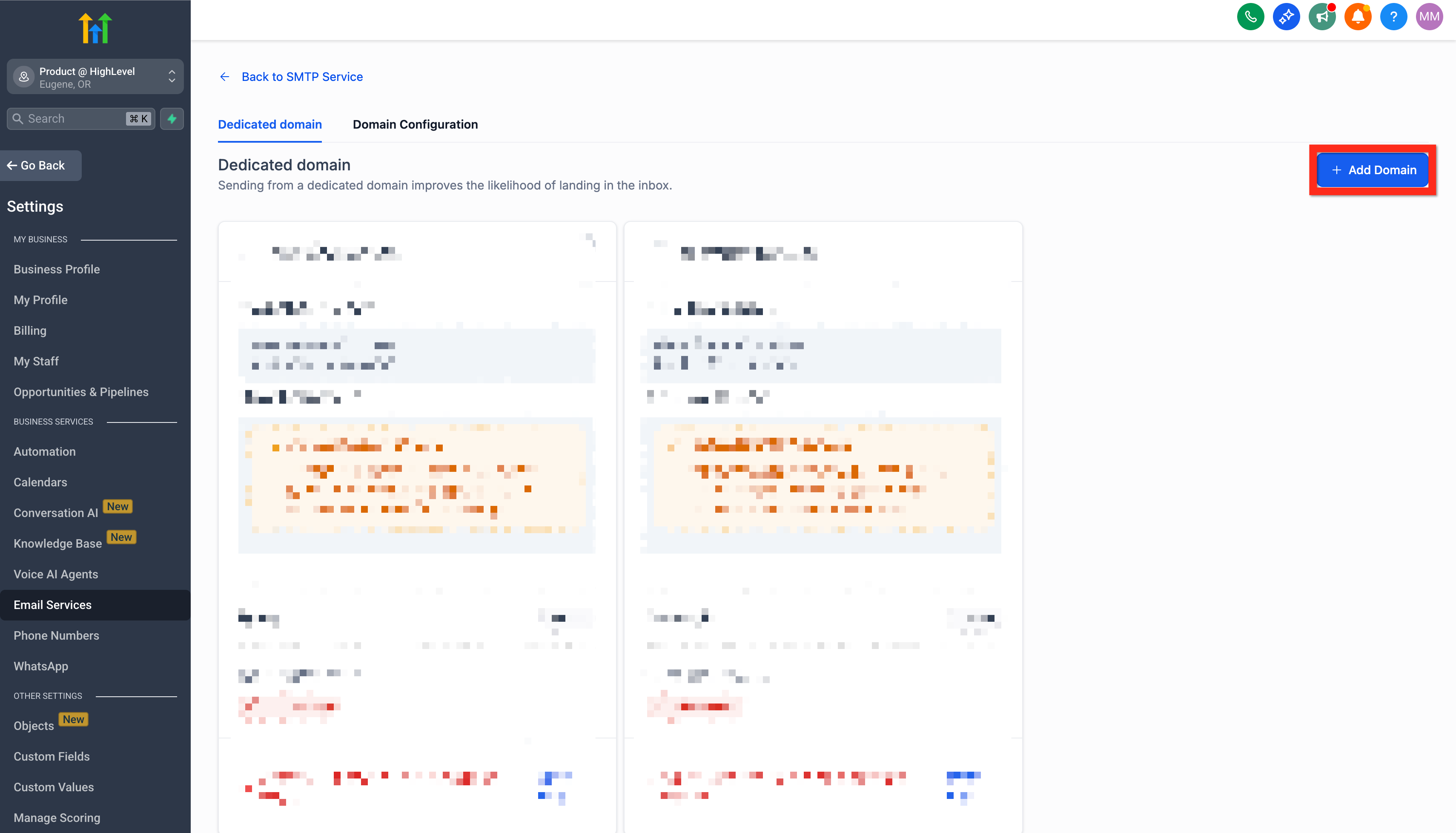
- Click Add Domain.
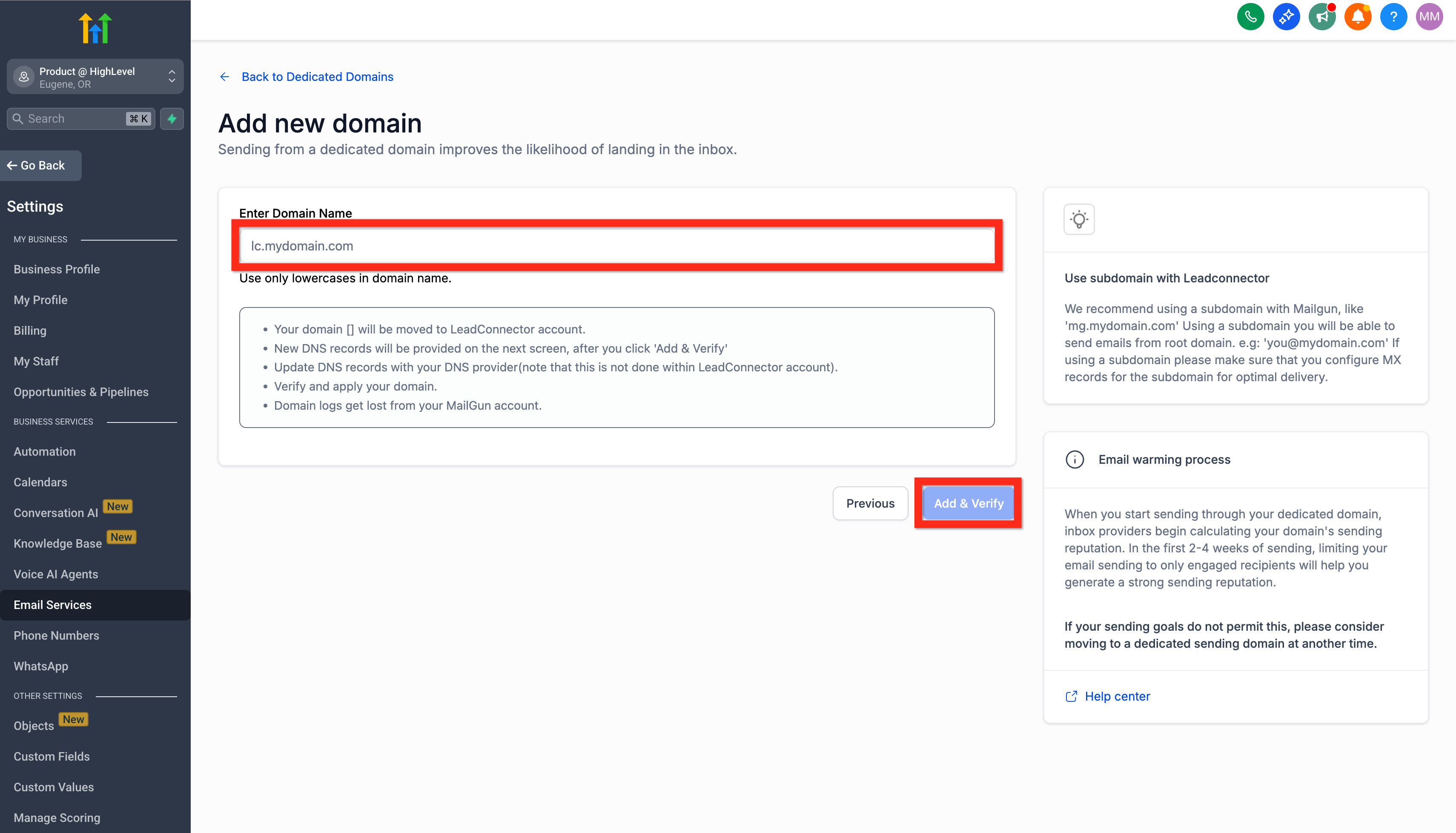
- Enter a subdomain prefix along with your owned domain (e.g.,
lc.mydomain.com). - Click Add & Verify.
- Configure DNS records according to your registrar’s instructions.
- Click Verify Records.
- Add the additional TXT record provided.
- Click Verify Domain.
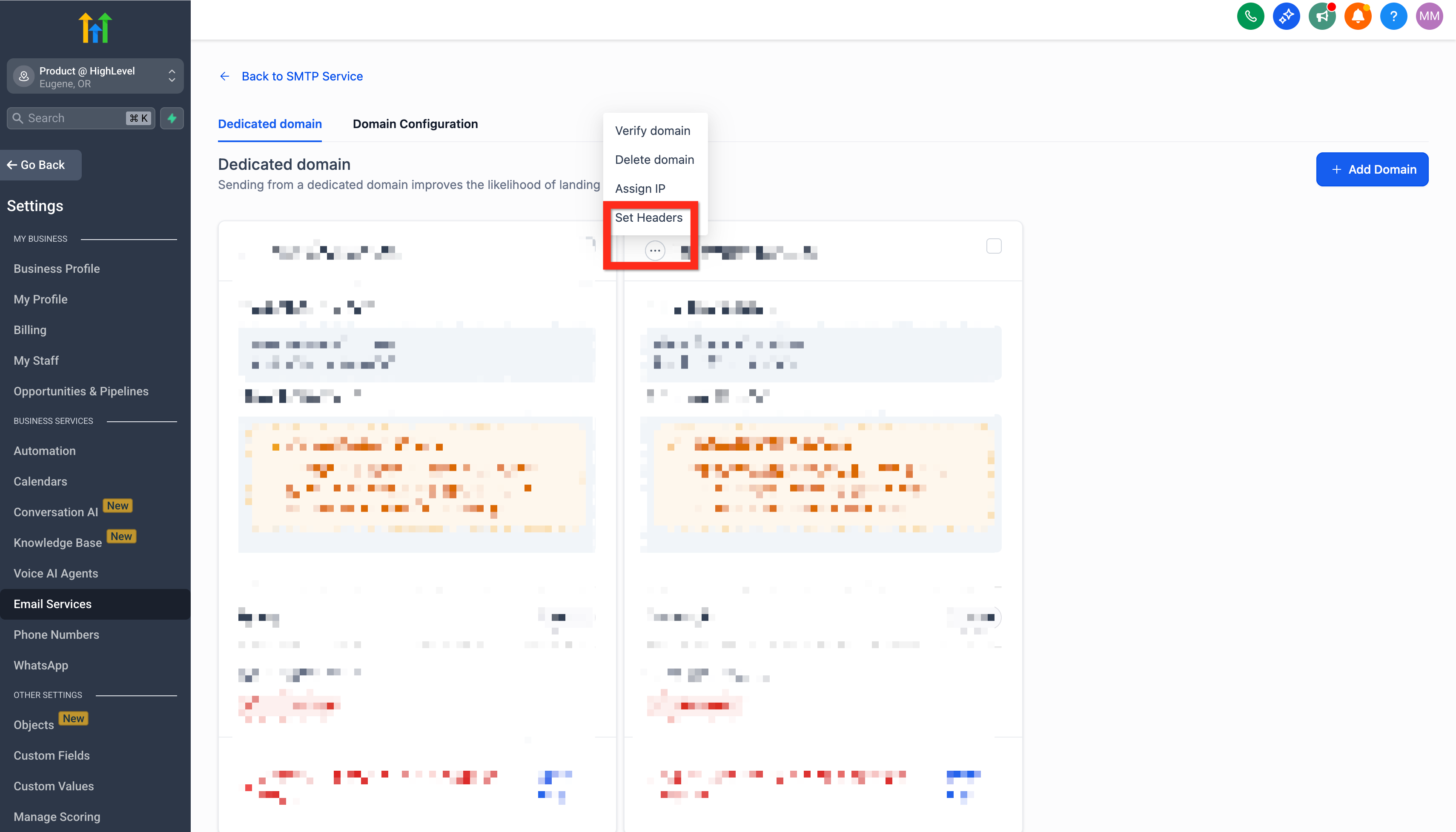
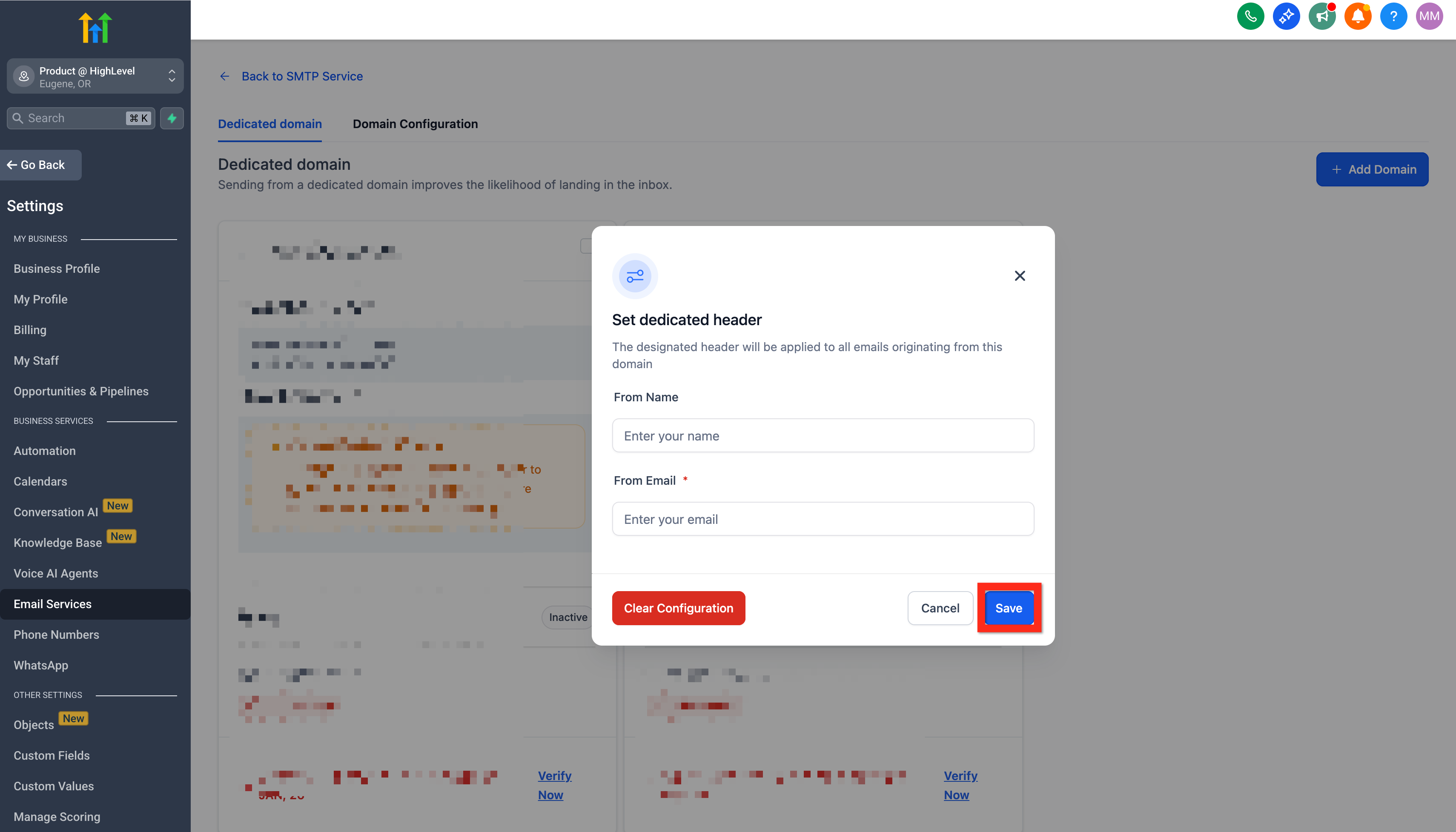
- Customize your headers by clicking the 3-dot action menu and selecting Set Headers.
- Enter your details (From Name, From Email).
- Click Save.
Learn More:
- Email Services Configuration – Reply & Forward Settings
- Email Sending Guide: Best Practices & Warm‑Up
- Sending Priority – From Name & Address
Next, you can explore setting up your phone service to enhance your communication capabilities.
Setup Phone #
Want to offer instant, personalized interactions? Add phone numbers swiftly to your platform and be reachable in no time.
- Navigate to Settings > Phone Numbers.
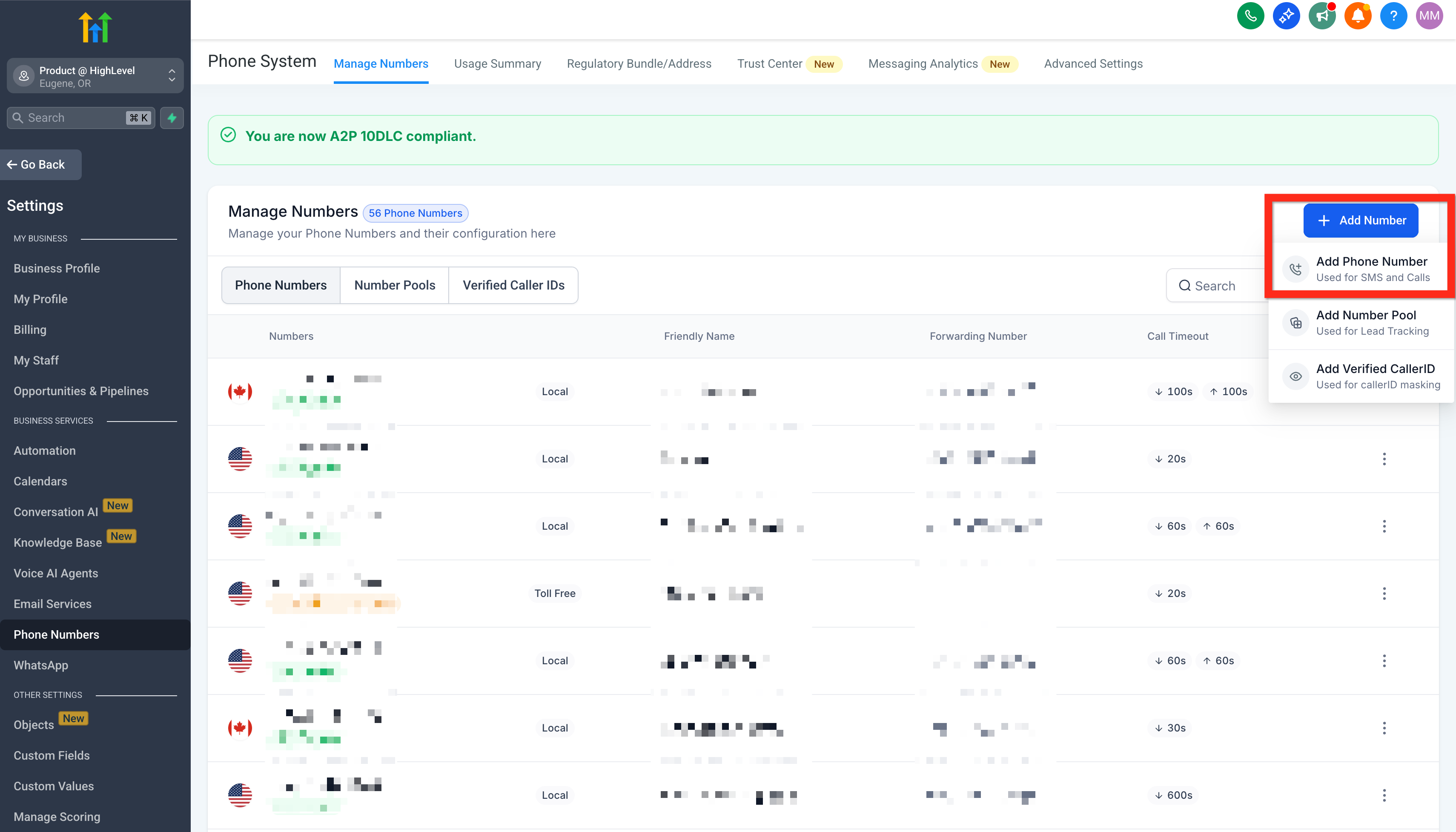
- Click Add Number > Add Phone Number.
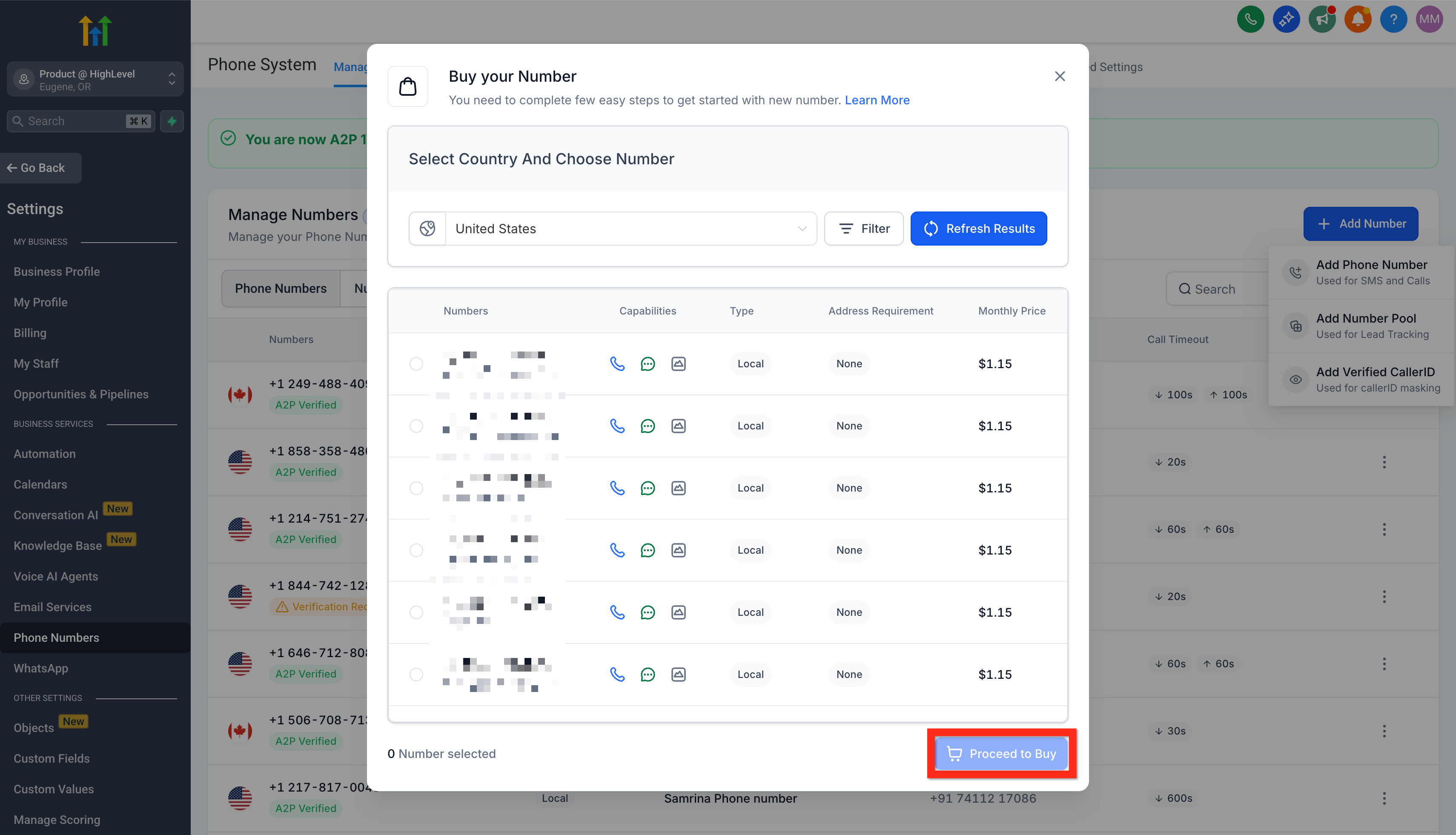
- Filter numbers by country and area code.
- Select your desired phone number.
- Click Proceed to Buy.
Learn More:
- How to Purchase a Phone Number in a Sub‑Account
- Regulatory Bundle & Address Creation for Sub‑Accounts
- Phone Number Settings Explained
Next, make sure you’re ready to handle incoming calls efficiently by setting up call forwarding.
Forward Phone Calls #
Stay responsive by directing incoming calls to the number that’s most convenient for you:
- Navigate to Settings > Phone Numbers.
- Click the 3-dot action menu next to your phone number.
- Click Edit Configuration.
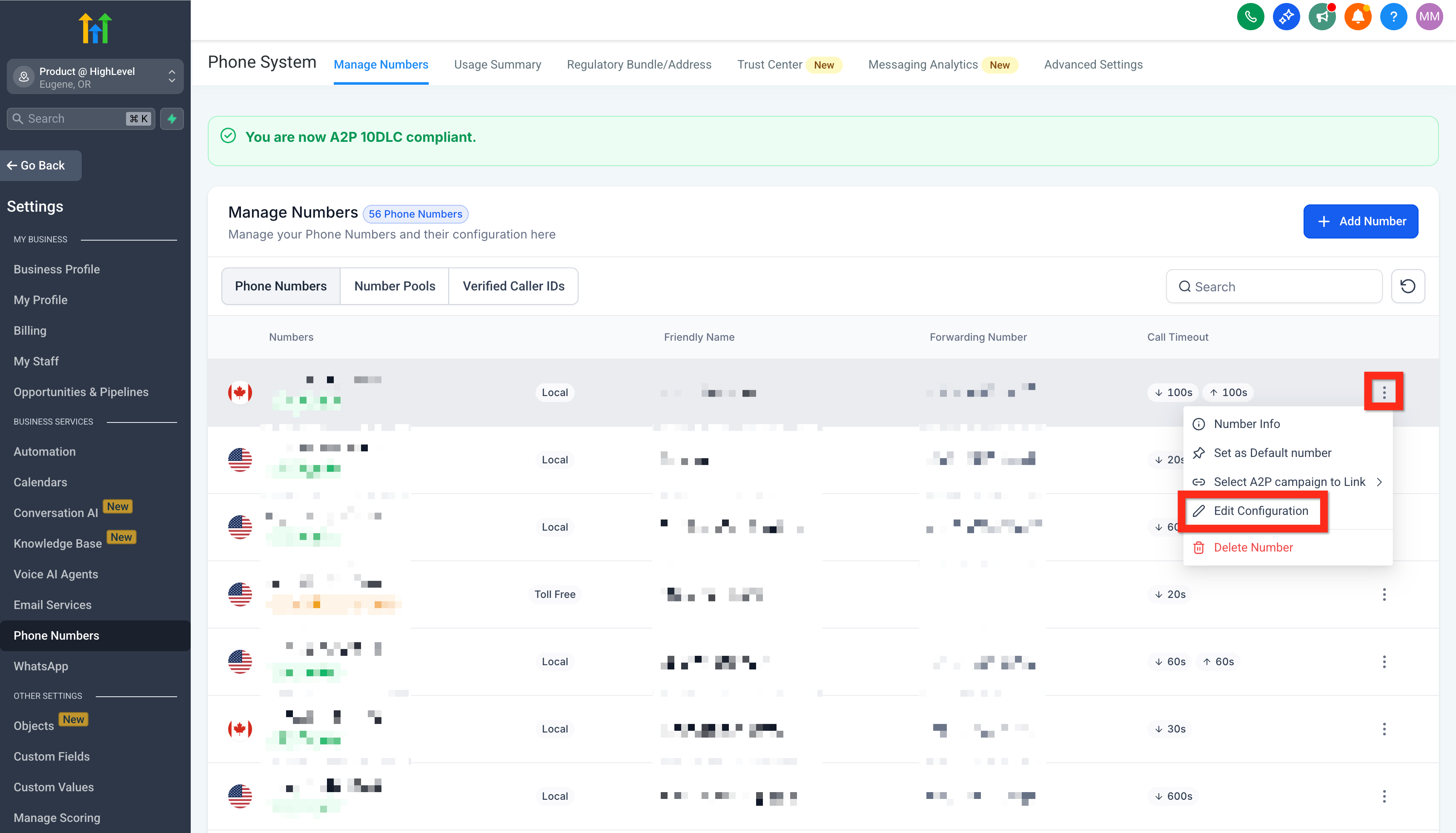
- Enter your preferred forwarding number (e.g., your personal cell).
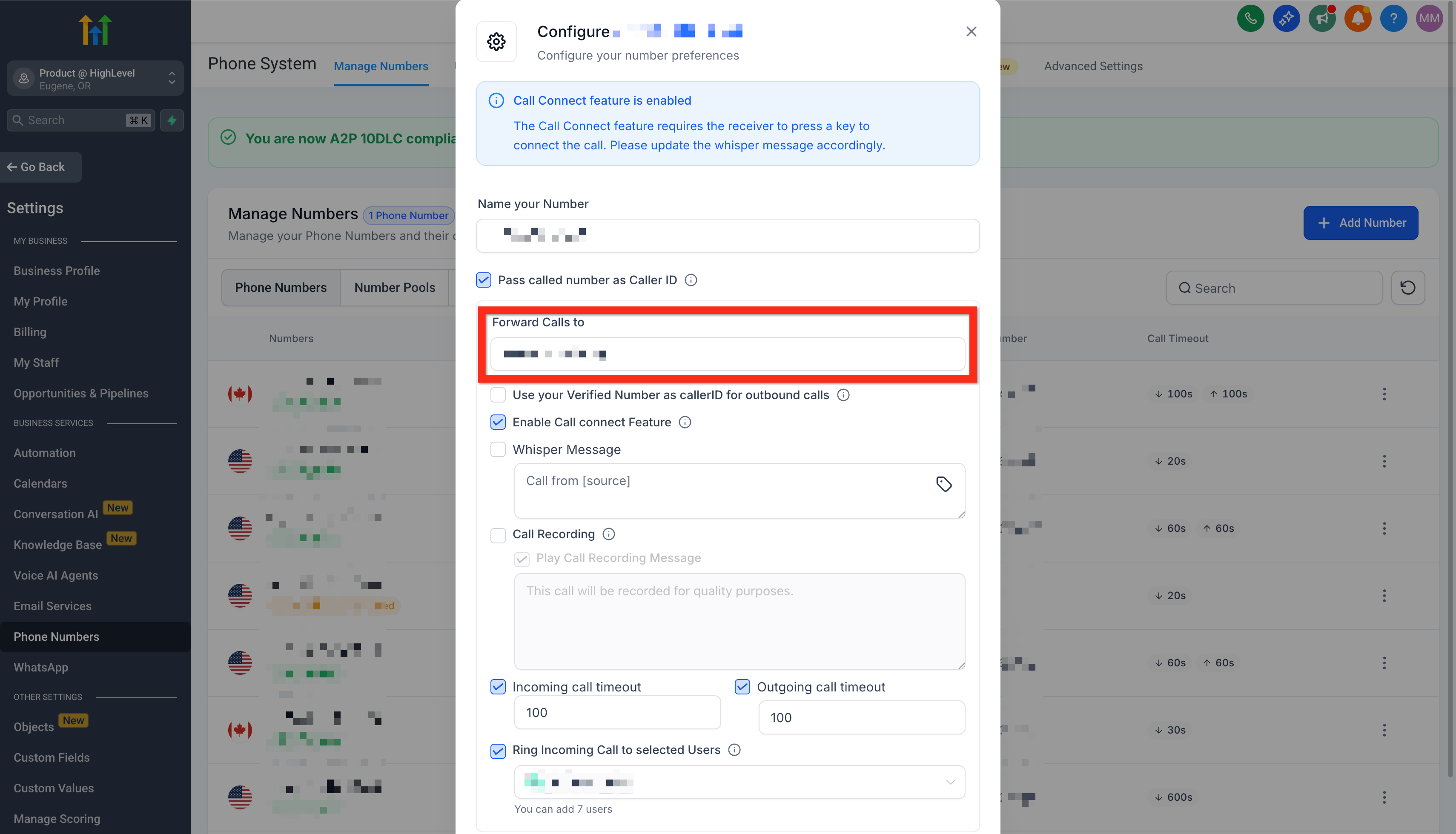
- Click Save.
Next, learn how easy it is to initiate direct communication with individual contacts.
Contact a Contact #
Quickly reach your contacts through their preferred communication channel:
- Navigate to Contacts.
- Browse, filter, or search to find the contact.
- Open the Contact Card:
- Call: Click the call connect button (green phone icon in the upper right).
- SMS: Select the SMS tab in the message composer (bottom middle).
- Email: Select the email tab in the message composer (bottom middle).
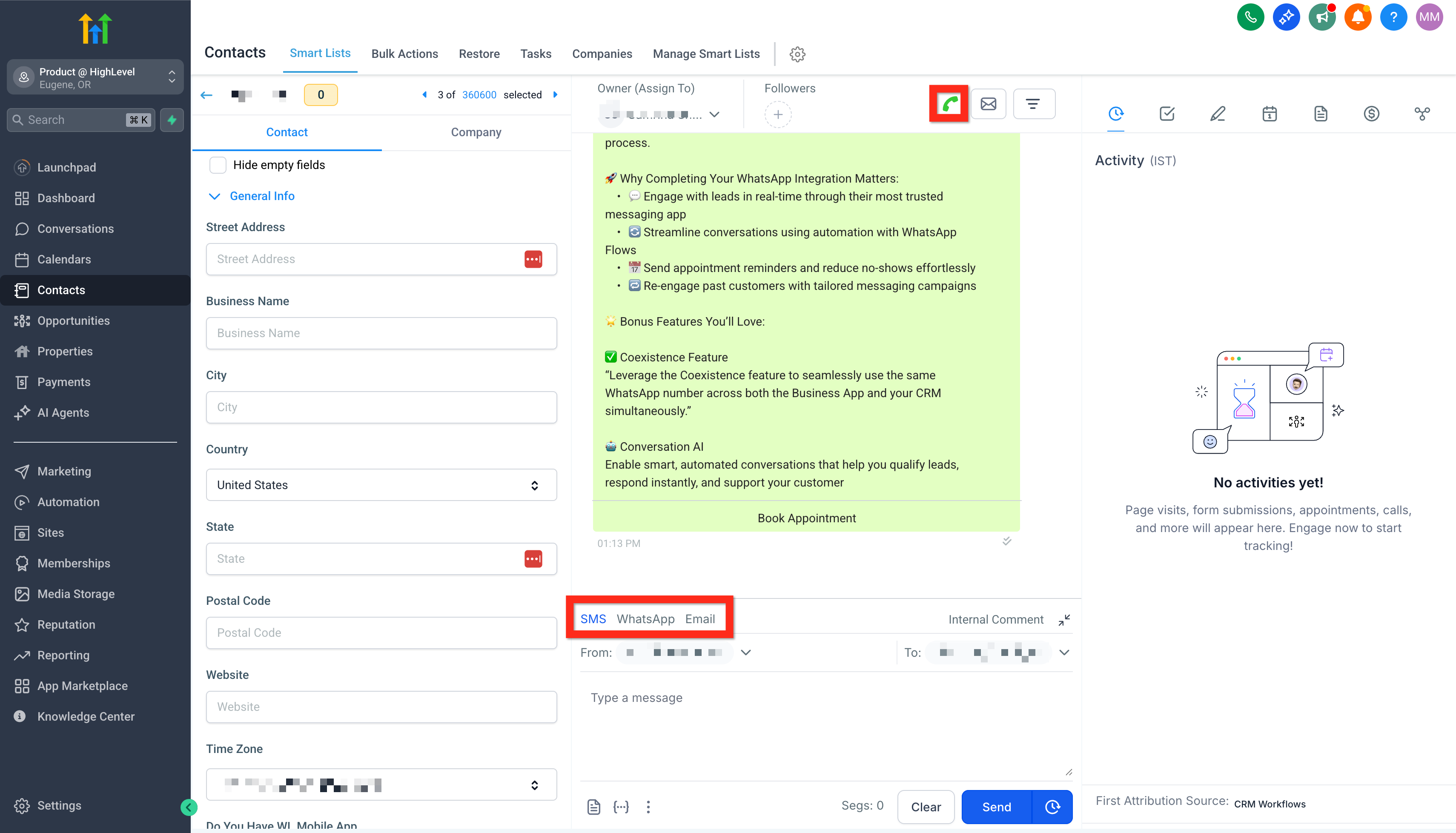
- Call: Click the call connect button (green phone icon in the upper right).
Next, boost your outreach effectiveness by communicating with multiple contacts simultaneously.
Contact Bulk Contacts #
Maximize your reach efficiently with bulk communications:
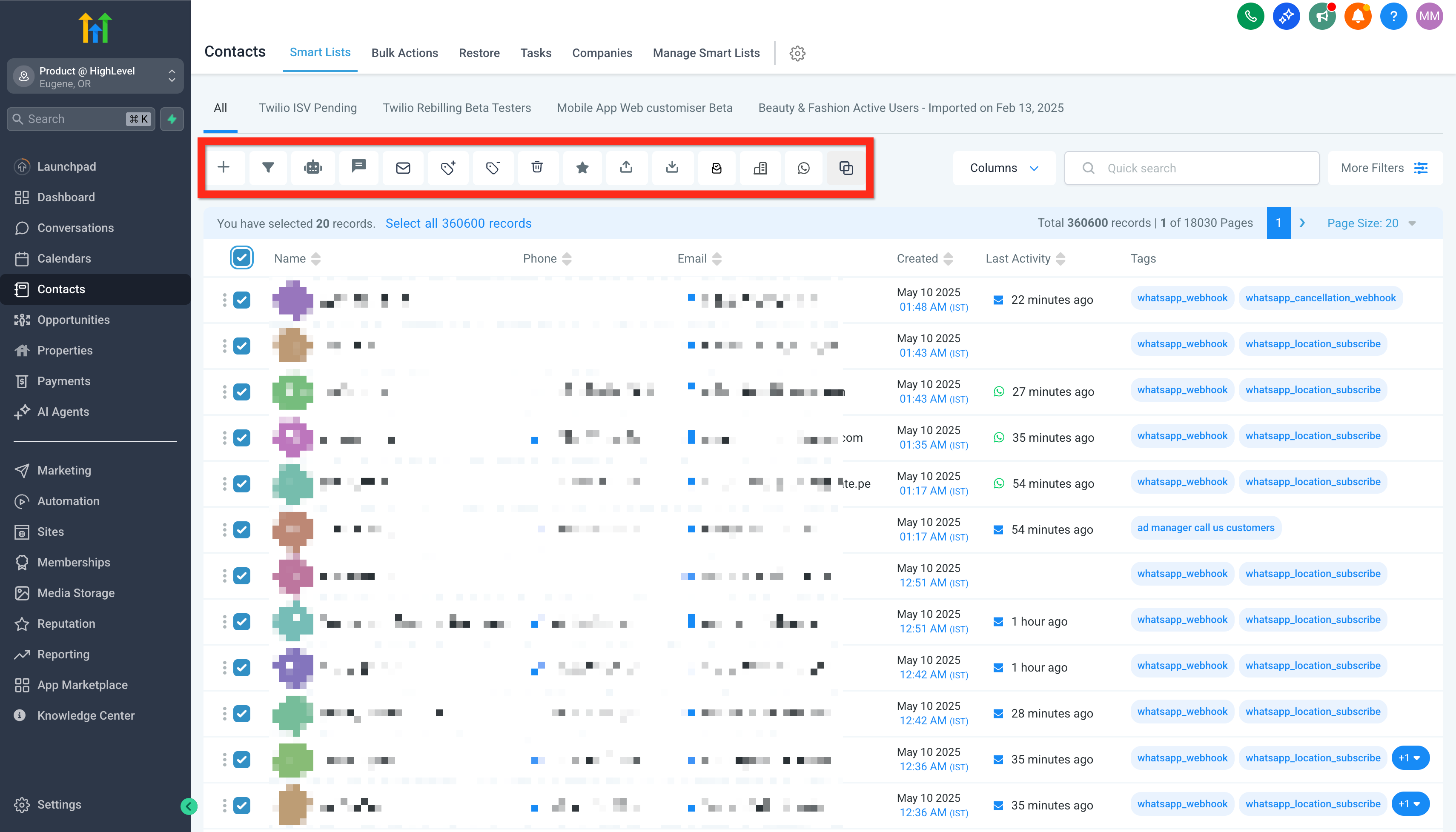
- Navigate to Contacts.
- Open More Filters.
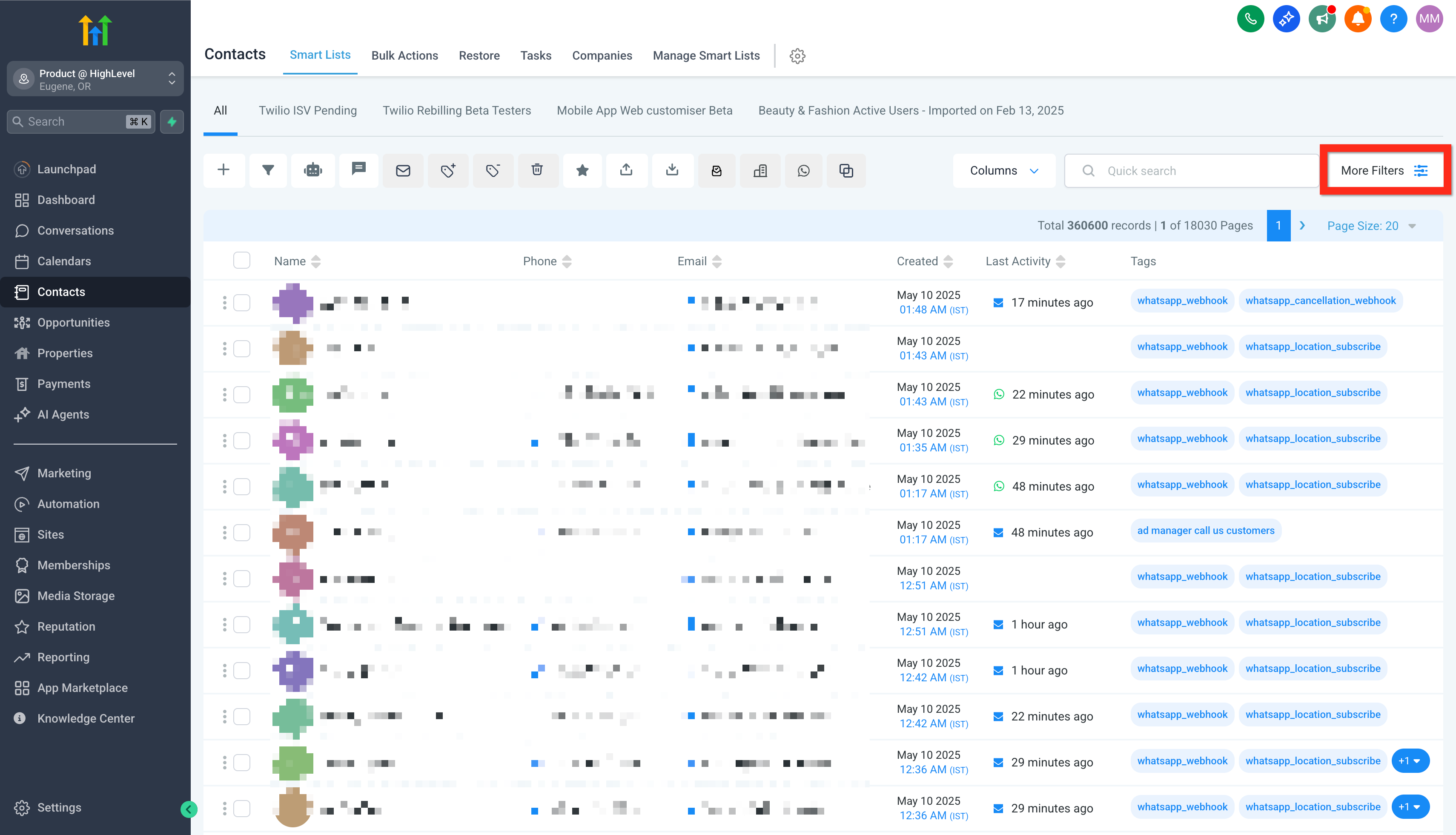
- Filter your list to target the right audience.

- Select the checkbox next to all desired contacts.
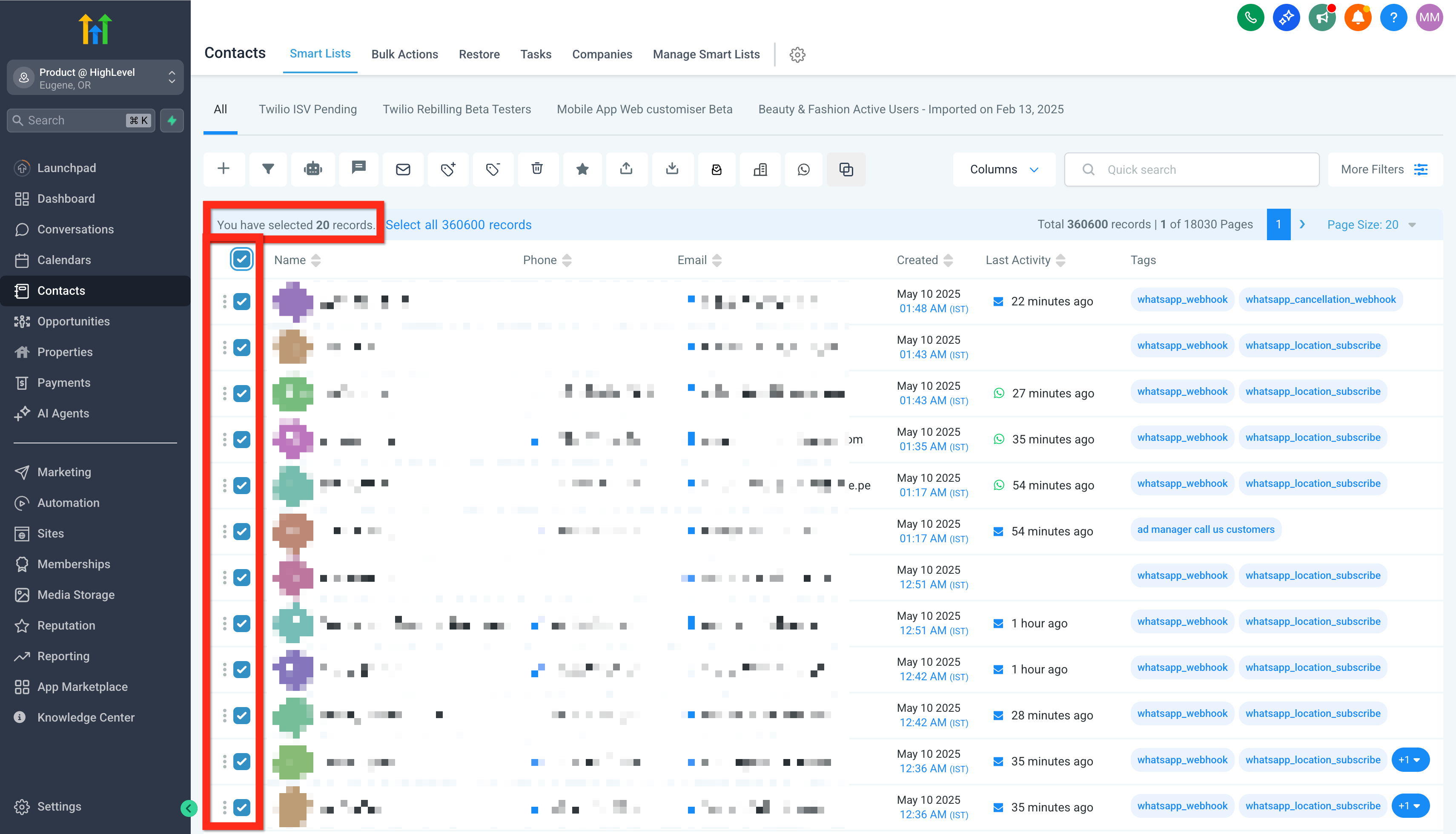
- Choose your bulk action (email, SMS, etc.).
Learn More:
- Bulk Activities: Sending Bulk SMS via Contacts
Next, continue exploring additional features to refine and enhance your communication strategy!


