Covered in the article #
How to obtain the embed code for web chat for the website: #
Here are detailed steps on how to add a custom chat widget to a Weebly website using different methods: #
Method 1: Adding a Custom Chat Widget with Weebly’s Header Code Injection Feature #
Method 2: Adding a Custom Chat Widget with Weebly’s Custom HTML/ Embed Code Element #
How to obtain the embed code for web chat for the website: #
Copy the embed code from Sites > Chat Widget > Get Code
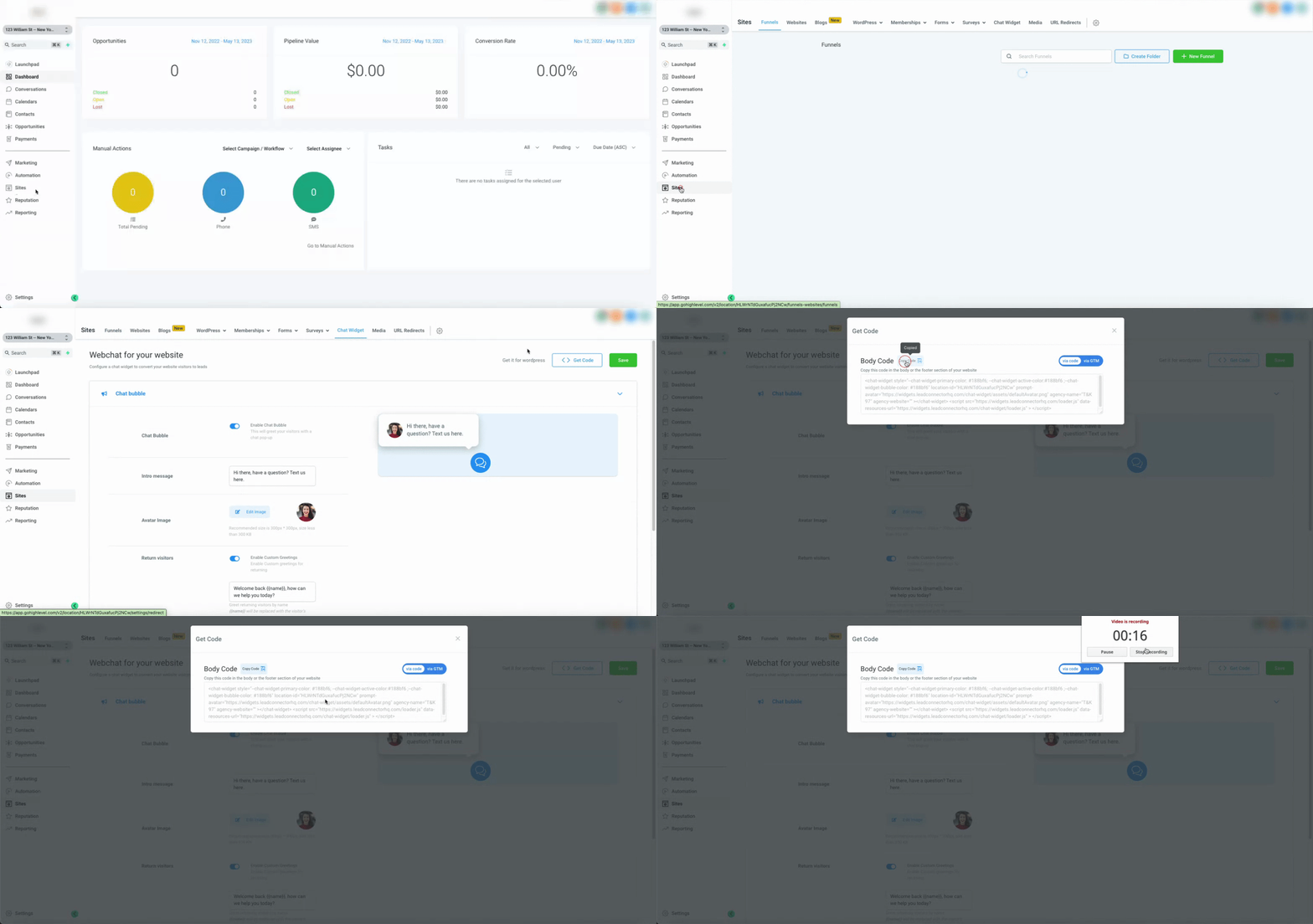
Here are detailed steps on how to add a custom chat widget to a Weebly website using different methods: #
Method 1: Adding a Custom Chat Widget with Weebly’s Header Code Injection Feature #
- Log in to your Weebly account and navigate to the website editor.
- Click on “Settings”
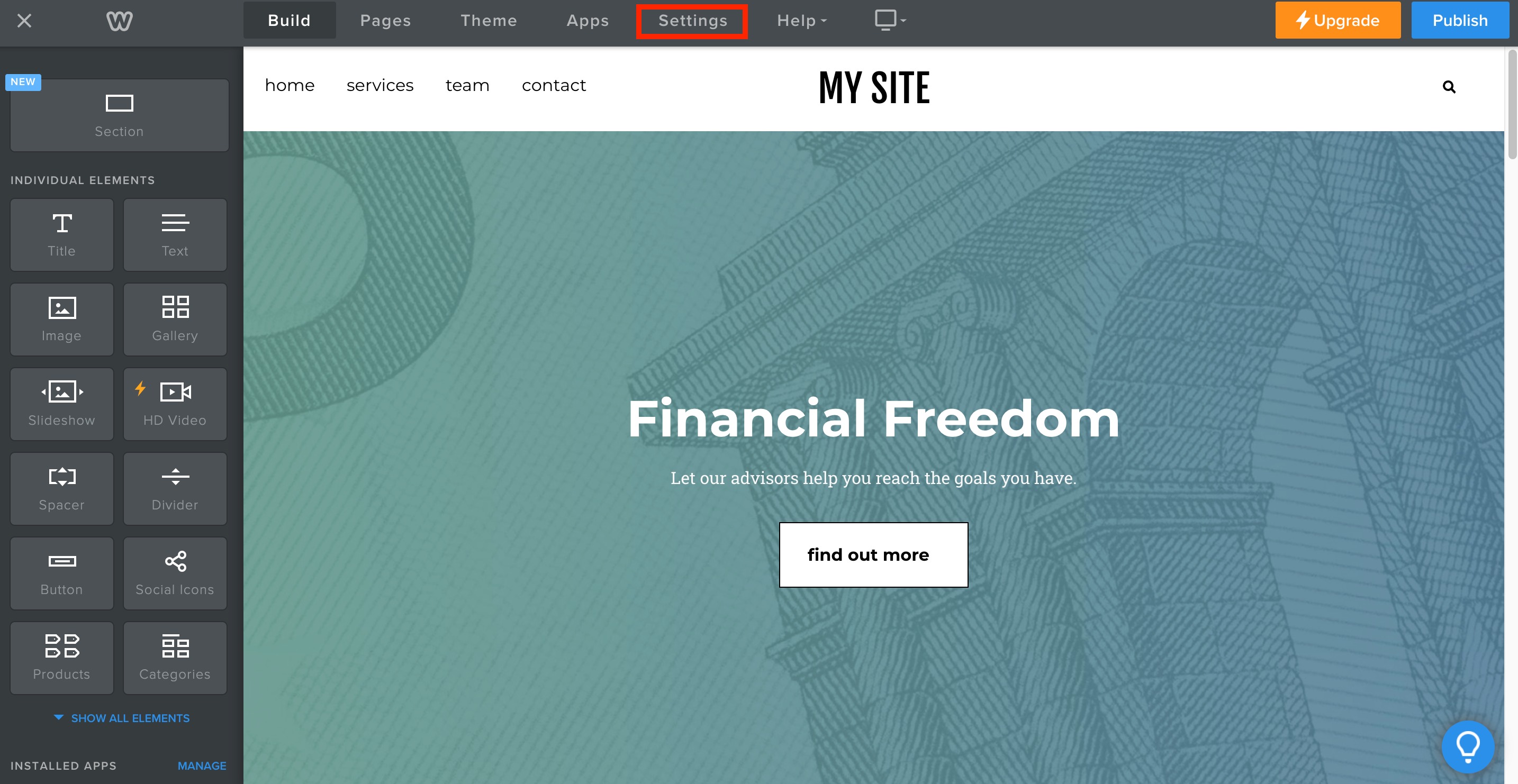
- In the left-hand menu and select “SEO” from the options.
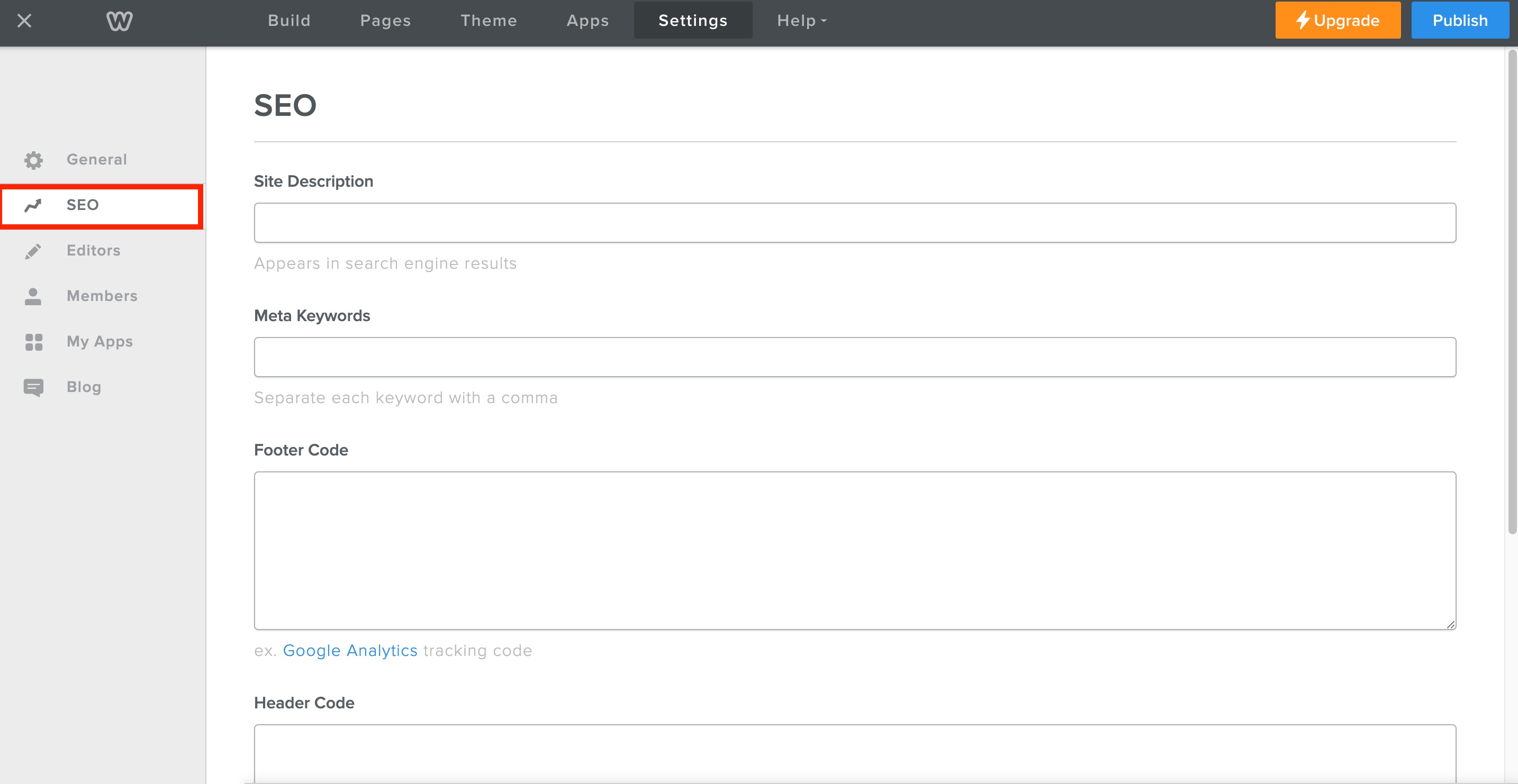
- Scroll down to the “Header Code Injection” section and click “Edit”.
- Paste the code into the “Header Code Injection” box in Weebly.
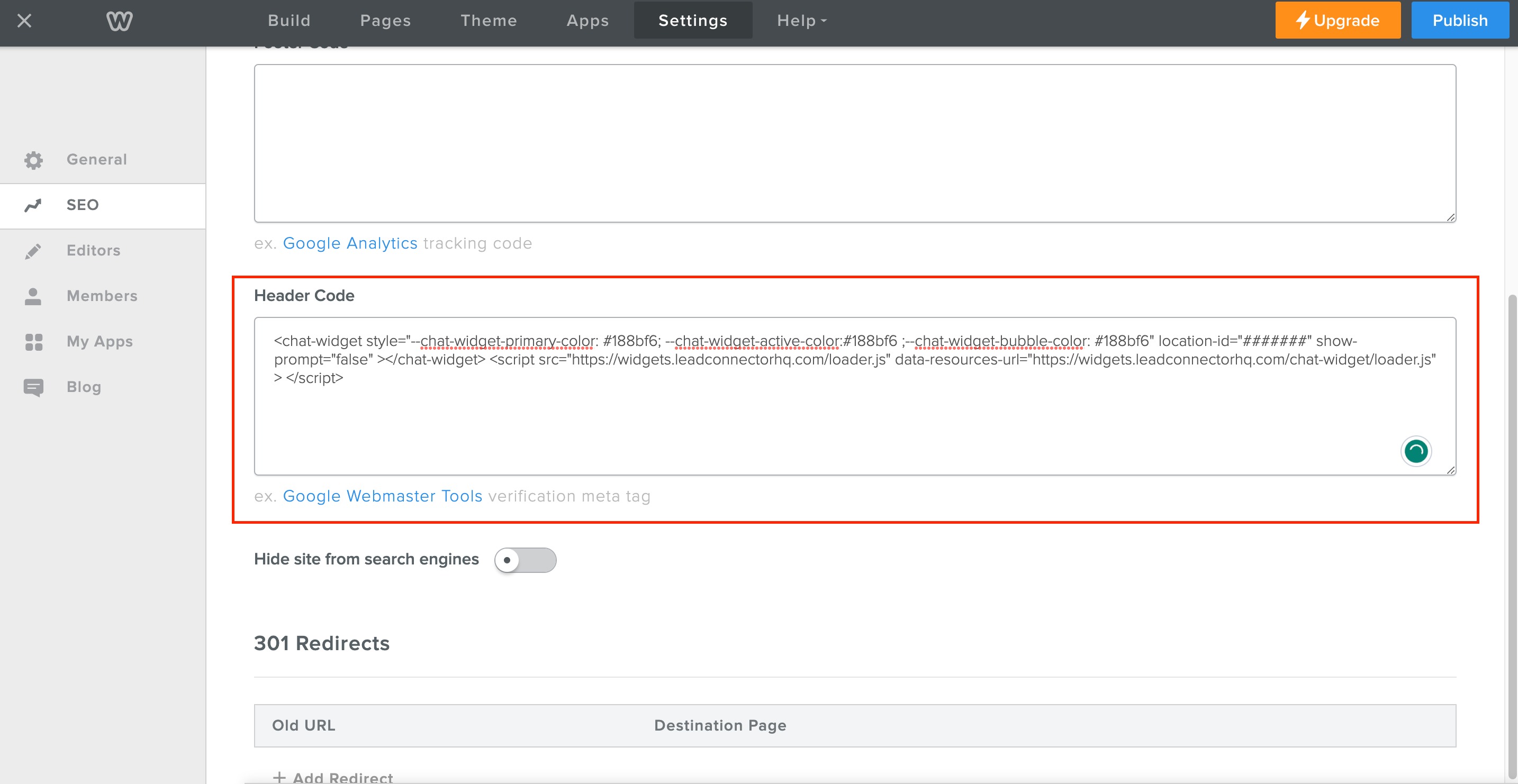
- Click “Save” to save your changes.
Method 2: Adding a Custom Chat Widget with Weebly’s Custom HTML/ Embed Code Element #
- Log in to your Weebly account and navigate to the website editor.
- Click on “Elements” in the left-hand menu and select “Custom HTML/Embed Code” from the options.
- Drag and drop the Custom HTML element onto your page where you want the chat widget to appear.
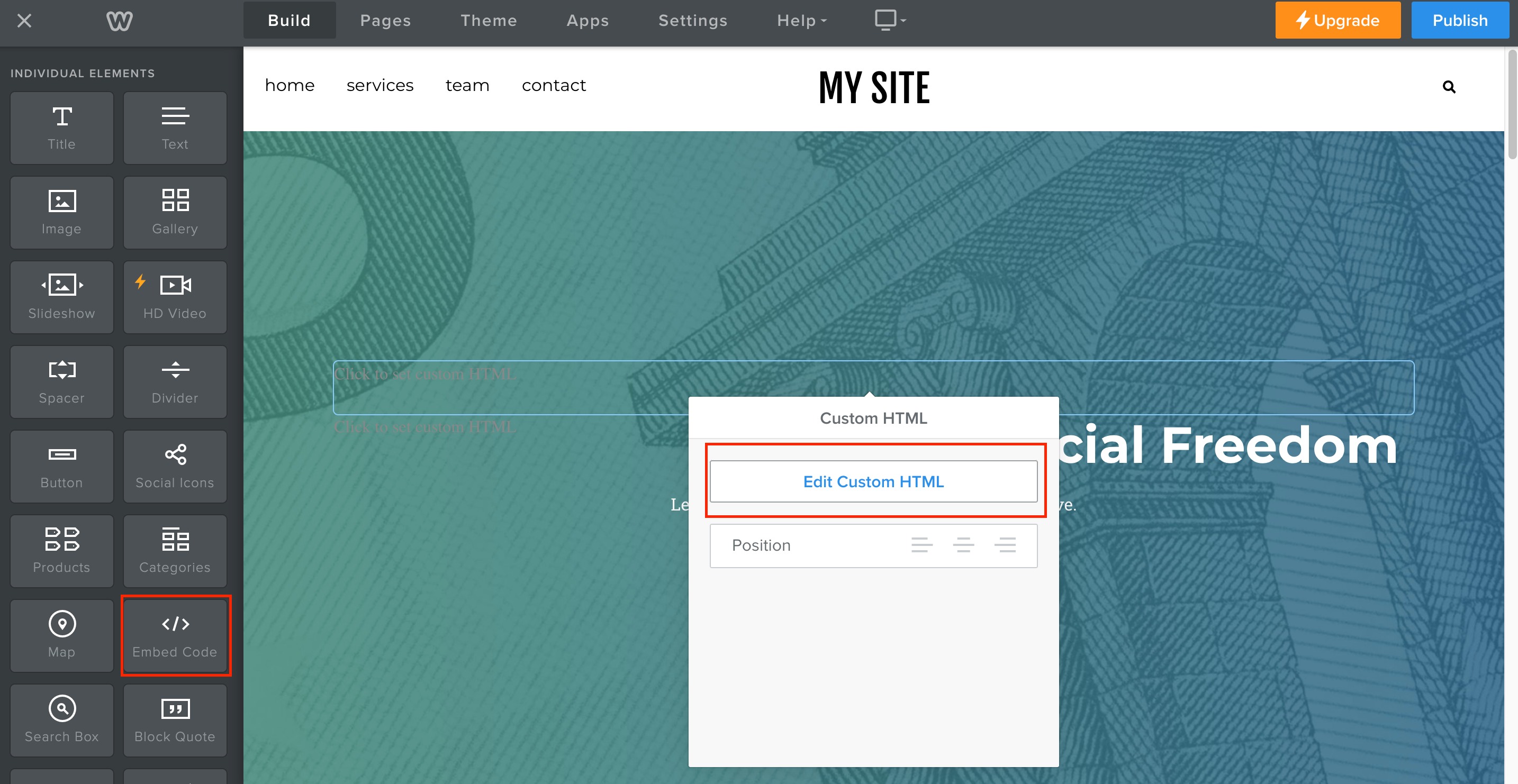
- Paste the Chat code into the Custom HTML element in Weebly.
- Click “Publish” to save your changes.


