Overview
This guide outlines methods for assigning a dedicated LC number to an individual user in your system. The process ensures that all inbound calls to that number are routed specifically to the user.
Steps to Assign a LC Number to a User #
Method 1
Step 1: Purchase & Add the Number
After purchasing a Twilio number: #
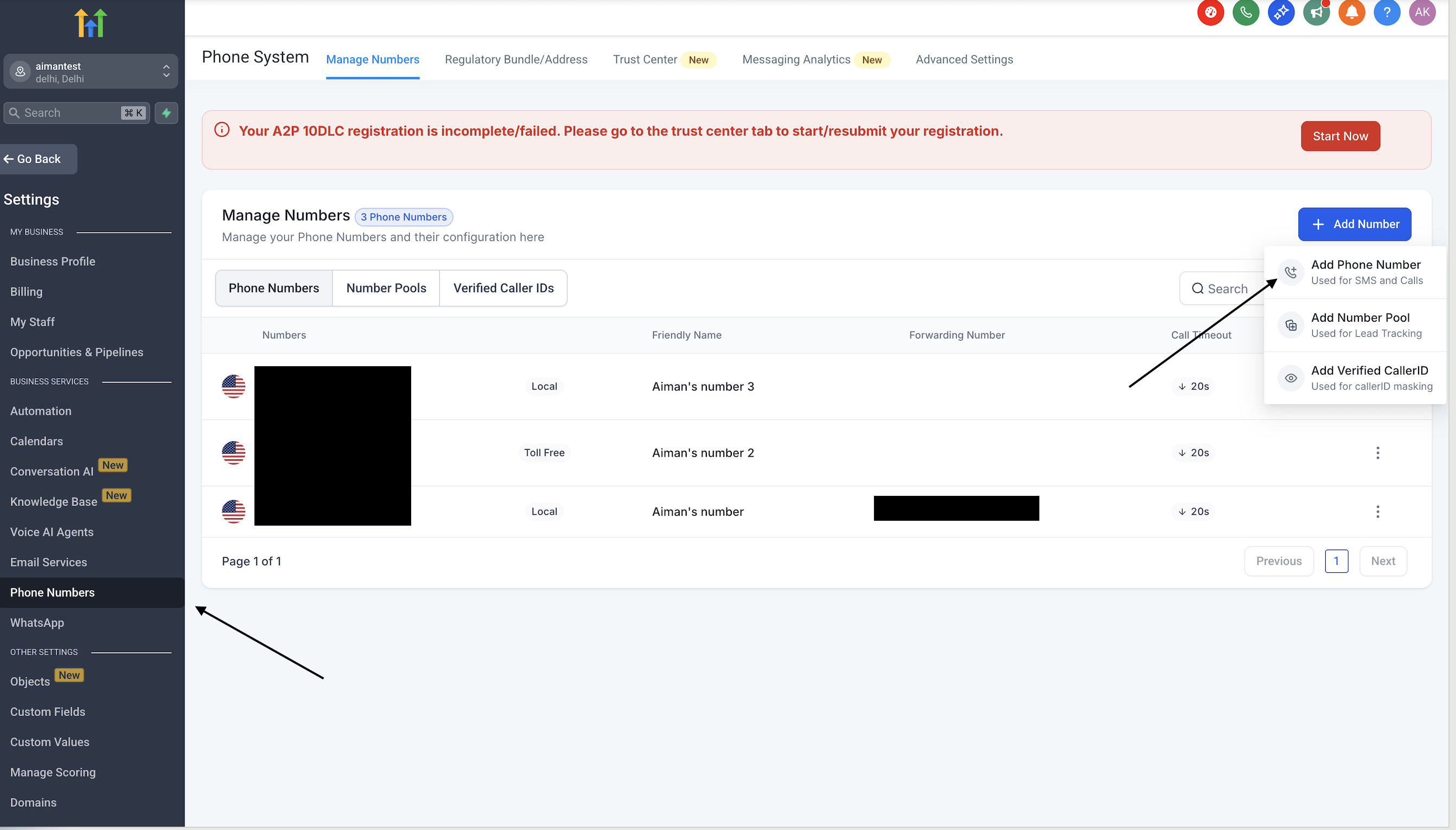
- Go to Location Settings > Phone Numbers.
- Click on “Add Number” to add the new number to the system.
Step 2: Assign the Number to a User #
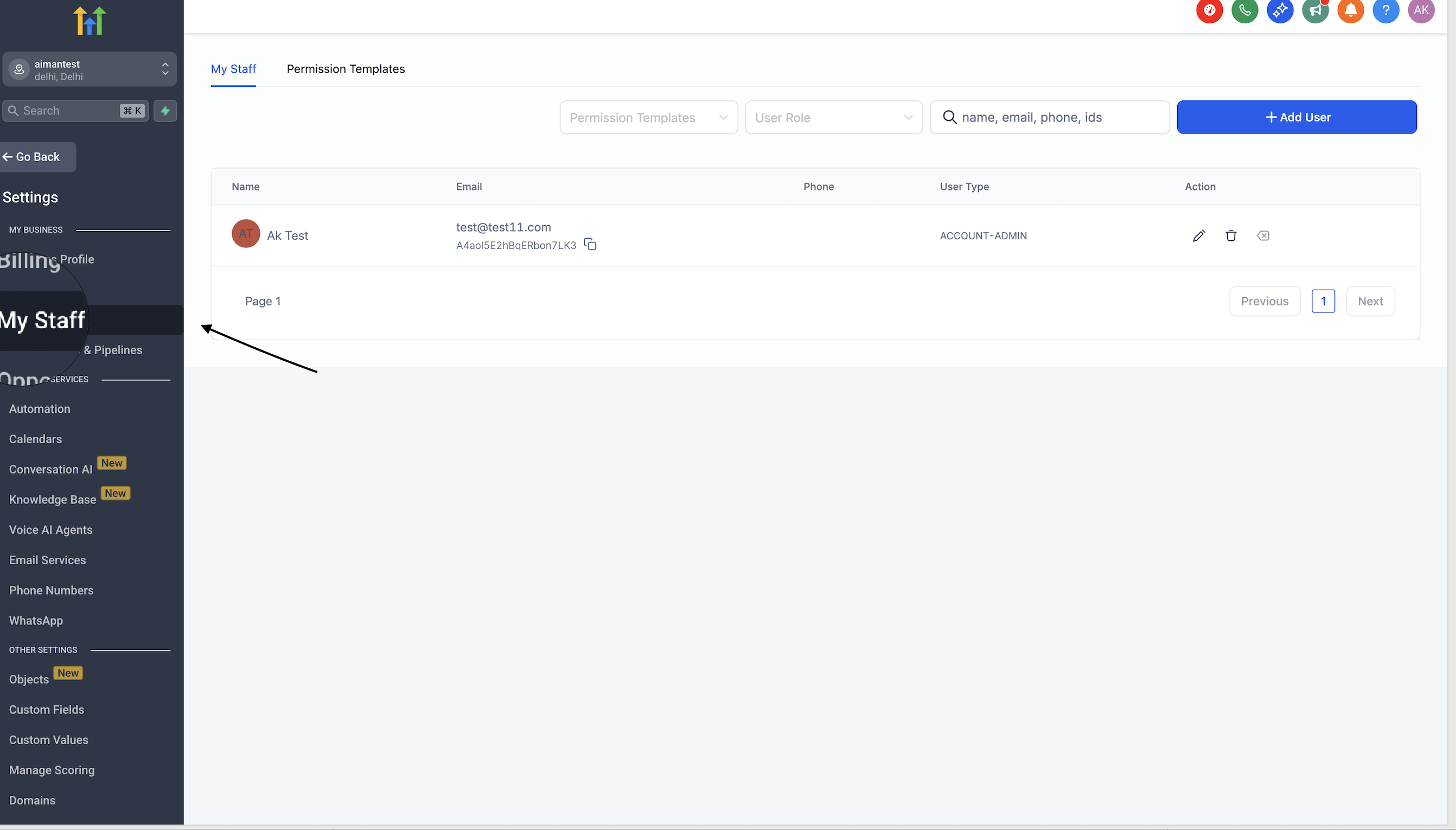
- Navigate to My Staff.
- Edit the specific user profile who needs the number.
#
Step 3: Configure Call Settings #
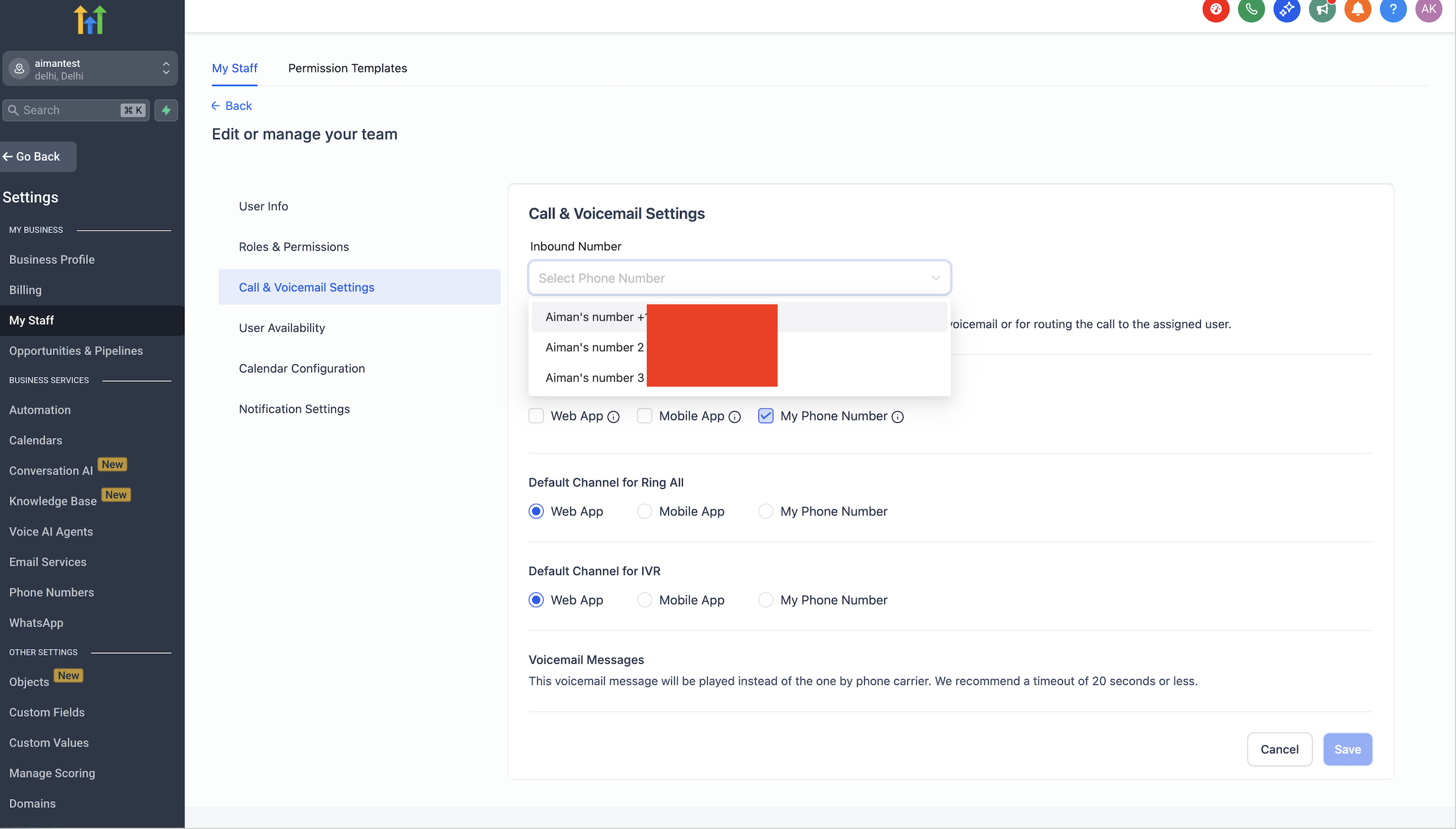
- Expand the Call & Voicemail Settings section.
- Use the Inbound Number dropdown to select the LC number you just added.
Important Note:
Only one LC number can be assigned to one user. Once assigned, all incoming calls to that LC number will go to the designated user.
Method 2 #
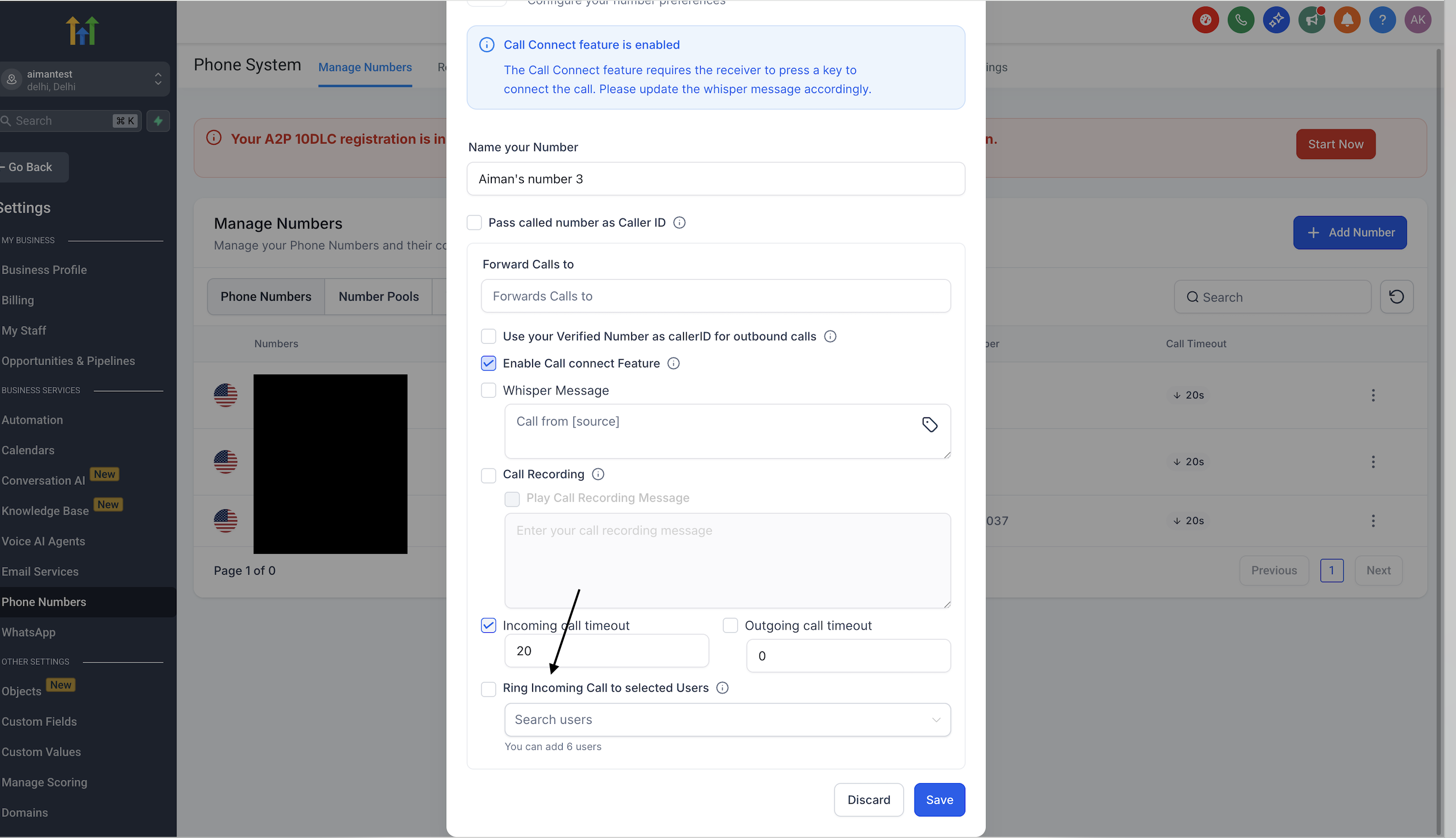
You can go directly to the Phone Numbers section and select the user under the ‘Ring All‘ category to route contact calls to them
Method 3 #
You can assign a user directly from the contact record by going to the contact, selecting ‘Unassigned User,’ and choosing the appropriate user.
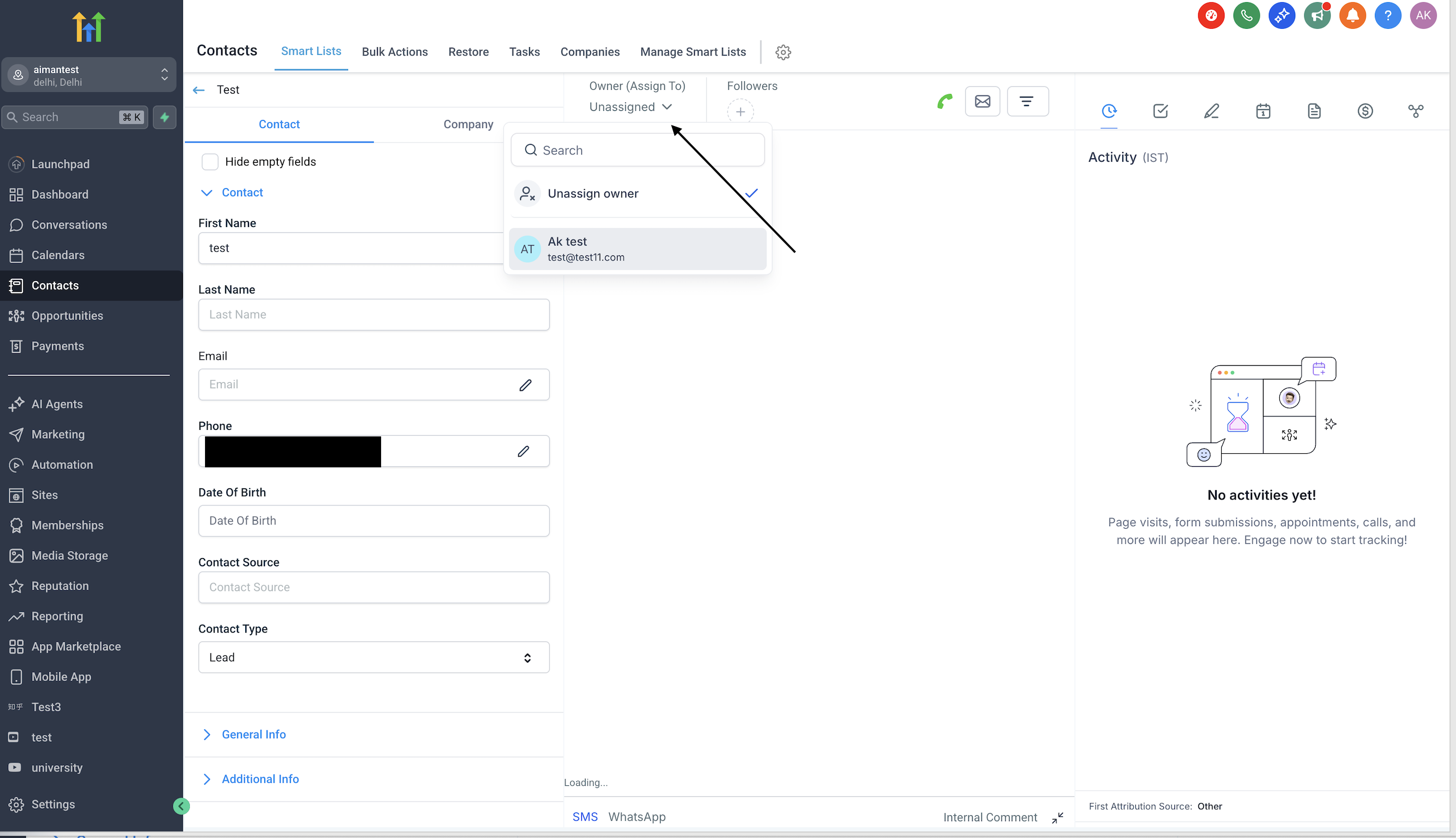
#
Frequently Asked Questions #
Q)Can I assign multiple LC numbers to one user? #
A)No, only one LC number can be assigned to a user at a time for direct routing.
Q)How many users can share one LC number? #
A)Only one user can be assigned to an LC number at any given time. Once assigned, all calls to that number will be directed solely to that user.


