TABLE OF CONTENTS
- What are Payment Failure Notifications on WordPress Admin?
- Key Benefits of Payment Failure Notifications on WordPress Admin
- Grace-Period Handling
- Dismiss-and-Repeat Logic
- How To Set Up Automatic Payment Failure Notifications on WordPress Admin
- Frequently Asked Questions
What are Payment Failure Notifications on WordPress Admin? #
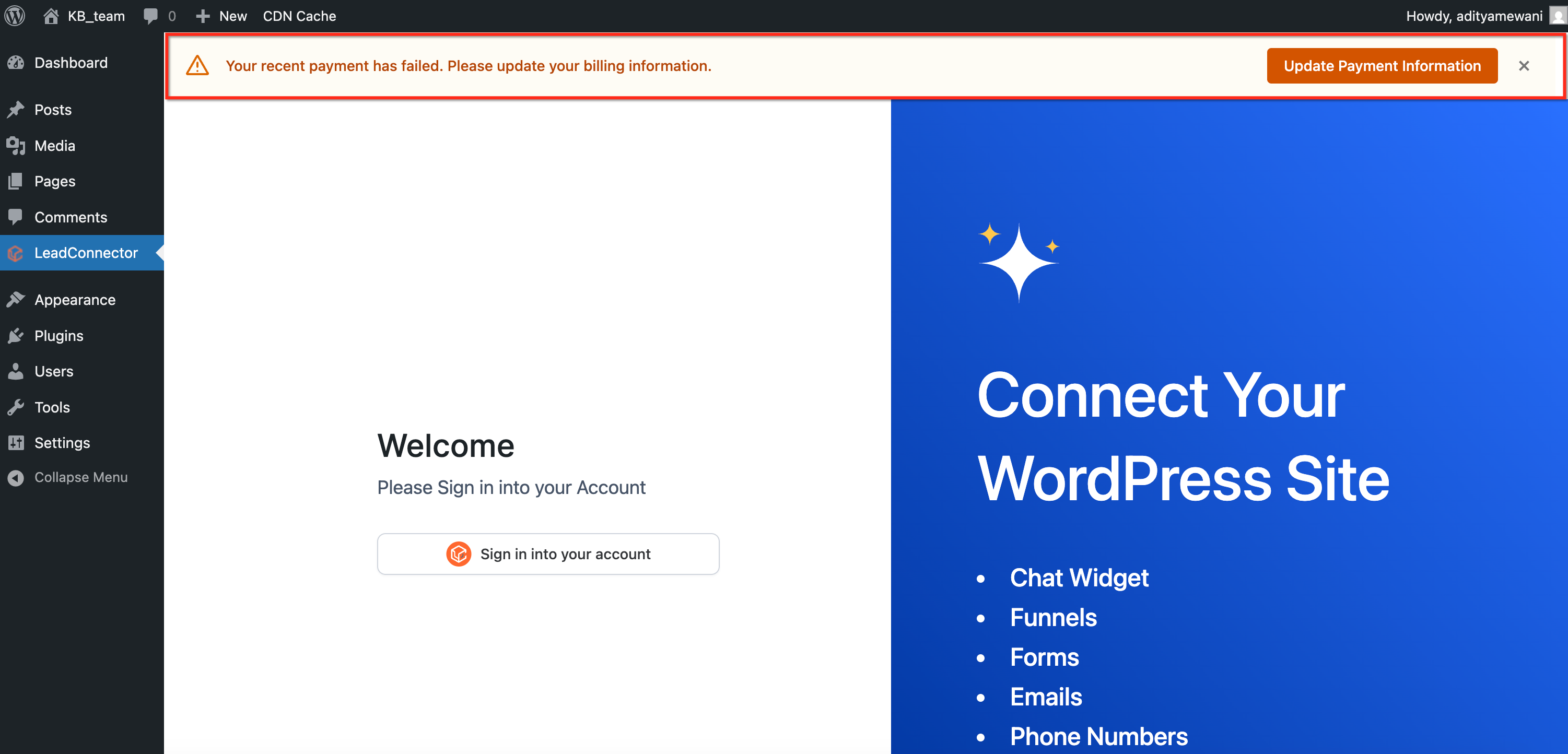
Payment Failure Notifications on WordPress Admin is a aiXios feature that displays clear, contextual alerts in your WordPress Admin dashboard whenever a payment fails. Using the LC Plugin, it delivers real-time prompts that guide you toward resolving billing issues quickly, without leaving your primary work environment.
These alerts appear clearly within the wp-admin interface and guide users to take immediate action, reducing the risk of site disruptions due to unpaid invoices.
Key Benefits of Payment Failure Notifications on WordPress Admin #
This feature enhances your WordPress experience by ensuring payment issues are visible and actionable immediately, preventing potential service interruptions.
- Immediate visibility: Receive in-dashboard alerts the moment a payment fails.
- 3-day grace period: Keep full site access while addressing the billing problem.
- Persistent reminders: Dismiss alerts temporarily, but they will reappear until resolved.
- Effortless integration: Works seamlessly via the LC Plugin with minimal setup.
- Reduced churn and downtime: Encourages prompt resolution to keep services active.
Grace-Period Handling #
Grace-Period Handling provides a balanced approach by allowing three days to fix a billing issue without affecting your site’s accessibility. This ensures continuity while promoting timely account management.
- Alerts remain active for 3 days after a payment failure.
- The site remains fully accessible during this period.
- After 3 days, a site-lock mechanism activates if the issue persists.
- Encourages action without abrupt service disruption.
Dismiss-and-Repeat Logic #
Dismiss-and-Repeat functionality keeps you aware of unresolved issues without overwhelming your workflow. You can hide alerts temporarily, but they return to maintain visibility until resolved.
- Temporarily dismiss alerts to reduce distraction.
- Notifications return on page reload or next login.
- Ensures payment failures remain visible until fixed.
- Promotes accountability and prompt resolution.
How To Set Up Automatic Payment Failure Notifications on WordPress Admin #
Proper setup ensures you benefit fully from timely billing alerts. Following these steps will activate the feature within your WordPress Admin dashboard.
Steps to Enable Notification Alerts #
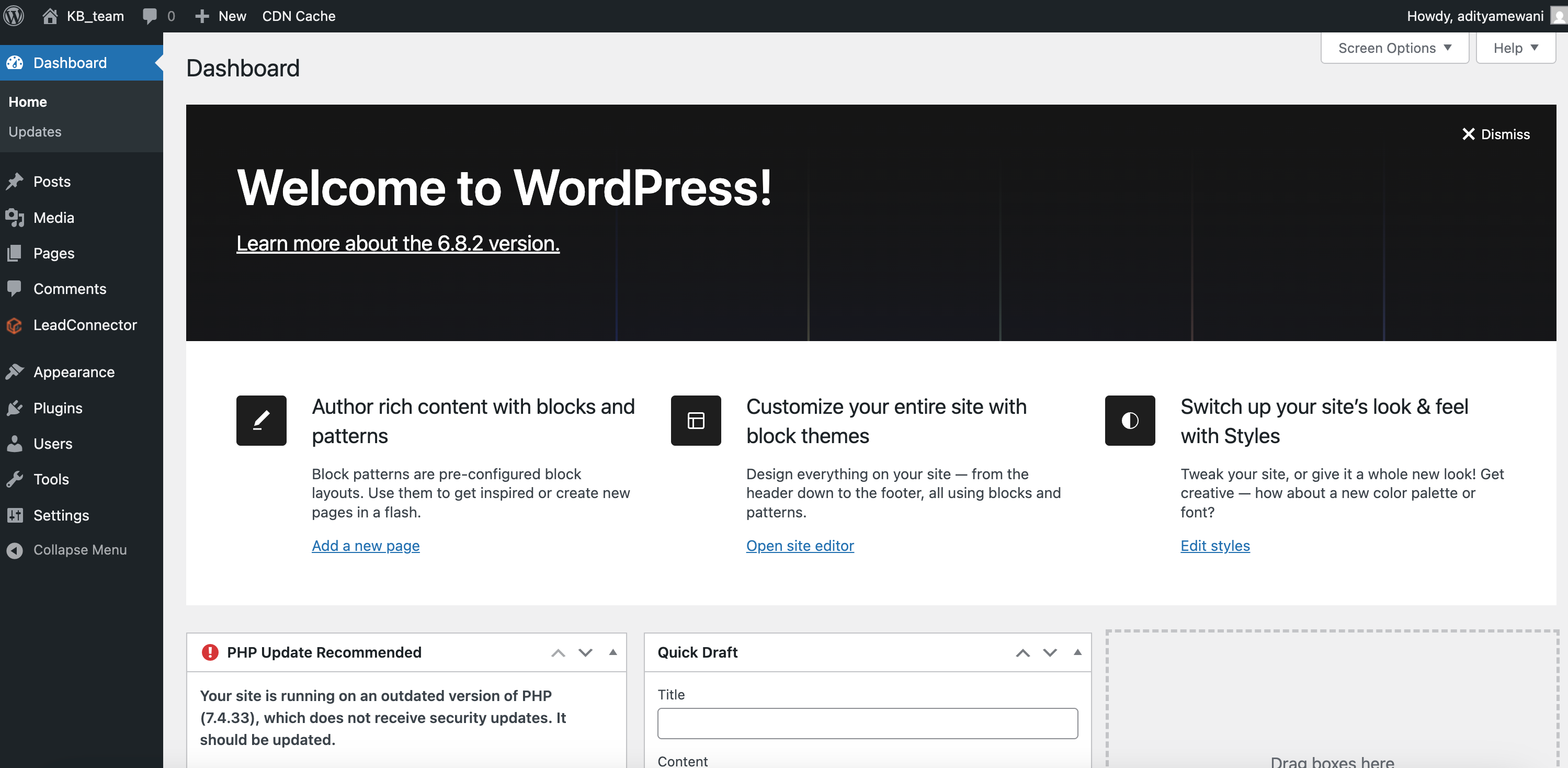
- Log in to your WordPress admin dashboard.
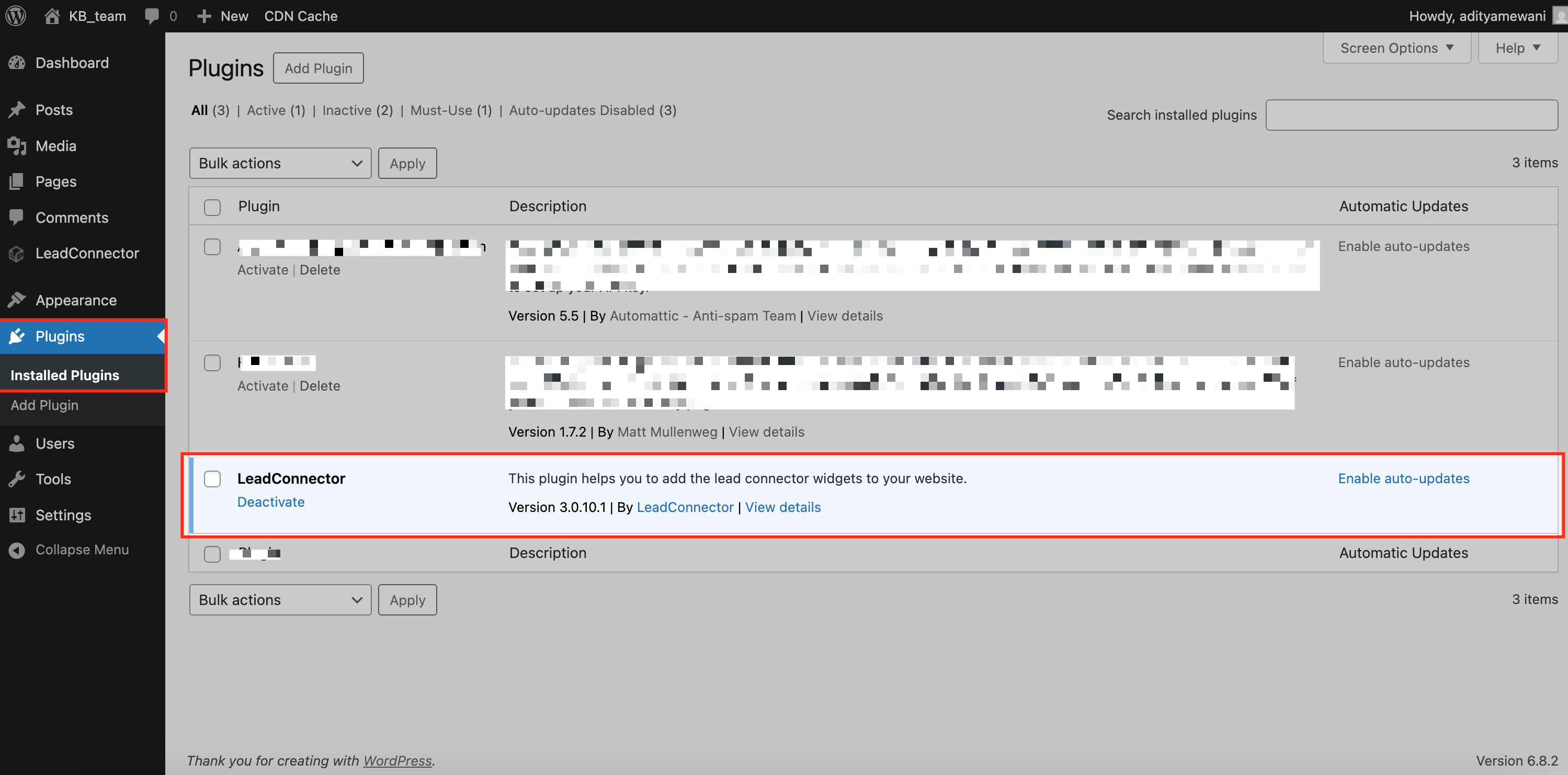
- Navigate to Plugins > Installed Plugins. Ensure the LC (LeadConnector) Plugin is installed and activated.
- No further setup is needed; alerts will trigger automatically upon payment failure.
Frequently Asked Questions #
Q: What does the Payment Failure Notification do?
It shows a clear alert in your WordPress Admin when a payment fails, prompting immediate action.
Q: How long is the grace period before the site locks?
Three days, during which your site remains accessible to allow issue resolution.
Q: If I dismiss the alert, will it remain dismissed permanently?
No, the alert reappears on page reload or your next login until the issue is resolved.
Q: What prerequisite is needed to use this feature?
The LC Plugin must be active on your WordPress site.
Q: Can I customize the notification message?
Notifications are standardized for clarity; customization is currently limited.


