This guide walks you through the steps to hide the template library for a specific sub-account or limit visibility by module. This helps streamline the experience for location users and prevent clutter or misuse.
TABLE OF CONTENTS
Who Can Do This?
Use Cases
Step-by-Step Instructions
- Go to the Agency Admin Panel
- Open Settings
- Customize Sub-Account Visibility
- Search and Select Sub-Account
- Set Visibility Preferences
- Save Changes
Important Notes
Who Can Do This? #
Only Agency Admins can manage template library visibility settings for sub-accounts.
Use Cases #
- Hide template access for sub-accounts that shouldn’t create or edit templates
- Limit template use to only relevant modules (e.g., disable for SMS, allow for Email)
- Create a cleaner, more focused interface for sub-account users
- Only give access to premium customer or higher SaaS plans
Step-by-Step Instructions #
1. Go to the Agency Admin Panel #
- Log in as an agency admin
- Navigate to the top menu and select “Template Library”
2. Open Settings #
- Click on the “Settings” tab within the Template Library section
3. Customize Sub-Account Visibility #
- Click “Customize for Subaccount”
4. Search and Select Sub-Account #
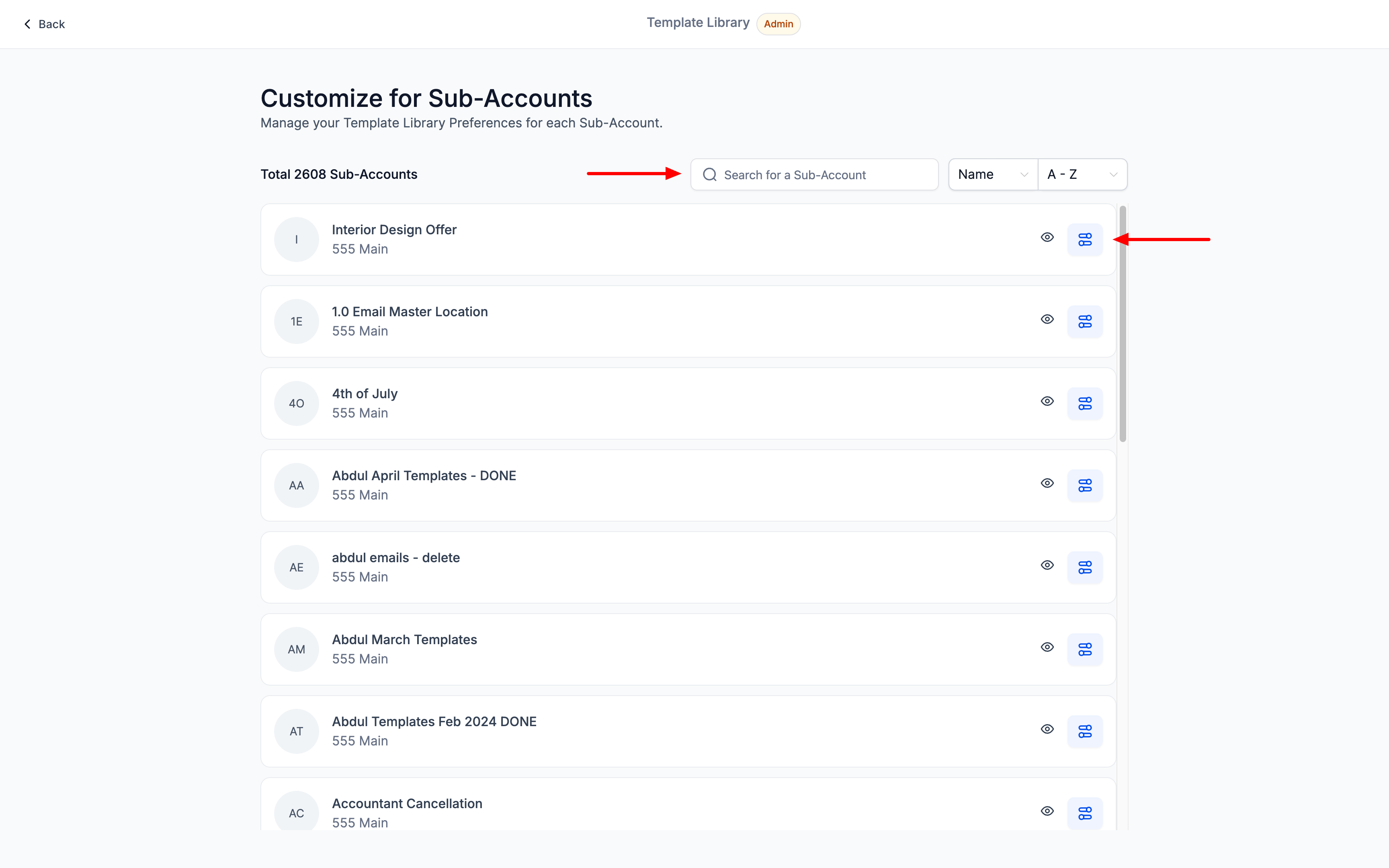
- Use the search bar to find the sub-account you want to update
- Click “Edit” next to the selected account
5. Set Visibility Preferences #
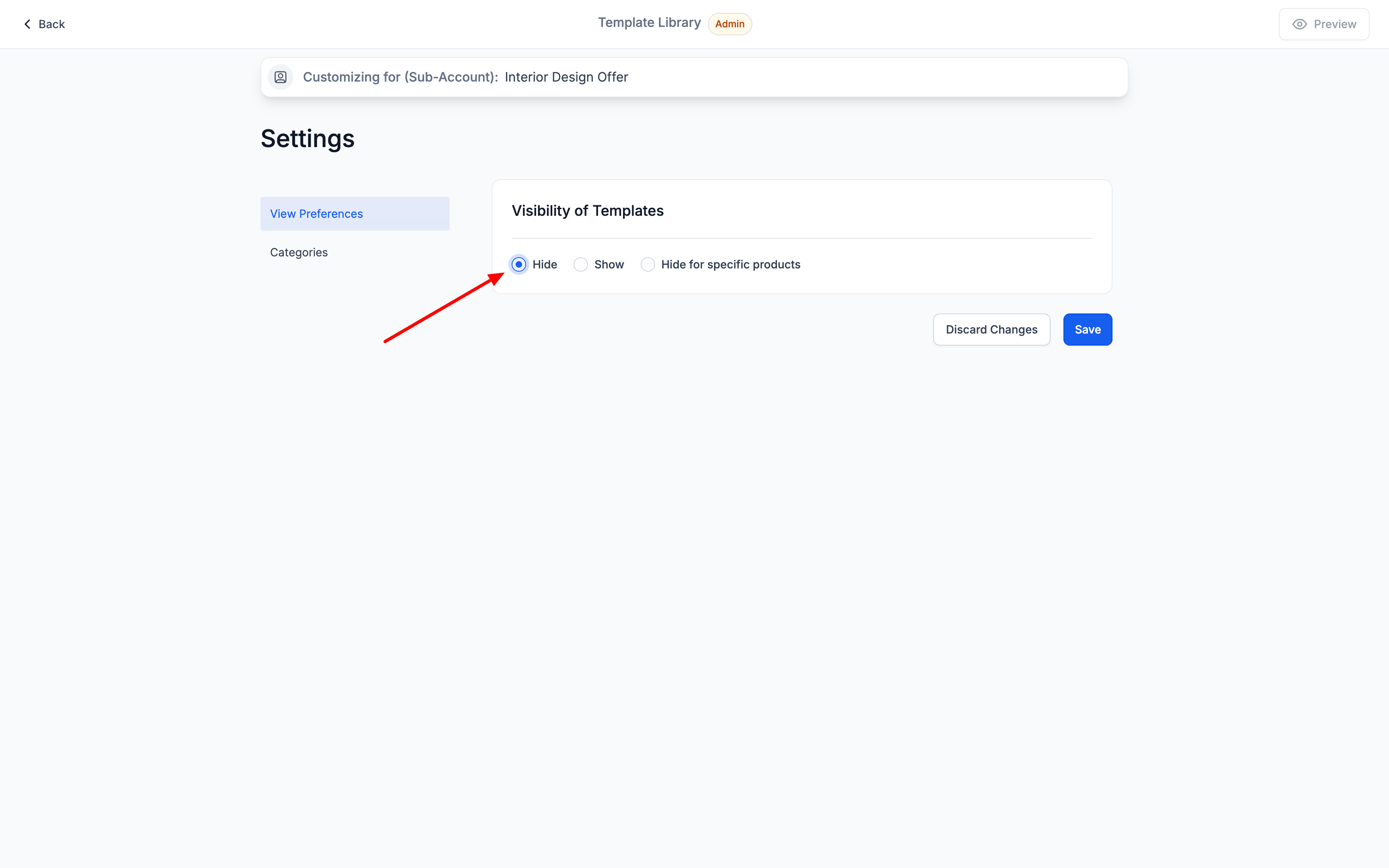
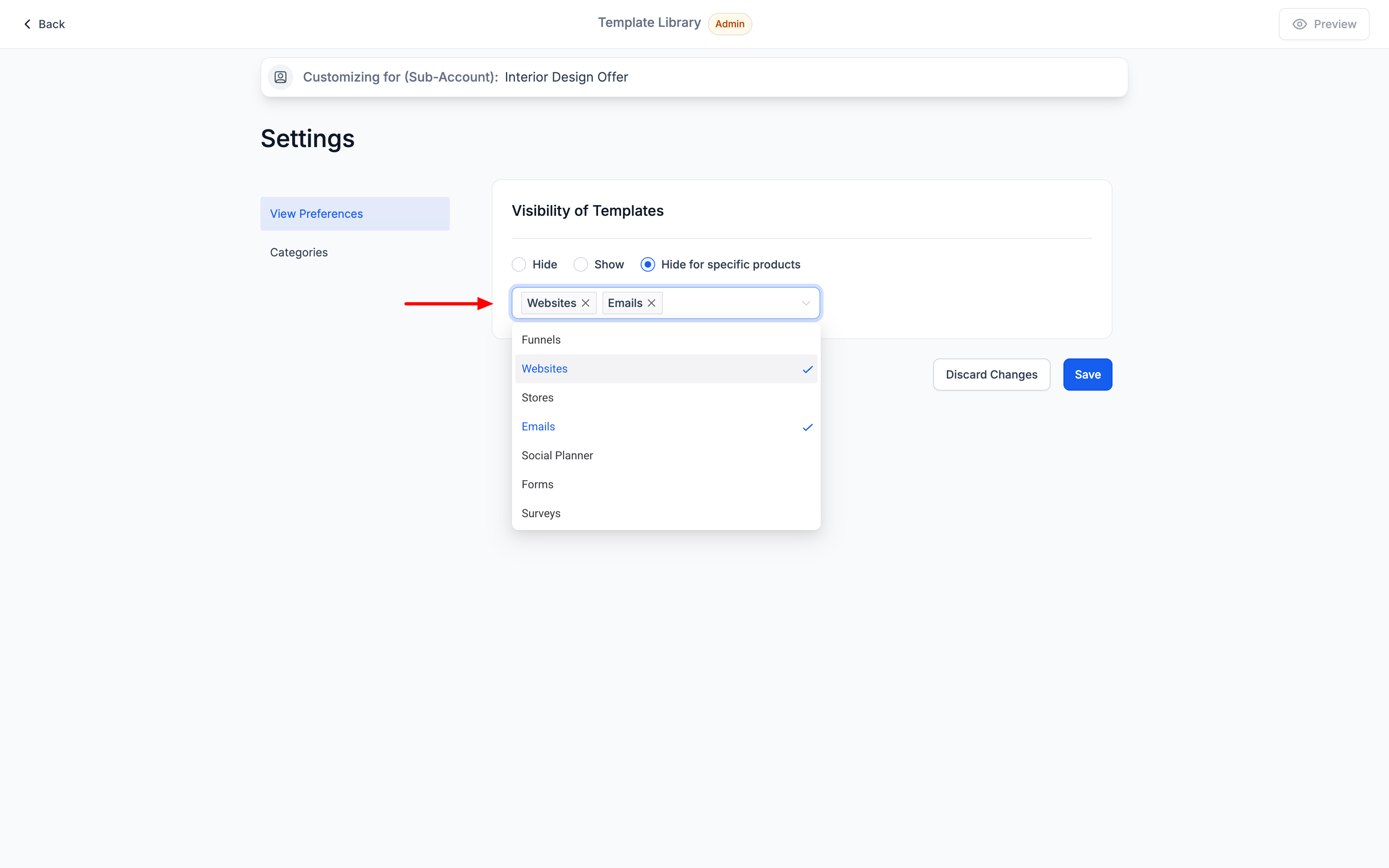
- Choose from:
- Hide the template library completely for this sub-account
- Hide by module (Email, funnel etc.)
- Hide the template library completely for this sub-account
6. Save Changes #
- Click “Save”
- Your changes will take effect immediately
Important Notes #
- Agency users will always see the full template library
- These settings affect only the location/sub-account users
- System Email templates remain visible to users regardless of settings


