We’re excited to introduce a new feature for agency admins: the ability to hide default templates added by the aixios team! This enhancement allows you to customize the template library, ensuring a cleaner, more tailored experience for your sub-accounts. Now, you can focus on the templates that best suit your needs and provide a smoother, more organized workflow for your clients.
Benefits:
- Time-Saving: Hide multiple templates at once, reducing manual effort.
- Improved Organization: Keep the Template Library clean and focused by hiding unused categories.
- Enhanced Control: Admins can easily manage and review hidden templates.
How to Use It?
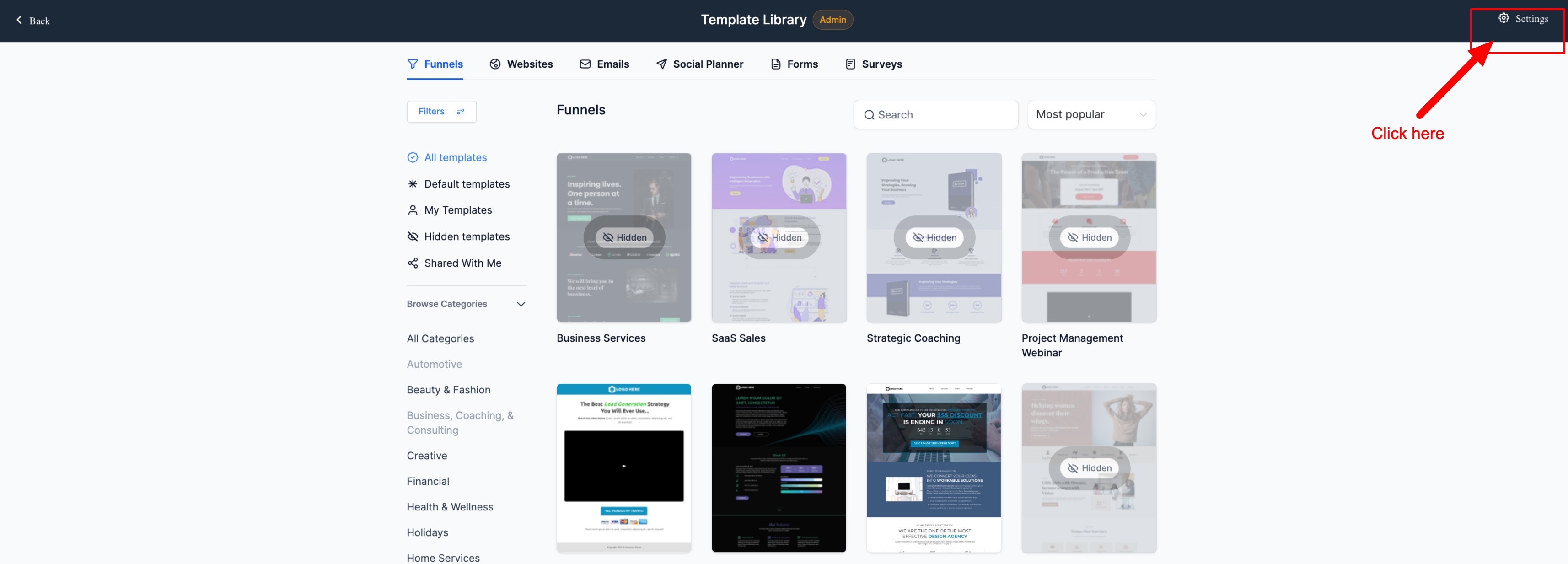
- Navigate to the Template Library.
- Click on Settings.
- Choose the category to hide and enables the toggle to hide it.
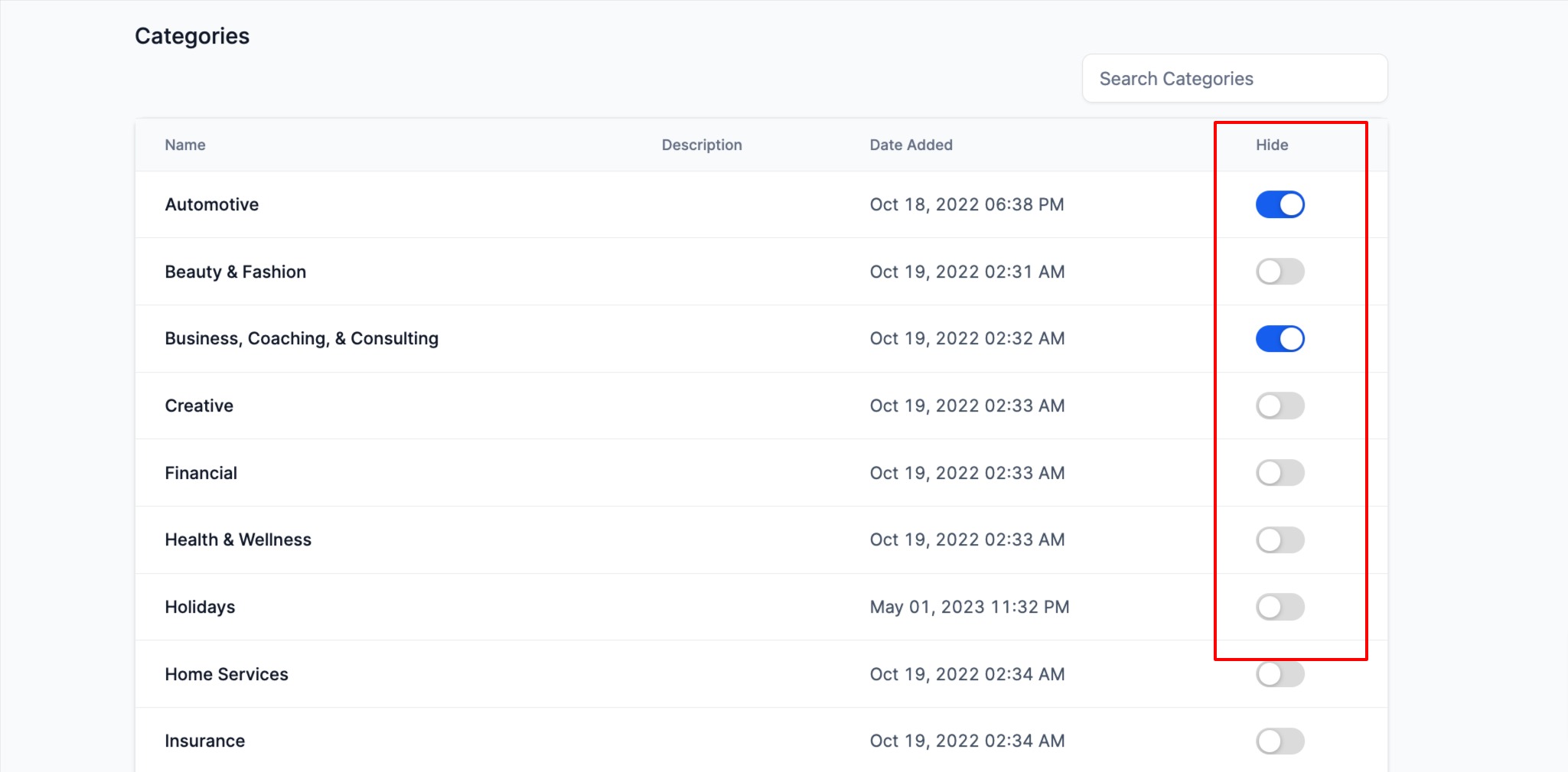
- To unhide, simply turn the toggle off again.
- Hidden templates will be highlighted for the admin.
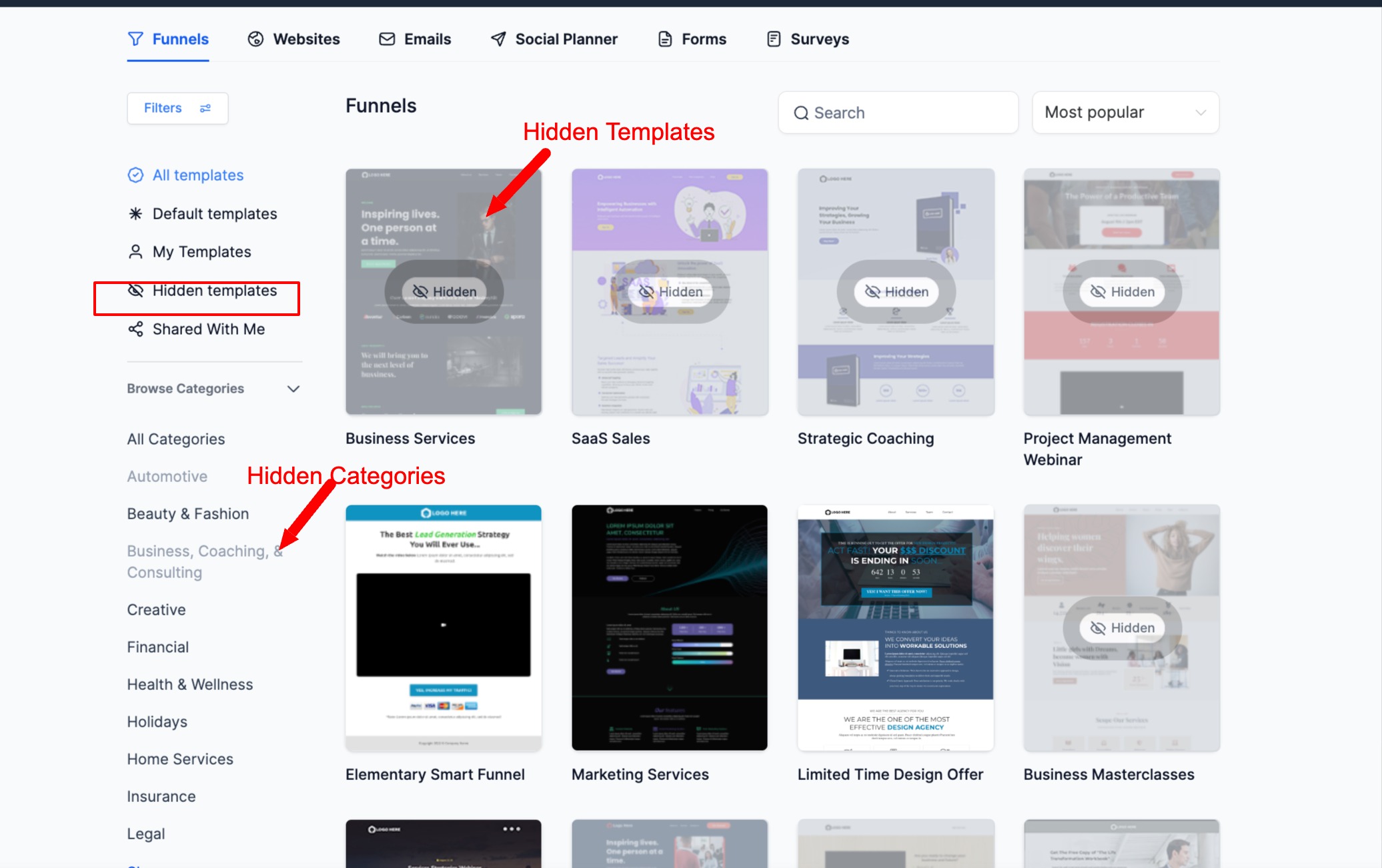
- Admins can use the Hidden Templates filter to see a summary of all hidden templates.
FAQs
1. Can users delete aixios templates?
-> No, they can hide the aixios templates which would be visible under Hidden Templates
2. Can users see all aixios templates at once?
-> Yes, Admin can see all aixios templates by clicking on the Default Template filter. The users however in account view would not be able to distinguish the aixios templates vs the agency templates


