TABLE OF CONTENTS
- How to Use:
- Key Features / Benefits
- Better User Experience:
- Notes:
How to Use: #
- Open your Form or Survey Builder.
- Click on the Radio, Checkbox, or Radio Image field.
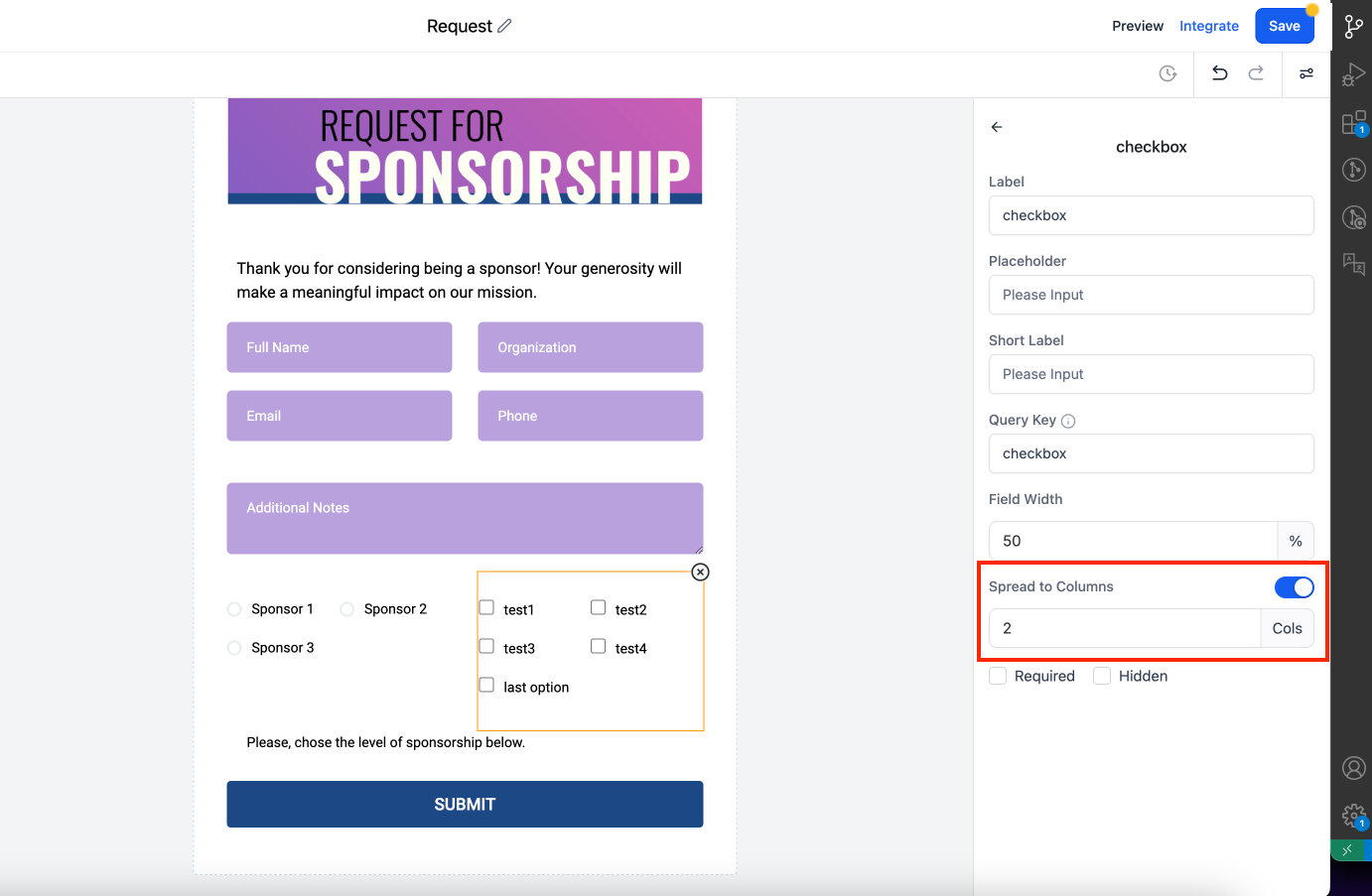
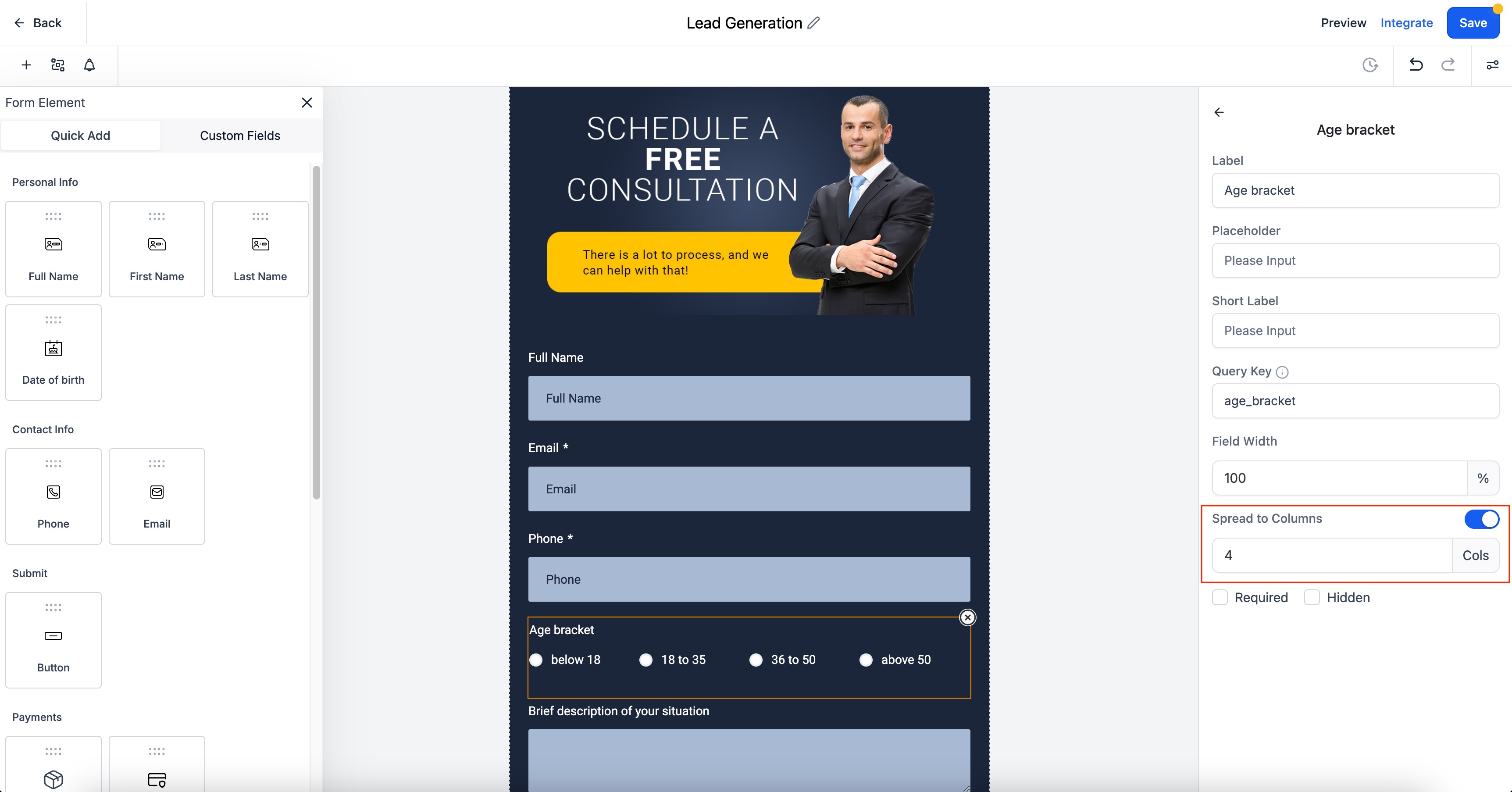
- In the right settings panel, enable the “Spread to Column” option.
- Specify the number of columns.
Key Features / Benefits #
Improved Styling:
Create visually appealing and well-organized forms by distributing radio options and checkboxes into columns.
Better User Experience: #
Enhance the clarity and usability of your forms, making it easier for respondents to navigate and select options.
Notes: #
- In Single Column, the maximum number of columns is 5.
- In Two Column, the maximum number of columns is 2.
- In Single Line Column, the maximum number of columns is 5.
- This feature does not affect older forms.