TABLE OF CONTENTS
Overview
Trigger Name
Trigger Description
How to Configure
Example
Overview #
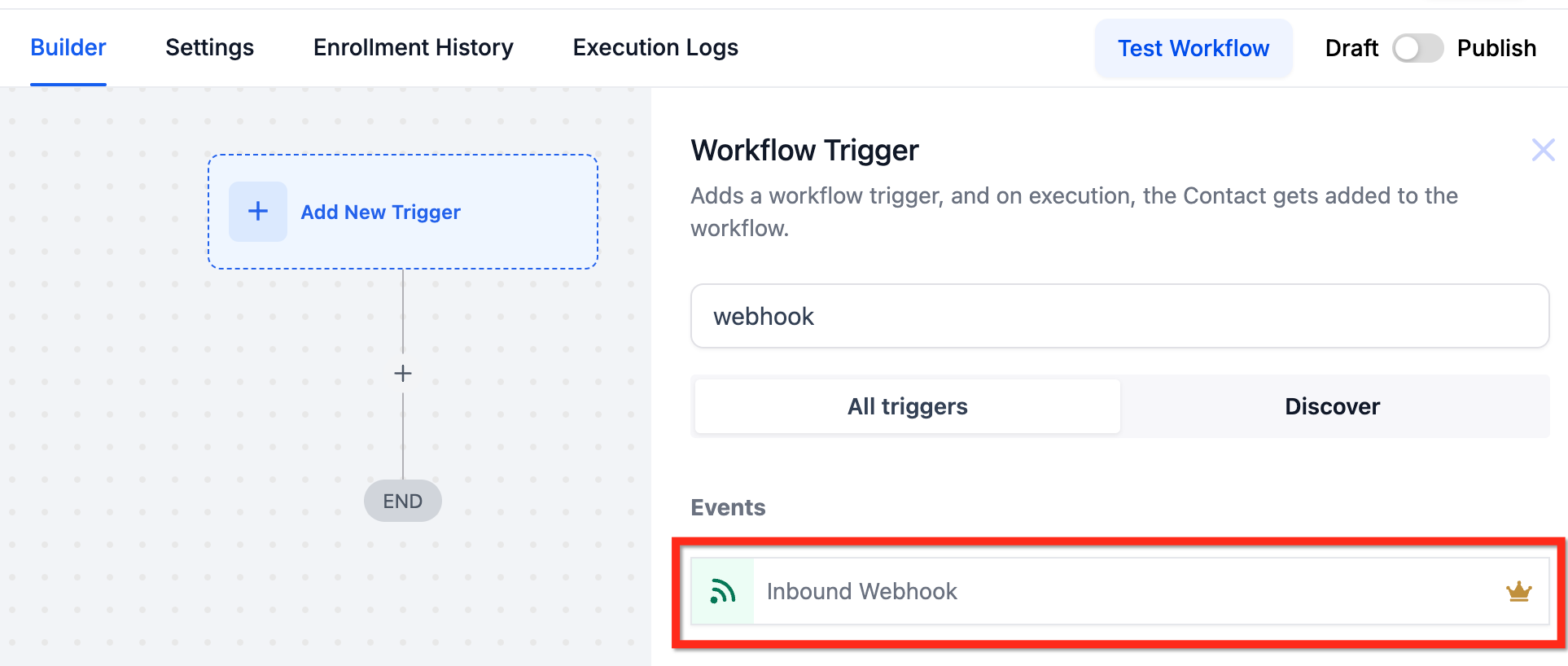
The Inbound Webhook Trigger in aixios allows users to initiate workflows based on incoming data from external applications. By leveraging this trigger, you can seamlessly automate processes and integrate aixios with various third-party systems.
Trigger Name #
Inbound Webhook Trigger
Trigger Description #
The Inbound Webhook Trigger captures incoming POST/GET/PUT requests sent to a aixios Webhook URL (unique for each trigger). This enables the system to react to events from external applications, such as form submissions, payment notifications, or any other data changes, allowing for real-time updates and automation within aixios workflows.
How to Configure the Inbound Webhook Trigger #
1. Access Workflow Settings:
- Open or create a new workflow in aixios.
- Select “Inbound Webhook” as the Workflow Trigger.
2. Generate Webhook URL: A unique Webhook URL will be generated for your workflow. Copy this URL for use in external applications.
3. Set Up External Application: In the external app (e.g., Zapier, Integromat), create a trigger that will send data to the aixios Webhook URL. Configure the action to send a POST request to the copied URL, including the necessary data in JSON format.
4. Test the Integration: Send a test request from the external application to the aixios Webhook URL to ensure the integration is functioning correctly.
5. Map Incoming Data: In aixios, you can select and map the data received from the external application to relevant fields or variables within your workflow.
6. Save the Trigger: Once configured, click “Save Trigger” to finalize the setup.


Example #
Scenario: Integrating a Payment Processor #
1. Webhook URL: You create a workflow in aixios and generate a Webhook URL.
2. External Application Setup: In a payment processing application like Stripe, you set up a webhook that triggers when a payment is successful. You configure it to send a POST request to the aixios Webhook URL with payment details in JSON format.
3. Data Sent: The JSON payload might look like this
{
  "customer_id": "CUST_001",
  "amount": 100,
  "currency": "USD",
  "status": "successful"
}
JavaScript
4. Workflow Action: Upon receiving this data, the aixios workflow can be set to:
- Update the lead’s status to “Paid.”
- Send a confirmation email to the customer.
- Trigger additional follow-up actions based on the payment status.
This integration allows for real-time updates and automations, enhancing the efficiency of your aixios CRM processes.


