Work smarter and keep affiliates motivated by automating lead-related actions in your workflows. With the powerful combination of the “Lead Created” trigger and the “Add Leads under an Affiliate” action, you can track, assign, and respond to affiliate-generated leads — all without lifting a finger.
Trigger: Lead Created #
What it does #
The “Lead Created” trigger starts a workflow when a new lead is referred by an affiliate — giving you instant automation opportunities.
You can apply it across all campaigns or filter to trigger for a specific campaign only.
How to Use It #
- Go to Workflows and click + Create Workflow
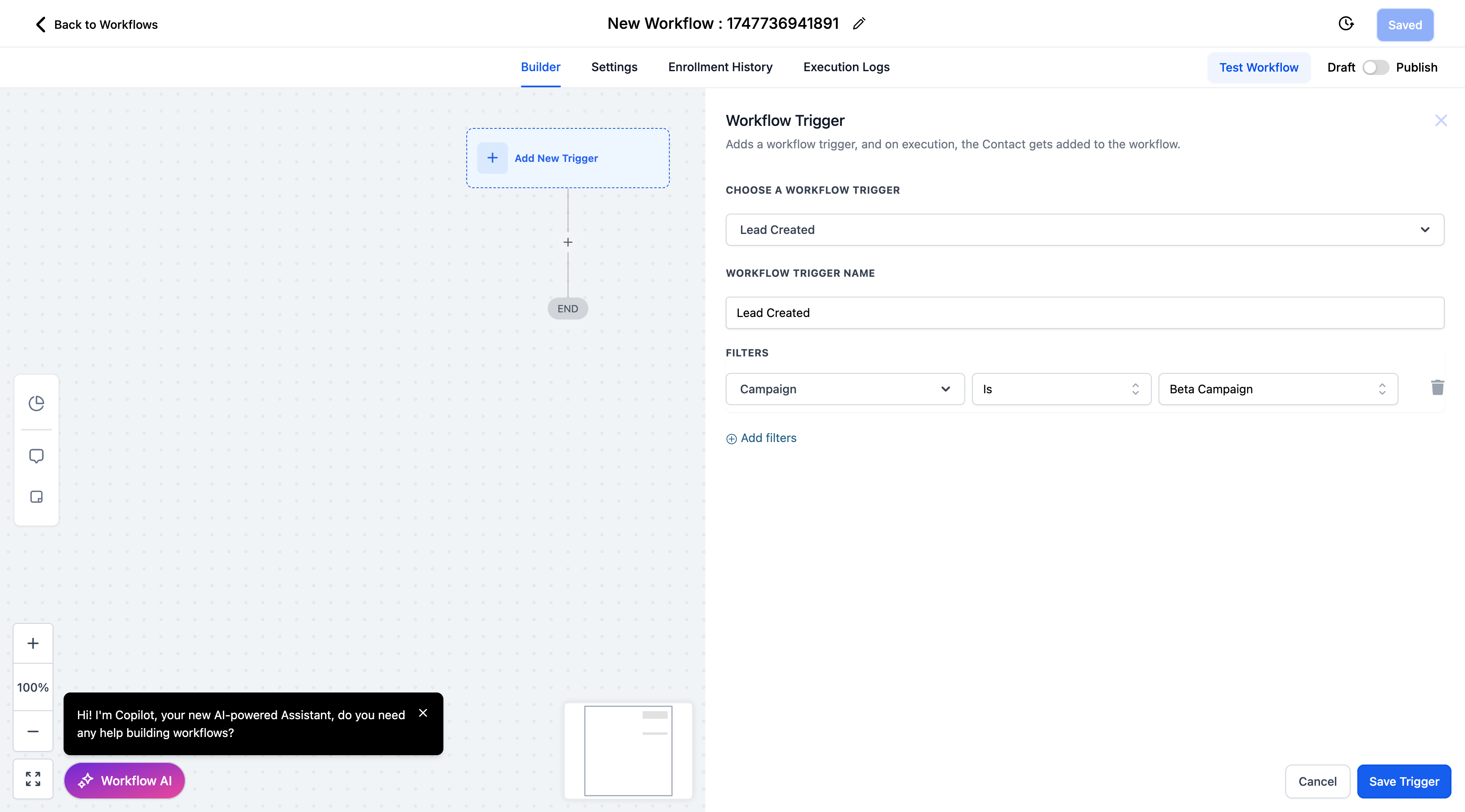
- Set the Trigger as Lead Created
- (Optional) Use the Campaign Filter to narrow it to a specific campaign
- Add actions like:
- Send email to affiliate
- Notify internal team
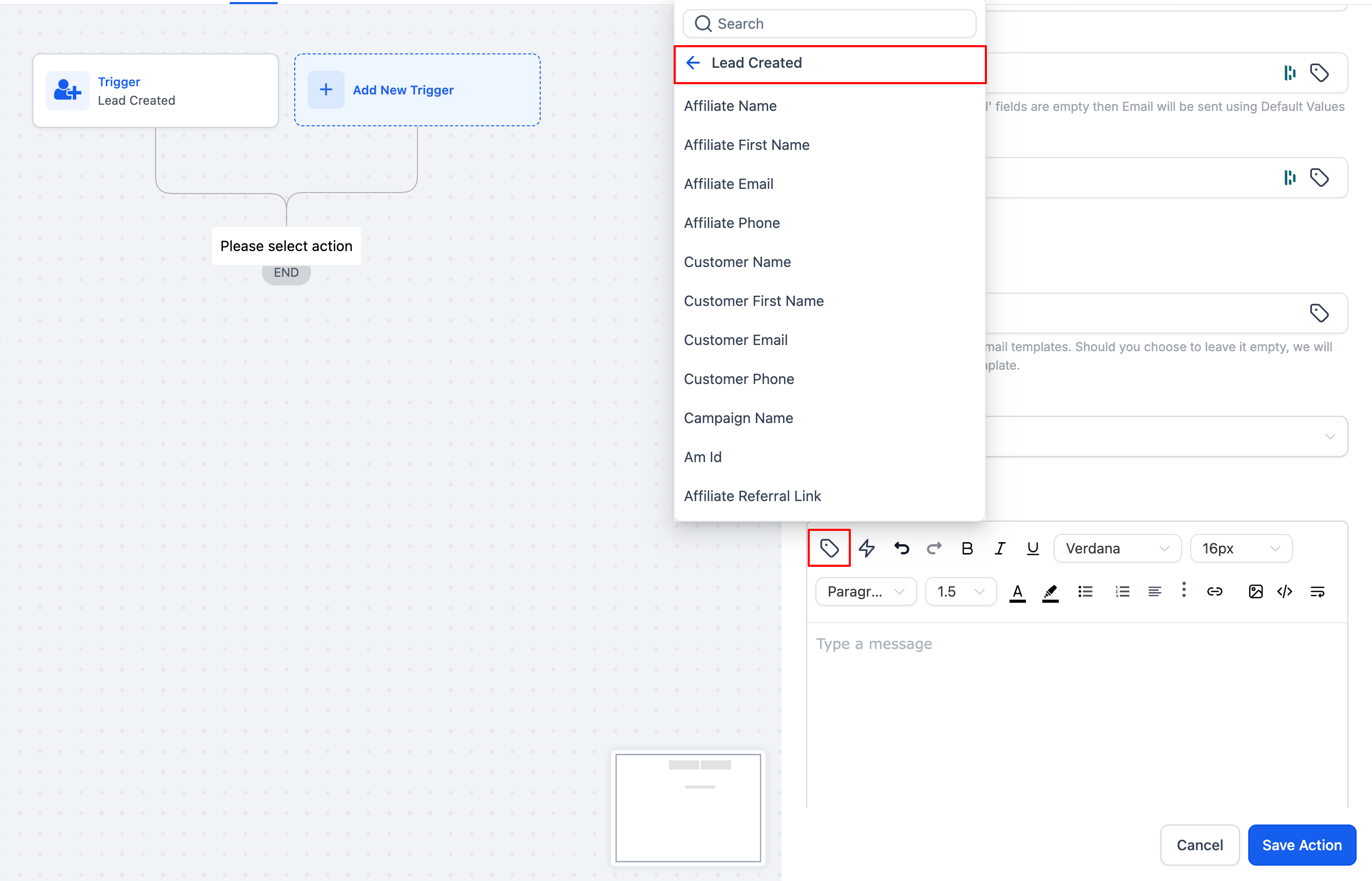
- Use custom values from the Lead Created section in emails/messages
- Save and publish your workflow
Use Cases #
- Send a “Congrats!” email to affiliates when they generate a lead
- Alert your sales or support team about new affiliate leads
- Automatically track and tag affiliate leads for nurturing
Action: Add Leads under an Affiliate #
What it does #
The “Add Leads under an Affiliate” action assigns a contact (lead) to an affiliate and their associated campaign, making sure affiliates are correctly credited.
You can now choose from three assignment methods for total flexibility.
How to Use It #
- In your workflow, add the action:
Add Leads under an Affiliate - Choose your assignment method:
- Manual
- Auto (Attribution)
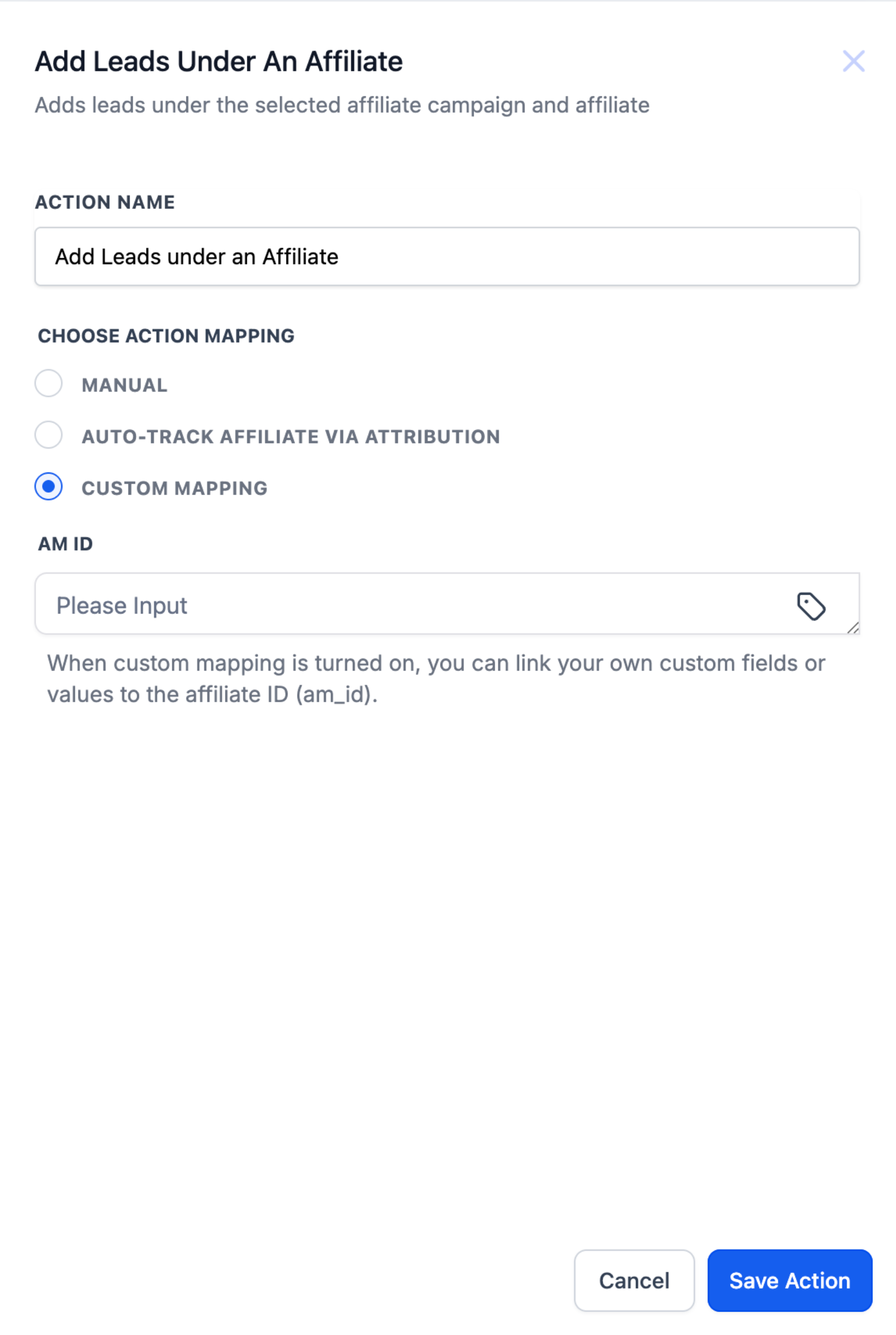
- Custom Mapping
- Configure additional fields based on the method
- Save and publish the workflow
Assignment Methods #
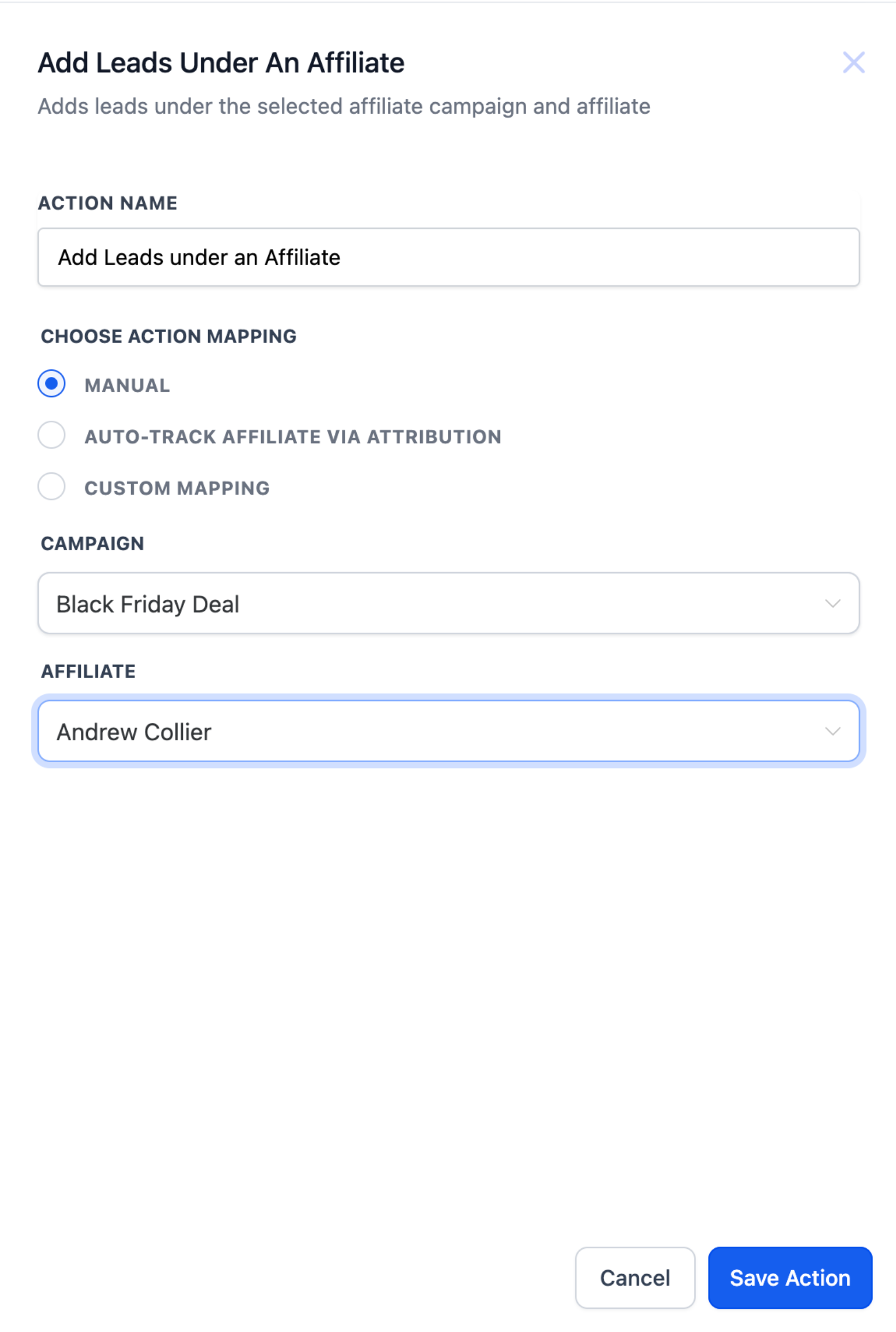
1. Manual : Manually assign a lead to a known affiliate in a specific campaign.
Best for: Form submissions, internal routing, admin decisions.
Steps:
- Select campaign
- Select affiliate (from affiliates in that campaign)
2. Auto (Attribution via URL) : Automatically assign leads using am_id passed in the URL parameters.
Supports first or last click attribution.
Steps:
- Choose Attribution Method: First / Last
- Make sure
am_idis passed earlier in the funnel (e.g., form/page URL)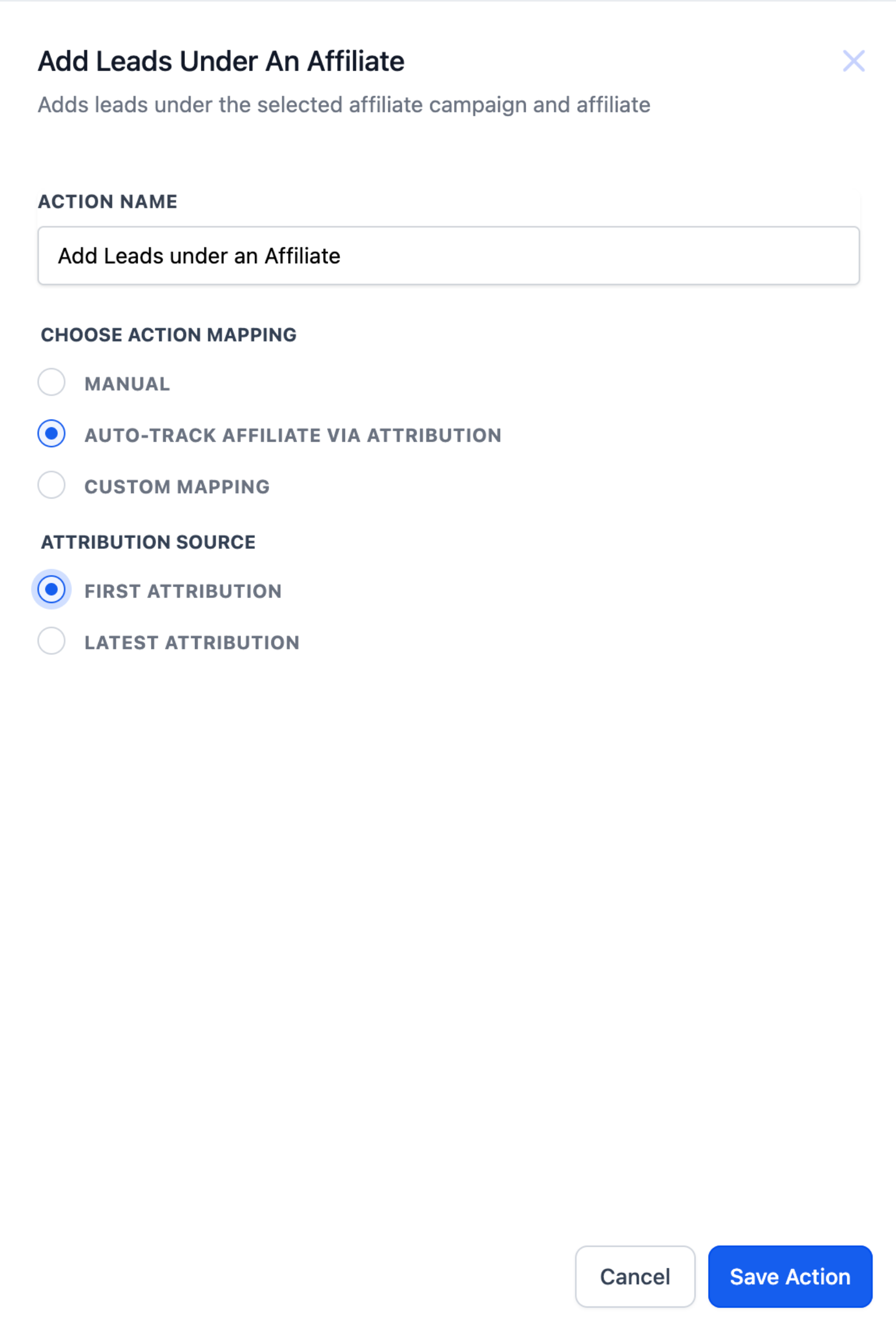
3. Custom Mapping : Use if am_id is stored in a custom field or passed as a workflow value.
Best for: API pushes, third-party systems, hidden fields on forms.
Steps:
- Choose mapping source: custom field or workflow value
- System reads value and assigns the lead to the matching affiliate
Use Cases #
- Reward Lead Generation
Example: A lead fills a form → system assigns them to the affiliate who shared the link → sends a “Congrats!” email. - Custom Lead Nurturing
Example: Leads from a funnel are assigned to specific affiliates for 1-on-1 follow-up — boosting conversion rates. - Simplify Administrative Tasks
Example: Replace manual lead assignments with automation — perfect for busy teams managing many affiliates.


